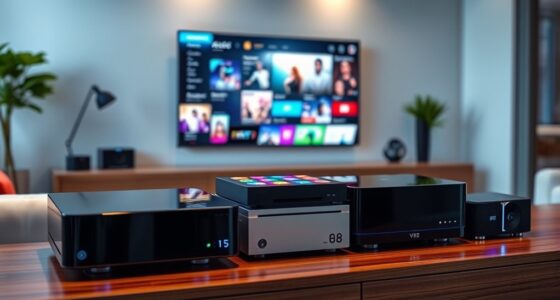

For most developers, I’d start with the Anker 13-in-1 USB-C Laptop Docking Station with Triple Display Support: it balances a broad port selection with a setup suited to multi-screen work. The Plugable 13-in-1 Triple Monitor Dock stands out for its 100W charging, while the Anker Nano 8-in-1 is a more compact choice for simpler desks. The main tradeoffs are monitor compatibility, host-laptop charging, and whether you want a full-time dock or a hub you can carry. Check your laptop’s display capabilities before choosing, since a dock’s port count alone does not guarantee the display setup you expect. Read on for the full breakdown and a pick for different developer workflows.

Get business pricing on monitors, keyboards and dev gear
- Business-only prices and quantity discounts
- Tax-exempt purchasing
- Multiple users, one account, clear invoices
Key Takeaways
- The Anker 13-in-1 Triple Display Dock is the strongest all-round starting point in this lineup for developers who want multiple displays and a broad set of desk connections without choosing the largest dock.
- Plugable’s 13-in-1 triple-monitor model makes charging a clear part of its appeal with 100W power delivery; buyers should still verify how much power reaches their laptop after the dock’s own needs.
- The Anker Nano 8-in-1 and PowerExpand 8-in-1 favor portability over desk expansion, making them better fits for occasional peripherals and travel than permanent, crowded workstations.
- More ports do not automatically mean a better developer dock: the TobenONE 19-in-1 is the broadest-connectivity option, but buyers should match its extra connections to devices they actually use.
- Display labels need a laptop-side check: models advertising triple displays or dual HDMI may rely on host support or specific display technology, so confirm operating-system and laptop compatibility before buying.
| Acer 11-in-1 USB-C Docking Station for Triple Displays |  | Best for Triple-Display Linux Setups | Total ports: 11 | Display outputs: 2 HDMI up to 4K at 60Hz; 1 DisplayPort up to 8K at 30Hz | Triple-display support: Up to 4K at 60Hz + 4K at 60Hz + 1080p at 60Hz | VIEW LATEST PRICE | See Our Full Breakdown |
| 14-in-1 USB-C Laptop Docking Station with Dual HDMI and DisplayPort |  | Best for Port Variety | Total ports: 14 | Video outputs: 2 HDMI and 1 DisplayPort | Single-display maximum: Up to 4K at 60Hz via HDMI 1 or DisplayPort | VIEW LATEST PRICE | See Our Full Breakdown |
| Anker Nano 8-in-1 USB-C Hub with Dual HDMI |  | Best Compact Pick | Total ports: 8 | Video outputs: 2 HDMI, up to dual 4K at 60Hz on compatible Windows devices | USB data ports: 2 USB-A and 2 USB-C, up to 10Gbps | VIEW LATEST PRICE | See Our Full Breakdown |
| Acer 13-in-1 USB-C Docking Station with Triple Display Support |  | Best Ready-to-Desk Windows Dock | Connectivity: 2 HDMI, 1 DisplayPort 1.4, 4 USB-C, 3 USB-A, Gigabit Ethernet, 3.5 mm AUX, SD, and microSD | Display support: Up to three independent displays on compatible Windows laptops | Triple-display maximum: Triple 4K at 30Hz with a compatible DSC-enabled host | VIEW LATEST PRICE | See Our Full Breakdown |
| TobenONE 19-in-1 Laptop Docking Station with Dual 4K HDMI |  | Best for USB-Heavy Workstations | Total ports: 19 | USB ports: 10 | Video outputs: 2 HDMI; supports dual 4K | VIEW LATEST PRICE | See Our Full Breakdown |
| LIONWEI 13-in-1 USB-C Docking Station with Dual HDMI and DisplayPort |  | Best for Windows Multi-Monitor Desks | Ports: 13 total | USB ports: 8 | Display outputs: 2 HDMI and 1 DisplayPort | VIEW LATEST PRICE | See Our Full Breakdown |
| Anker Nano 13-in-1 Laptop Docking Station with Detachable 6-in-1 USB-C Hub |  | Best for Desk-to-Travel Workflows | Ports: 13 total | USB ports: 5 | Display outputs: 2 HDMI and 1 DisplayPort | VIEW LATEST PRICE | See Our Full Breakdown |
| Anker 13-in-1 USB-C Laptop Docking Station with Triple Display Support |  | Best for Windows and ChromeOS Triple-Display Setups | Ports: 13-in-1 | Display outputs: 2 HDMI and 1 DisplayPort | Display support: Triple 1080p at 60Hz or single 4K at 60Hz | VIEW LATEST PRICE | See Our Full Breakdown |
| Anker Prime 14-in-1 Docking Station with Dual HDMI Displays |  | Best for Charging Multiple Devices | Connectivity: 14-in-1 with 10 USB ports | Total output: Up to 160W | USB-C charging: Up to 100W per port | VIEW LATEST PRICE | See Our Full Breakdown |
| Plugable USB-C Triple Monitor Docking Station, 13-in-1 with 100W Charging |  | Best for macOS Multi-Display Workflows | Ports: 13 total | Video outputs: 3 HDMI | Display resolutions: HDMI 1 up to 4K at 30Hz; HDMI 2 and 3 up to 1920×1200 at 60Hz | VIEW LATEST PRICE | See Our Full Breakdown |
| Anker 565 11-in-1 USB-C Hub with Dual 4K HDMI and DisplayPort |  | Best for Mixed-Peripheral Workstations | Ports: 11 | Video outputs: HDMI and DisplayPort | Dual-display resolution: Up to 2K at 60 Hz with DP 1.4; up to 1080p at 60 Hz with DP 1.2 | VIEW LATEST PRICE | See Our Full Breakdown |
| Acer 9-in-1 USB-C Docking Station with Dual HDMI |  | Best for 4K Dual-HDMI Setups | Ports: 9 | Video outputs: 2 HDMI | HDMI resolution: Up to 4K at 60Hz | VIEW LATEST PRICE | See Our Full Breakdown |
| Selore 14-in-1 USB-C Docking Station with Dual HDMI and VGA |  | Best for Legacy Display Connections | Ports: 14 | Video outputs: 2 HDMI and 1 VGA | USB data rate: Up to 10 Gbps | VIEW LATEST PRICE | See Our Full Breakdown |
| Anker PowerExpand 8-in-1 USB-C Hub with Dual HDMI |  | Best Compact Desk Companion | Ports: 8 | HDMI outputs: 2 | Display support: One display up to 4K 60Hz; two displays up to 4K 30Hz | VIEW LATEST PRICE | See Our Full Breakdown |
| Plugable USB-C Triple Display Docking Station with 100W Power Delivery |  | Best for Three-Display Windows Workstations | Total ports: 9 | Display outputs: 3 HDMI | Display configuration: 1 × 4K at 30Hz and 2 × 1080p at 60Hz | VIEW LATEST PRICE | See Our Full Breakdown |
| USB C docking stations for developer | Compatibility | Laptop charging | Ports |
|---|---|---|---|
| Acer 11-in-1 USB-C Docking Sta | Thunderbolt 3/4/5 or full-featured USB-C; Chrome OS, Linux, Windows, and macOS | Up to 85W output; requires up to 100W input | — |
| 14-in-1 USB-C Laptop Docking S | USB-C or Thunderbolt 3/4/5 laptops with video output support | Up to 87W output from up to 100W power input | — |
| Anker Nano 8-in-1 USB-C Hub wi | Windows 10/11, ChromeOS, and macOS; requires DP Alt Mode and Power Delivery; Linux not supported | Up to 85W pass-through with 100W PD input | — |
| Acer 13-in-1 USB-C Docking Sta | — | Up to 100W USB-C Power Delivery | — |
| TobenONE 19-in-1 Laptop Dockin | Windows 10 or newer, ChromeOS 100.x or newer, Android 7.1 or newer, Ubuntu 20.04 or later | Up to 100W pass-through | — |
| LIONWEI 13-in-1 USB-C Docking | Windows and macOS | 100W Power Delivery input; up to 87W available for laptop | 13 total |
| Anker Nano 13-in-1 Laptop Dock | — | Up to 100W Power Delivery | 13 total |
| Anker 13-in-1 USB-C Laptop Doc | Windows 10/11 and ChromeOS; Mac supports charging and data but mirrors displays | — | 13-in-1 |
| Anker Prime 14-in-1 Docking St | — | — | — |
| Plugable USB-C Triple Monitor | Windows 10+, macOS 11+, and ChromeOS; compatible USB-C, USB4, and Thunderbolt systems | Up to 100W | 13 total |
| Anker 565 11-in-1 USB-C Hub wi | USB-C, USB4, and Thunderbolt; macOS, Windows 10 and 11, and ChromeOS | — | 11 |
| Acer 9-in-1 USB-C Docking Stat | USB-C with DisplayPort Alt Mode; Windows and macOS | Up to 90W; requires a compatible 100W-or-higher power adapter | 9 |
| Selore 14-in-1 USB-C Docking S | — | — | 14 |
| Anker PowerExpand 8-in-1 USB-C | USB-C, USB4, and Thunderbolt; compatible Windows 10 and 11, ChromeOS, and supported DP Alt Mode and Power Delivery laptops | — | 8 |
| Plugable USB-C Triple Display | Compatible USB-C, USB4, and Thunderbolt systems running Windows, macOS 11+, or ChromeOS 100+ | — | — |
More Details on Our Top Picks
Acer 11-in-1 USB-C Docking Station for Triple Displays
The Acer 11-in-1 is the strongest fit here for developers who want three external displays and need Linux compatibility listed explicitly. With two HDMI outputs, DisplayPort, Gigabit Ethernet, card readers, and up to 85W laptop charging, it can anchor a desk setup without sacrificing common peripherals. Its triple-display ceiling of 4K, 4K, and 1080p gives code, documentation, and test output their own screens, though the host must support the dock’s display and power features. Compared with the Acer 13-in-1, this model is less elaborate and does not include a power adapter, but its stated Linux support gives it a clearer case for cross-platform development. The main caveat for Mac users is that external displays mirror rather than extend the desktop.
Pros:- Supports three external displays, up to 4K, 4K, and 1080p
- Lists Linux, Windows, macOS, and Chrome OS compatibility
- Combines Gigabit Ethernet, SD and microSD readers, and multiple USB ports
- Delivers up to 85W laptop charging with a suitable 100W adapter
Cons:- Mac external displays mirror the same content rather than extending the desktop
- Power adapter and cable are not included
- Triple-display operation depends on a compatible host port and graphics support
Best for: Linux or Windows developers with a compatible USB-C or Thunderbolt laptop who want three external displays, Ethernet, and card readers.
Not ideal for: Mac developers who need separate extended desktops, or buyers who want a dock with its power adapter and cable included.
- Total ports:11
- Display outputs:2 HDMI up to 4K at 60Hz; 1 DisplayPort up to 8K at 30Hz
- Triple-display support:Up to 4K at 60Hz + 4K at 60Hz + 1080p at 60Hz
- USB ports:2 USB-C at 10Gbps; 2 USB-A at 5Gbps
- Ethernet:1Gbps RJ45
- Card readers:SD and microSD, up to 104Mbps
- Laptop charging:Up to 85W output; requires up to 100W input
- Compatibility:Thunderbolt 3/4/5 or full-featured USB-C; Chrome OS, Linux, Windows, and macOS
Our verdict“Choose this Acer if you want a three-screen Linux or Windows workstation and can supply the required power adapter.”
14-in-1 USB-C Laptop Docking Station with Dual HDMI and DisplayPort
This 14-port dock suits developers who connect a changing mix of peripherals: it includes three video outputs, USB data ports, Ethernet, SD and microSD readers, and a 3.5 mm audio jack. That spread makes it more adaptable than the compact Anker Nano 8-in-1, especially for a desk shared between coding, calls, and device transfers. The tradeoff is that three video connectors do not mean three high-resolution extended displays: the listed maximum of 4K at 60Hz applies to a single display, and multi-monitor modes have lower resolution limits. It offers up to 87W charging from a 100W input, but the adapter and cable are not included. MacBook users should also expect mirrored external screens, not separate workspaces.
Pros:- Offers 14 ports, including HDMI, DisplayPort, Ethernet, card readers, and audio
- Supports USB data transfer rates up to 10Gbps
- Provides Gigabit Ethernet for a wired network connection
- Aluminum enclosure and up to 87W laptop charging
Cons:- Power adapter and cable are not included
- Multi-display resolution is lower than the single-display maximum
- MacBook external displays mirror the same image
Best for: Developers who want one desk dock for varied USB devices, wired networking, card transfers, audio, and flexible display connections.
Not ideal for: MacBook users who need multiple extended desktops, or anyone expecting every connected monitor to run at the single-display maximum.
- Total ports:14
- Video outputs:2 HDMI and 1 DisplayPort
- Single-display maximum:Up to 4K at 60Hz via HDMI 1 or DisplayPort
- USB data rate:Up to 10Gbps
- Laptop charging:Up to 87W output from up to 100W power input
- Ethernet:10/100/1000 Mbps
- Card readers and audio:SD and microSD; 3.5 mm microphone/audio jack
- Compatibility:USB-C or Thunderbolt 3/4/5 laptops with video output support
Our verdict“Pick this dock if you value a broad mix of desk connections more than high-resolution multi-monitor output.”
Anker Nano 8-in-1 USB-C Hub with Dual HDMI
The Anker Nano 8-in-1 is the portable choice for developers who need two monitors and fast USB data without carrying a full-size dock. It supports dual 4K at 60Hz on compatible Windows systems, alongside four USB data ports and SD/TF readers, in a 3.84-ounce package. That makes it easier to move between a home setup and a shared office than the desk-focused Acer 13-in-1, which adds more connections and includes a power adapter. This hub gives up Linux support and its macOS displays mirror the same content, so it is a poor match for developers relying on either setup for extended desktops. Full laptop charging also needs a separately supplied 100W PD input, so portability does not mean a complete out-of-box power kit.
Pros:- Supports dual 4K at 60Hz on compatible Windows devices
- Four USB data ports support speeds up to 10Gbps
- Includes SD and TF 3.0 card readers
- Compact 3.84-ounce design with up to 85W pass-through charging
Cons:- Linux is not supported
- macOS external displays mirror the same content
- Charger and cable for full pass-through charging are sold separately
Best for: Windows developers who travel between workspaces and want a lightweight hub for dual 4K monitors, USB peripherals, and card transfers.
Not ideal for: Linux users, or Mac developers who need independent extended displays rather than mirrored screens.
- Total ports:8
- Video outputs:2 HDMI, up to dual 4K at 60Hz on compatible Windows devices
- USB data ports:2 USB-A and 2 USB-C, up to 10Gbps
- Card readers:SD and TF 3.0, up to 104MB/s
- Laptop charging:Up to 85W pass-through with 100W PD input
- Compatibility:Windows 10/11, ChromeOS, and macOS; requires DP Alt Mode and Power Delivery; Linux not supported
- Dimensions:7.87 × 4.13 × 0.79 in
- Weight:3.84 oz
Our verdict“Choose the Anker Nano if your Windows development setup needs dual 4K screens in a compact travel hub.”
Acer 13-in-1 USB-C Docking Station with Triple Display Support
For a Windows developer building a fixed workstation, the Acer 13-in-1 has the most complete power setup in this group: its 110W adapter is included, and the dock can supply up to 100W to the laptop. It also offers three independent displays on compatible systems, plus Ethernet, audio, card readers, and a large set of USB connections. Compared with the Acer 11-in-1, it adds ports and removes the need to source a separate power adapter, but its triple-4K-at-30Hz mode depends on a DSC-enabled laptop and GPU. The rear USB-C port is data-only, so it cannot serve as another display or charging connection. Mac users should skip it for multi-monitor extended desktops, since macOS mirrors the displays.
Pros:- Includes a 110W adapter and delivers up to 100W laptop charging
- Supports up to three independent displays on compatible Windows laptops
- Adds Ethernet, audio, card readers, and multiple USB connections
- Aluminum body includes a security lock slot
Cons:- Triple 4K at 30Hz requires a compatible DSC-enabled host and GPU
- macOS supports mirroring rather than extended desktops
- Rear USB-C port supports data only, not video output or charging
Best for: Windows developers setting up a permanent desk who want three independent displays and an included high-capacity power adapter.
Not ideal for: Mac developers who need extended desktops, or buyers whose laptop lacks the DSC support required for triple 4K output.
- Connectivity:2 HDMI, 1 DisplayPort 1.4, 4 USB-C, 3 USB-A, Gigabit Ethernet, 3.5 mm AUX, SD, and microSD
- Display support:Up to three independent displays on compatible Windows laptops
- Triple-display maximum:Triple 4K at 30Hz with a compatible DSC-enabled host
- Laptop charging:Up to 100W USB-C Power Delivery
- Included adapter:110W
- Host connection:USB-C
- Body and security:Aluminum body with security lock slot
- Compatibility note:macOS supports mirroring; display functions depend on host compatibility
Our verdict“Choose this Acer for a Windows desk that needs three screens and an included adapter, provided the laptop supports its display mode.”
TobenONE 19-in-1 Laptop Docking Station with Dual 4K HDMI
The TobenONE 19-in-1 is aimed at developers whose desks accumulate devices: ten USB ports sit alongside dual 4K HDMI, Gigabit Ethernet, card slots, and audio. That unusually high USB count makes it a better match than the 14-in-1 dock for connecting several peripherals at once, such as input devices, storage, and development hardware, without relying on extra hubs. It also supports up to 100W pass-through charging over a single host cable. The tradeoff is a separately purchased 65W-or-higher power adapter, and the listed compatibility omits Mac, so Apple laptop users should look elsewhere. Its dual-4K claim also does not specify refresh rates in the supplied product data, making it harder to judge for high-refresh display workflows.
Pros:- Provides 19 ports, including 10 USB ports
- Supports two 4K HDMI displays
- Offers up to 100W pass-through charging
- Includes Gigabit Ethernet and SD/microSD card slots
Cons:- Requires a 65W-or-higher power adapter, sold separately
- Mac compatibility is not recommended
- Dual-4K refresh-rate details are not specified in the supplied data
Best for: Windows, ChromeOS, Ubuntu, or Android developers with many USB peripherals who want dual HDMI displays and wired Ethernet at one desk.
Not ideal for: Mac users, or developers who need a specified dual-4K refresh rate or an included power adapter.
- Total ports:19
- USB ports:10
- Video outputs:2 HDMI; supports dual 4K
- Laptop charging:Up to 100W pass-through
- Required power adapter:65W or higher; not included
- Host connection:USB-C, USB4, Thunderbolt 3, or Thunderbolt 4
- Compatibility:Windows 10 or newer, ChromeOS 100.x or newer, Android 7.1 or newer, Ubuntu 20.04 or later
- Dimensions:4.9 × 3.5 × 1.6 in
Our verdict“Pick the TobenONE if your compatible non-Mac workstation needs many USB connections and dual HDMI more than a bundled power supply.”
LIONWEI 13-in-1 USB-C Docking Station with Dual HDMI and DisplayPort
The LIONWEI is a strong fit for developers who want three display connections and plenty of desk peripherals on one dock. On compatible Windows laptops, its two HDMI ports and DisplayPort support triple-display setups, while Gigabit Ethernet, eight USB ports, and an audio jack reduce the need for extra adapters. Compared with the Anker Nano 13-in-1, it has a similar broad desktop focus, but the Anker adds a detachable travel hub and can provide up to 100W to the laptop; LIONWEI provides up to 87W because the dock draws part of its 100W input. The larger limitation is platform behavior: macOS extends to only one external monitor, so developers using a Mac should look at a different workflow. Its 4K-at-60Hz support is useful for a primary high-resolution screen, but confirm the host laptop supports the display modes you need.
Pros:- Three display outputs support flexible Windows multi-monitor layouts.
- Eight USB ports, Gigabit Ethernet, and an audio jack cover common desk peripherals.
- Supports up to 4K at 60Hz for a high-resolution main display.
- Up to 87W laptop charging and plug-and-play setup reduce desktop cable clutter.
Cons:- macOS can extend to only one external monitor.
- The dock uses 13W, leaving up to 87W from its 100W input for the laptop.
- Triple-display capability depends on Windows laptop and host-port support.
Best for: Windows developers who keep several monitors, wired networking, and multiple USB peripherals connected at a desk.
Not ideal for: Mac developers who need multiple independently extended external displays, or laptop owners who need the full 100W input available for charging.
- Ports:13 total
- USB ports:8
- Display outputs:2 HDMI and 1 DisplayPort
- Maximum display resolution:Up to 4K at 60Hz
- Laptop charging:100W Power Delivery input; up to 87W available for laptop
- Data transfer:Up to 10Gbps
- Ethernet and audio:Gigabit Ethernet; 3.5mm audio/mic jack
- Compatibility:Windows and macOS
Our verdict“Choose the LIONWEI for a Windows development desk with several displays and peripherals, but skip it if you need Mac multi-monitor extension or higher laptop charging headroom.”
Anker Nano 13-in-1 Laptop Docking Station with Detachable 6-in-1 USB-C Hub
The Anker Nano’s defining advantage is its detachable 6-in-1 hub: developers can leave the 13-in-1 dock wired at a workstation and take a smaller set of connections on the road. It also offers up to 100W laptop charging and three display outputs, with the listed modes scaling from one 4K-at-60Hz screen to three 1080p-at-60Hz screens. That makes it more adaptable than the LIONWEI when moving between desk and travel setups, though LIONWEI’s listed eight USB ports outnumber this model’s five. The main software caveat matters for Mac users: multiple external displays mirror rather than extend, so the extra screens do not create more independent workspace. The dock also needs a laptop connection to activate its ports. Its included adapter and cables make it a ready-made desk setup, but buyers wanting a permanently compact one-piece hub may prefer a simpler option.
Pros:- Detachable 6-in-1 hub supports both desk use and travel.
- Supports up to 100W laptop charging.
- Display modes include single 4K at 60Hz, dual 2K at 60Hz, or triple 1080p at 60Hz.
- Includes a 140W power adapter, USB-C cable, and power cord.
Cons:- Multiple external displays mirror on macOS rather than extending the desktop.
- Dock ports require a connected laptop to become active.
- Five USB ports are fewer than the eight on the LIONWEI dock.
Best for: Developers who split their week between a fixed workstation and travel, and want a detachable hub for lighter mobile carry.
Not ideal for: Mac developers who need separate extended desktops across multiple external monitors, or buyers who want a single compact hub without a desktop dock.
- Ports:13 total
- USB ports:5
- Display outputs:2 HDMI and 1 DisplayPort
- Display modes:Single 4K at 60Hz, dual 2K at 60Hz, or triple 1080p at 60Hz
- Laptop charging:Up to 100W Power Delivery
- Data transfer:Up to 10Gbps
- Network and compatibility:Gigabit Ethernet; USB-C and Thunderbolt 3/4/5 laptops; Windows 10 or later
- Included:140W power adapter, 3ft USB-C cable, and 5ft power cord
Our verdict“Pick the Anker Nano if you need one setup for a permanent desk and lighter travel, provided its macOS display behavior fits your workflow.”
Anker 13-in-1 USB-C Laptop Docking Station with Triple Display Support
This Anker dock suits developers who need three external displays and a compact vertical footprint, especially on Windows or ChromeOS. Its display support is aimed at a practical split: triple 1080p at 60Hz or one 4K screen at 60Hz, rather than several high-resolution panels. The included 135W adapter backs 85W host charging and 18W phone charging, while SD and microSD readers add a handy route for moving files or using removable media. Compared with the Plugable 13-in-1, this model does not specify three extended HDMI displays at differing resolutions; Plugable is more explicit about that setup and works with DisplayLink software for macOS multi-display use. Anker’s Mac support is more limited: external screens mirror, and the dock is primarily designed for Windows and ChromeOS. Check for USB-C DisplayPort Alt Mode and Power Delivery support on the laptop before buying.
Pros:- Supports triple 1080p-at-60Hz displays or a single 4K-at-60Hz display.
- 135W power adapter is included, with up to 85W for the laptop.
- SD and microSD readers help with removable-media workflows.
- Vertical design uses little desk space.
Cons:- macOS external displays mirror rather than extend.
- Triple-display output is limited to 1080p at 60Hz.
- Requires a host USB-C port with DisplayPort Alt Mode and Power Delivery support.
Best for: Windows or ChromeOS developers who want a space-saving desk dock for up to three 1080p monitors, wired networking, and card readers.
Not ideal for: Mac developers needing extended external displays, or users whose host USB-C port lacks DisplayPort Alt Mode and Power Delivery.
- Ports:13-in-1
- Display outputs:2 HDMI and 1 DisplayPort
- Display support:Triple 1080p at 60Hz or single 4K at 60Hz
- Host charging:Up to 85W
- Phone charging:18W
- Data speeds:USB-C up to 10Gbps; USB-A up to 5Gbps
- Other connections:Gigabit Ethernet, SD and microSD readers, and 3.5mm audio
- Compatibility:Windows 10/11 and ChromeOS; Mac supports charging and data but mirrors displays
Our verdict“Choose this Anker for a compact Windows or ChromeOS desk with three 1080p monitors, but choose Plugable if macOS multi-display support is the priority.”
Anker Prime 14-in-1 Docking Station with Dual HDMI Displays
The Anker Prime is the pick here for a developer whose desk has as many charging needs as data connections. It offers 10 USB ports and up to 160W total output, with USB-C ports rated for up to 100W each, making it useful for a laptop plus several accessories or mobile devices. That focus sets it apart from the LIONWEI and Anker Nano, which put more emphasis on three display outputs. The Prime has two HDMI outputs, but its stated limits are more modest: up to 2K at 60Hz with DP 1.4, or 1080p at 60Hz with DP 1.2. macOS mirrors the same image across both external monitors, and Linux is unsupported. At 1.28kg, it is also much less suited to travel than the detachable Anker Nano. Its plastic enclosure and missing Linux support are meaningful compromises for a dock built around a busy multi-device desk.
Pros:- Ten USB ports provide extensive peripheral connectivity.
- Up to 160W total output supports charging several devices at once.
- USB-C ports provide up to 100W per port.
- Includes two HDMI display outputs and a 10Gbps maximum data rate.
Cons:- Linux is not supported.
- macOS mirrors the same image on both external monitors.
- Display output is limited to 2K at 60Hz with DP 1.4 or 1080p at 60Hz with DP 1.2.
- The 1.28kg weight makes it a poor travel choice.
Best for: Windows, ChromeOS, or macOS developers who charge a laptop and several USB devices at the same workstation and need two HDMI outputs.
Not ideal for: Linux developers, users seeking high-resolution external displays, or anyone who needs a lightweight dock for travel.
- Connectivity:14-in-1 with 10 USB ports
- Total output:Up to 160W
- USB-C charging:Up to 100W per port
- USB-A charging:Up to 12W
- Maximum data transfer:Up to 10Gbps
- Display outputs:2 HDMI
- Display support:Up to 2K at 60Hz with DP 1.4; up to 1080p at 60Hz with DP 1.2
- Compatibility and weight:USB-C, USB4, and Thunderbolt; Windows 10/11, ChromeOS, and macOS; Linux unsupported; 1.28kg
Our verdict“Choose the Anker Prime when charging several devices and connecting many USB peripherals matter more than high-resolution multi-monitor output or portability.”
Plugable USB-C Triple Monitor Docking Station, 13-in-1 with 100W Charging
For developers who need multiple extended displays from a Mac, the Plugable is the clearest specialist in this group: it supports up to three extended HDMI displays, with DisplayLink software required on macOS. That software dependency makes it less plug-and-play than the LIONWEI, but it can support a multi-screen workflow where that dock limits macOS to one extended external monitor. Display limits vary by output: HDMI 1 reaches 4K at 30Hz, while HDMI 2 and 3 reach 1920×1200 at 60Hz. It also supplies up to 100W to the laptop and 20W to a USB-C device, plus Gigabit Ethernet, an SD reader, and audio connections. The tradeoff is playback: protected content such as Netflix or Hulu is not supported. Developers who mainly need fast 4K displays should compare the Anker Nano’s single 4K-at-60Hz mode instead.
Pros:- Supports up to three extended HDMI displays.
- Provides up to 100W laptop charging and 20W USB-C device charging.
- Includes Gigabit Ethernet, an SD card reader, and audio input/output.
- Works with compatible Windows, macOS, and ChromeOS systems.
Cons:- Multiple displays on macOS require DisplayLink software.
- Protected-content playback, including Netflix and Hulu, is not supported.
- Only HDMI 1 supports up to 4K, and that output is limited to 30Hz.
Best for: Mac developers who need several extended displays and are comfortable installing DisplayLink software, as well as Windows users wanting multiple HDMI outputs.
Not ideal for: Users who need protected streaming playback through the dock, prefer a software-free setup, or want all three monitors at 4K resolution.
- Ports:13 total
- Video outputs:3 HDMI
- Display resolutions:HDMI 1 up to 4K at 30Hz; HDMI 2 and 3 up to 1920×1200 at 60Hz
- Laptop charging:Up to 100W
- USB-C device charging:20W
- Additional connections:Gigabit Ethernet, SD card reader, and audio input/output
- Compatibility:Windows 10+, macOS 11+, and ChromeOS; compatible USB-C, USB4, and Thunderbolt systems
- macOS and playback notes:DisplayLink software required for multiple displays; protected-content playback unsupported
Our verdict“Choose Plugable if your development workflow needs several extended displays, especially on a Mac, and DisplayLink software and playback limits are acceptable.”
Anker 565 11-in-1 USB-C Hub with Dual 4K HDMI and DisplayPort
The Anker 565 is a strong fit for developers who connect more than monitors: its 11 ports include Gigabit-ready Ethernet, SD and microSD readers, audio, and 10 Gbps USB-C and USB-A data. That mix makes it more useful for moving files, testing wired network connections, and keeping a laptop setup tidy than the smaller Anker PowerExpand 8-in-1. It also supports up to 85W pass-through charging, though you supply the charger.
The display tradeoff matters: dual-display resolution depends on the laptop’s DisplayPort version, and macOS mirrors the external screens rather than extending the desktop across both. Linux developers should skip it because Linux is unsupported. For Windows or ChromeOS users who value broad connectivity over independent dual-monitor output on macOS, it earns its place.
Pros:- 11-port selection includes Ethernet, audio, and SD and microSD readers
- 10 Gbps USB-C and USB-A ports support faster peripheral data transfers
- Supports dual external displays on compatible systems
- Up to 85W pass-through charging reduces the need for a separate laptop connection
Cons:- External displays mirror on macOS
- Charger is sold separately
- Linux is not supported
Best for: Windows or ChromeOS developers who regularly use wired Ethernet, memory cards, audio, and fast USB storage alongside external displays.
Not ideal for: Linux developers and Mac users who need two independent external desktops; Linux is unsupported and macOS mirrors the displays.
- Ports:11
- Video outputs:HDMI and DisplayPort
- Dual-display resolution:Up to 2K at 60 Hz with DP 1.4; up to 1080p at 60 Hz with DP 1.2
- Data transfer:Up to 10 Gbps
- Pass-through charging:Up to 85W
- Card slots:SD and microSD
- Compatibility:USB-C, USB4, and Thunderbolt; macOS, Windows 10 and 11, and ChromeOS
- Dimensions and weight:5.39 × 2.24 × 0.55 in; 4.8 oz
Our verdict“Choose the Anker 565 if your developer setup needs a broad mix of data, network, and card-reader connections, but not Linux support or extended dual displays on macOS.”
Acer 9-in-1 USB-C Docking Station with Dual HDMI
The Acer 9-in-1 makes sense for developers whose desk centers on two HDMI monitors. It supports up to 4K at 60Hz on each HDMI output, a sharper dual-screen target than the Anker PowerExpand 8-in-1, which supports two screens at up to 4K 30Hz. The Acer also pairs those outputs with three USB-A ports, USB-C, SD and microSD readers, and up to 90W laptop charging.
That display promise depends on the laptop: it needs USB-C DisplayPort Alt Mode, and macOS mirrors external screens with additional dual-display limits. Charging also requires a separate 100W-or-higher adapter, while USB data tops out at 5 Gbps. Its short built-in cable suits a close laptop-to-dock layout, but gives less placement freedom than a longer-cabled setup. I’d pick it for supported Windows systems; Mac users should check their exact display configuration first.
Pros:- Two HDMI outputs support up to 4K at 60Hz
- Up to 90W laptop charging with a compatible adapter
- Includes USB-A, USB-C, SD, and microSD connections
- Aluminum body and built-in cable keep the desk setup compact
Cons:- Requires USB-C DisplayPort Alt Mode
- A 100W-or-higher power adapter is not included
- macOS mirrors external displays and has dual-display configuration limits
Best for: Windows developers with a DisplayPort Alt Mode laptop who want two high-resolution HDMI monitors and up to 90W charging from one desk hub.
Not ideal for: Mac developers who need separate content on two external monitors, or anyone lacking a compatible USB-C video port and a suitable power adapter.
- Ports:9
- Video outputs:2 HDMI
- HDMI resolution:Up to 4K at 60Hz
- USB data rate:Up to 5 Gbps
- Laptop charging:Up to 90W; requires a compatible 100W-or-higher power adapter
- Card readers:SD and microSD, up to 104 Mbps
- Compatibility:USB-C with DisplayPort Alt Mode; Windows and macOS
- Cable length and material:0.65 ft built-in cable; aluminum alloy
Our verdict“Pick the Acer if your compatible Windows laptop needs two 4K 60Hz HDMI connections; look elsewhere if your Mac workflow requires independent external screens.”
Selore 14-in-1 USB-C Docking Station with Dual HDMI and VGA
The Selore’s defining advantage is its unusual dual HDMI plus VGA combination. That makes it a practical bridge for developers who move between modern monitors and older projectors or lab displays; the Acer 9-in-1, by comparison, offers two HDMI outputs but no VGA. Selore also gathers Ethernet, audio, card readers, and USB data connections in one 14-port unit, with USB data speeds up to 10 Gbps.
Its flexibility is conditional: video requires a compatible USB-C DisplayPort Alternate Mode or Thunderbolt host, and supported display modes vary by computer and operating system. Mac support is limited to mirroring, with stated exceptions for M1 and M2 devices, so buyers should confirm their exact setup. The plastic enclosure is less premium than the aluminum Acer, and the 87W maximum charging output sits below its 100W input. Choose it for connection variety, not guaranteed triple-display independence.
Pros:- Dual HDMI and VGA support a mix of modern and legacy displays
- Combines Ethernet, audio, card readers, and USB connections
- USB data transfer reaches up to 10 Gbps
- Plug-and-play operation requires no driver installation
Cons:- Display modes depend on the host device and operating system
- Mac display support is limited to mirror mode, with stated M1 and M2 exceptions
- Plastic enclosure and 87W maximum charging output are less substantial than some alternatives
Best for: Developers who present, troubleshoot, or work in labs with a mix of HDMI monitors and older VGA displays, plus wired network and audio needs.
Not ideal for: Mac developers who require extended multi-monitor desktops, or anyone whose laptop lacks USB-C DisplayPort Alternate Mode or Thunderbolt video support.
- Ports:14
- Video outputs:2 HDMI and 1 VGA
- USB data rate:Up to 10 Gbps
- Card-reader rate:Up to 200 Mbps
- Ethernet:1000 Mbps
- Power delivery:Up to 100W input; charging output up to 87W
- Audio:3.5 mm port
- Host compatibility:USB-C with DisplayPort Alternate Mode or Thunderbolt
- Enclosure:Grey plastic
Our verdict“Choose the Selore when VGA compatibility and a wide range of connections matter more than predictable multi-monitor behavior across operating systems.”
Anker PowerExpand 8-in-1 USB-C Hub with Dual HDMI
The Anker PowerExpand 8-in-1 is the compact choice for developers who want display, network, and card-reader connections without the larger spread of ports found on the Anker 565. It combines two HDMI outputs with Ethernet, USB-A, USB-C Power Delivery pass-through, and SD and microSD readers in a body weighing 3.2 ounces. For a single external monitor it supports up to 4K at 60Hz; two displays run at up to 4K 30Hz, making it less suited to demanding dual-screen work than the Acer 9-in-1’s stated 4K 60Hz dual-HDMI support.
The tradeoffs narrow its audience: macOS mirrors both external monitors, Linux is unsupported, and charging needs a separate 100W charger and USB-C cable. It’s a tidy travel or hot-desk companion, but developers needing faster peripheral ports or broader OS support should compare the Anker 565 instead.
Pros:- Compact 3.2-ounce design is easy to carry between desks
- Combines dual HDMI, Ethernet, USB-A, and SD and microSD readers
- Supports one external display at up to 4K 60Hz
- Provides up to 85W USB-C pass-through charging with a compatible charger and cable
Cons:- Two external displays are limited to up to 4K 30Hz
- External monitors mirror on macOS
- Linux is unsupported, and the charger and USB-C cable are not included
Best for: Windows or ChromeOS developers who want a light, portable hub for one high-resolution monitor, wired Ethernet, and occasional card access.
Not ideal for: Linux users, Mac users who need two independent external screens, and developers who want the wider port selection of the Anker 565.
- Ports:8
- HDMI outputs:2
- Display support:One display up to 4K 60Hz; two displays up to 4K 30Hz
- USB-A data ports:2
- Pass-through charging:Up to 85W
- Ethernet:1Gbps
- Card readers:SD and microSD
- Dimensions and weight:4.65 × 2.01 × 0.69 in; 3.2 oz
- Compatibility:USB-C, USB4, and Thunderbolt; compatible Windows 10 and 11, ChromeOS, and supported DP Alt Mode and Power Delivery laptops
Our verdict“Choose this Anker for a compact everyday hub and a strong single-monitor setup, but pick the Acer 9-in-1 if dual 4K 60Hz output is your priority.”
Plugable USB-C Triple Display Docking Station with 100W Power Delivery
For developers who need three external screens, the Plugable gives a clear workstation-first alternative to the Selore 14-in-1: it offers three HDMI outputs, six USB ports, Gigabit Ethernet, audio, and up to 100W host charging. Its display allocation is specific—one screen at 4K 30Hz and two at 1080p 60Hz—so it suits dashboards, terminals, documentation, and test windows better than a desk built around three high-resolution panels.
The OS and media limits deserve attention. Linux is unsupported, HDCP is not supported, and macOS requires driver installation. That makes this a more specialized pick than the Selore, which includes VGA and card readers but varies its display modes by host. If you use a compatible Windows system and value three HDMI connections over card slots or Linux support, the Plugable is the more direct fit.
Pros:- Supports up to three external HDMI displays
- Provides up to 100W USB-C Power Delivery
- Six USB ports plus Gigabit Ethernet and audio suit a fixed workstation
- Works with compatible Windows, macOS, and ChromeOS systems
Cons:- Three-display output is limited to one 4K 30Hz screen and two 1080p 60Hz screens
- Linux and HDCP are not supported
- macOS requires driver installation
Best for: Windows developers who keep several code, terminal, documentation, and monitoring windows visible across three external HDMI displays.
Not ideal for: Linux developers, users who need HDCP-protected content, and macOS users who prefer a dock that works without installing a driver.
- Total ports:9
- Display outputs:3 HDMI
- Display configuration:1 × 4K at 30Hz and 2 × 1080p at 60Hz
- USB ports:6
- Power delivery:Up to 100W
- Ethernet:Gigabit Ethernet
- Compatibility:Compatible USB-C, USB4, and Thunderbolt systems running Windows, macOS 11+, or ChromeOS 100+
- Limitations:Linux and HDCP are not supported; macOS requires driver installation
- Dimensions and weight:3.3 × 7.9 × 1.2 in; 332 g
Our verdict“Choose the Plugable for a compatible Windows workstation that needs three HDMI displays and 100W charging, but skip it if Linux, HDCP, or driver-free Mac setup is required.”

How We Picked
I ranked these docks around developer desk needs: reliable connection to an external monitor setup, useful ports for keyboards, storage and networking, laptop charging, and practical fit for a permanent desk or mobile workspace. Product names and advertised features help distinguish intended use, but they do not replace checking a specific laptop’s USB-C capabilities, operating system, display limits, or charging requirements.
The ranking favors useful balance over the largest number on a port list. Models with triple-display positioning, broad connectivity, or explicit 100W charging rise for demanding desk setups; smaller Anker hubs rank better for portability and simpler needs. I also weigh the tradeoff each design implies: a specialist display dock can be less flexible, and a feature-rich dock can be more than a single-laptop setup needs. Since the supplied product information does not establish every compatibility detail, I call out where buyers should verify the host device before purchase.
Factors to Consider When Choosing USB C Docking Stations For Developers
I’d choose a dock by starting with the laptop and the desk—not by counting ports. These decisions help avoid the most common mismatch: buying a dock that appears to support a display or charging setup the computer itself cannot deliver.
Match the Dock to Your Laptop’s Display Support
Before comparing monitor ports, check what your laptop can send over its USB-C connection. USB-C describes the connector, not a guaranteed set of video features, and different laptops may support different numbers of external displays or rely on different display technologies. This matters most with triple-display docks, whose advertised screen count may depend on the computer, operating system, or driver support. If you use a managed work laptop, check whether installing display drivers is permitted. Also confirm the resolution and refresh rate you need for each screen; a headline such as “triple display” does not specify every combination. Paying for extra video outputs is poor value if your host device cannot use them.
Calculate Charging Needs From the Laptop, Not the Dock Label
A dock’s power-delivery figure describes its charging capability, but the laptop’s own adapter requirement still sets the target. Compare the dock’s stated output with the wattage your computer expects, especially if you compile code, run virtual machines, or attach power-hungry devices while working. A dock may also reserve some power for itself or connected peripherals, so the amount reaching the laptop can differ from the headline figure. If the dock falls short, the computer may charge slowly or lose charge under sustained load. Keeping the laptop’s original charger connected can solve that problem, but it adds another cable and may make a one-cable desk less tidy. For developers who move between desks, decide whether that convenience is worth the power tradeoff.
Choose Ports for Your Actual Peripherals
List the devices that stay connected: monitors, keyboard, mouse, external SSDs, wired network, headset, and any development hardware. Then check the dock’s port types and count against that list, including whether fast storage needs a particular USB speed. Port totals can obscure important differences: several low-speed connections are not a substitute for the one high-speed port a working drive needs. Leave room for a device you may add, but avoid paying for a long list of connections with no place in your workflow. If you regularly connect cameras, serial adapters, or test devices, physical access to ports can matter as much as their number. A hub with fewer, well-chosen connections may be easier to carry and use than a large dock built for a permanent desk.
Treat Operating-System and Driver Compatibility as a Purchase Check
Developers often use work-issued laptops, dual-boot systems, or more than one operating system, so compatibility deserves a direct check before buying. Some multi-monitor docks may use display technology that depends on drivers, and that can conflict with locked-down machines or a preferred Linux setup. Look for confirmation for your exact laptop model and operating system rather than assuming that a matching USB-C port is enough. If you need the same dock to work across several computers, prioritize a setup that supports each one without special software. A single-screen workflow has fewer compatibility demands, so a simpler hub can be the safer choice. This check can matter more than adding another HDMI or DisplayPort connector.
Decide Whether You Need a Desk Dock or a Travel Hub
A full-time desk dock earns its place by keeping monitors and peripherals connected, while a compact hub is easier to pack and move between workspaces. Think about how often you unplug the system and whether your external screens live in one location. A detachable hub design can bridge those use cases, but it may not replace a dedicated dock if you need many permanent connections. Larger port arrays are useful when they remove adapters and cable changes; they are clutter if the dock rarely leaves its box. Developers who work from several locations should also check the dock’s size, cable arrangement, and whether its power supply adds another item to carry. Pick for the least convenient place you regularly work, not only your primary desk.
Plan for Display Expansion, Not Just Today’s Setup
It is easy to buy for the two screens already on a desk and overlook a future monitor, but extra outputs only help when the laptop can drive them. Decide whether you need independent extended desktops, mirrored screens, or simply more physical display connections; these are not interchangeable outcomes. Check how the dock handles the displays you plan to use together, including resolution and refresh requirements. If your workspace changes often, a dock with a flexible mix of HDMI and DisplayPort can be more useful than one built around a single connector type. On the other hand, developers working on one external screen may get a simpler, more portable setup from an 8-in-1 hub. The right choice is the smallest dock that supports your real screen plan with room for a likely change.
Frequently Asked Questions
Will a triple-display USB-C dock work with any laptop that has USB-C?
No. A USB-C socket alone does not confirm that a laptop supports video output, multiple external displays, or the particular display method used by a dock. Check the laptop’s specifications and the dock’s compatibility details for your operating system and exact model. Pay attention to whether the dock requires display drivers, especially on managed work devices or Linux systems. Also check the total resolution and refresh-rate combination you want to run. If the information is unclear, a two-display or single-display setup may be a safer match than buying around the dock’s maximum screen count.
Should I choose 100W charging if my laptop already has its own charger?
Not automatically. The main benefit is reducing desk cables by charging the laptop through the dock, but the dock’s available output should match the computer’s power needs. Heavy compilation, virtual machines, and attached devices can raise the laptop’s demand, so a lower-output dock may not keep pace under load. Check the dock’s laptop-facing power specification rather than relying only on a general power-delivery label. If you are comfortable leaving the original charger connected, charging capacity can be a lower priority than display support or data ports. For a one-cable desk, stronger charging is more valuable.
Do I need a dock with DisplayLink or special drivers for multiple monitors?
That depends on the laptop’s native display support and the dock’s design. Some docks can add display connections through driver-dependent technology, while others rely on the video capabilities built into the computer. Driver-based options may help with certain multi-monitor setups, but they can be unsuitable for locked-down systems, some Linux workflows, or users who prefer not to install additional software. Check the product documentation for the display method and supported operating systems before deciding. If you need consistent behavior across several machines, favor a dock confirmed for each computer rather than assuming one approach works everywhere.
Is a 19-in-1 dock a better choice for a developer than an 8-in-1 hub?
Only if your workstation will use the extra connections. A dock such as the TobenONE 19-in-1 is aimed at a desk with many peripherals, while the Anker Nano 8-in-1 and PowerExpand 8-in-1 suit simpler or more mobile setups. Count the devices that need to stay connected and check their required port types and speeds; the total port number cannot tell you whether the right connections are present. A larger unit can reduce adapter juggling, but it may add bulk and unnecessary complexity. If you mainly connect one monitor, storage, and input devices, a compact hub can be the more sensible fit.
What should I check before using one dock with both a Mac and a Windows laptop?
Verify display support separately for each computer, since the same dock can behave differently across operating systems and laptop models. Check how many external displays each host can drive, whether special drivers are required, and which resolutions and refresh rates are supported. Compare charging needs too; one laptop may accept dock charging while the other needs its own adapter. Confirm that the dock’s data ports, wired networking, and other features work on both systems, not just one. If either machine is managed by an employer, ask whether driver installation or accessory software is allowed before making the dock your shared desk connection.
Conclusion
For the broadest developer desk setup, my best overall pick is the Anker 13-in-1 USB-C Laptop Docking Station with Triple Display Support, subject to confirming your laptop’s display limits. The best value in practical versatility is the Anker Nano 13-in-1 with Detachable 6-in-1 USB-C Hub for someone who wants a desk setup and a more portable component in one arrangement. For a best premium-style, maximum-connectivity choice, I’d look at the TobenONE 19-in-1 if its extra ports match a crowded workstation. The best option for beginners is the Anker Nano 8-in-1, which keeps the choice simpler for a basic setup. For developers who specifically want triple-monitor positioning with advertised 100W charging, compare the two Plugable triple-display docks and verify host compatibility and laptop power needs before choosing. If portability matters more than a permanent multi-screen desk, start with one of the compact Anker hubs instead.
Fall Picks
fall essentials
As an affiliate, we earn on qualifying purchases.