
To scan your notes and make them usable, choose a scanning app that fits your needs, like CamScanner or Adobe Scan. Guarantee good lighting when capturing images of your notes laid flat. Use features like OCR to extract text, and organize your files into folders with descriptive names for easy access. You can also annotate and highlight important sections to engage with the material better. Ready to discover even more tips to enhance your study experience?

Get business pricing on monitors, keyboards and dev gear
- Business-only prices and quantity discounts
- Tax-exempt purchasing
- Multiple users, one account, clear invoices
Key Takeaways
- Choose a scanning app that meets your needs, such as CamScanner or Adobe Scan, for effective note digitization.
- Ensure proper lighting and flat positioning of notes to enhance text recognition during the scanning process.
- Organize scanned files into subject folders with descriptive names for quick and easy retrieval.
- Utilize annotation features in scanning apps to engage with your material and enhance study sessions.
- Back up your scanned notes in cloud storage like Google Drive to ensure safety and accessibility across devices.
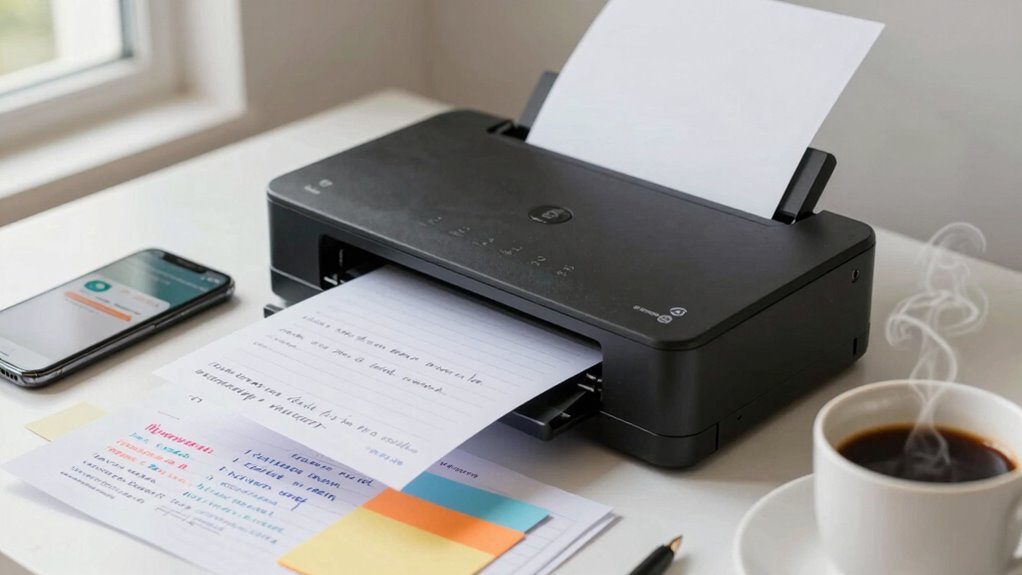
Scanning your notes can save you time and make studying a breeze. Instead of sifting through piles of paper, you can quickly access everything you need right on your device. The key is to use the right scanning apps that streamline the process and help you with digital organization. It’s all about making your notes more usable and easier to find when you need them.
First, choose a scanning app that suits your needs. There are plenty of options available, whether you prefer simple functionality or advanced features. Popular scanning apps like CamScanner, Adobe Scan, or Microsoft Office Lens allow you to capture images of your notes and convert them into PDFs or other formats. Once you’ve selected an app, take a moment to familiarize yourself with its features. Most apps let you enhance the quality of scans, crop images, and even extract text through optical character recognition (OCR). This can be a game-changer when you want to search for specific terms later.
Choose the right scanning app to capture your notes, enhance quality, and utilize OCR for easy searching later.
When you’re ready to scan, make certain your lighting is good and that your notes are laid out flat. This will help the app recognize the text more accurately. After scanning, it’s essential to organize your files digitally. Create folders for different subjects or topics, so you can easily locate your notes later. Name your files descriptively; instead of “Scan001,” you might use “Biology_Chapters_1-3.” This simple step can save you from the frustration of hunting down specific information. Incorporating digital organization techniques can further enhance your ability to retrieve notes efficiently. Additionally, maintaining consistent naming conventions can improve your overall home organization efforts. Using file naming strategies can also streamline your digital filing system and make searching even more efficient.
Once your notes are scanned and organized, consider going a step further. Many scanning apps allow you to annotate or highlight text. You can add comments or mark important points directly on your scanned documents, making it easier to review later. This interactivity can enhance your study sessions, as it encourages you to engage with the material more deeply. It’s also helpful to understand how wellness technology can support your study habits by reducing stress and improving focus. Additionally, understanding home organization techniques can help you keep your physical notes tidy and accessible, complementing your digital efforts.
Finally, don’t forget to back up your scanned notes. Use cloud storage services like Google Drive, Dropbox, or OneDrive to guarantee your notes are safe and accessible from any device. This way, you won’t lose your hard work if something happens to your device. By implementing these strategies, you’ll not only make your notes more usable but also transform your studying experience. Embrace digital organization, and you’ll find that scanning your notes can indeed make studying a breeze.
Popular right now

Samsung 42-Inch S90H OLED 4K Smart TV Bundle

Bose QuietComfort Wireless Noise-Cancelling Over-Ear Headphones, Black

Ninja Flip Toaster Oven and Air Fryer, 8-in-1, Stainless Steel, SP151
As an affiliate, we earn on qualifying purchases.
Frequently Asked Questions
What Scanning Apps Are Best for Handwritten Notes?
For scanning handwritten notes, apps like Microsoft Office Lens, Evernote Scannable, and Adobe Scan are your best bets. They offer Optical Character Recognition, turning your scrawls into editable text. Plus, they integrate seamlessly with your note-taking apps, making organization a breeze. Simply snap a photo of your notes, and let the app do the heavy lifting. You’ll find it easier to access and manage your ideas in no time!
How Do I Ensure High-Quality Scans?
“Measure twice, cut once.” To guarantee high-quality scans, set your scanning resolution to at least 300 DPI. This enhances clarity and detail, making it easier for optical character recognition to work effectively. Use good lighting and a flat surface for your notes to avoid shadows and distortion. Finally, choose a reliable scanning app to capture crisp images, ensuring your notes are not just scanned, but also usable for future reference.
Can I Scan Notes Using My Smartphone Camera?
Yes, you can definitely scan notes using your smartphone camera! Most smartphones have excellent features for this. Use scanning techniques like aligning the camera with the page and ensuring good lighting to capture clear images. Some apps even enhance the text automatically, making your notes more readable. Just make sure to save them in a suitable format, and you’ll have usable, organized digital notes in no time!
What File Formats Are Best for Storing Scanned Notes?
PDF is one of the best file formats for storing scanned notes because it preserves image clarity and allows easy sharing. It guarantees your notes look the same on any device, keeping all details intact. JPEG is another option, but it may compromise quality when you zoom in. If you want to keep your notes organized, consider using PDF/A, a version designed for long-term archiving. Choose what works best for your needs!
How Do I Organize My Scanned Notes Effectively?
To organize your scanned notes effectively, start by implementing note categorization strategies. Create folders based on subjects or topics in a digital filing system. Use clear naming conventions for easy retrieval, like “Math_Notes_2023.” Consider tagging notes for quick searches and group related documents together. Regularly review and update your system to keep it streamlined. This way, you’ll easily find what you need when it’s time to study or reference your notes.
Conclusion
As you weave your notes into the digital tapestry, remember that every scan is a seed planted in the garden of knowledge. With patience, you’ll nurture those seeds into flourishing ideas. Just as a river flows smoothly, let your scanned notes guide you through the landscape of learning. Embrace the journey, for each scan opens a new door, and soon, you’ll harvest the fruits of your labor, turning chaos into clarity, one stroke at a time.