
Remote developers spend hours each week on standups, code reviews, and pairing sessions, so a webcam that holds up under varied lighting and stays sharp on screen share matters more than raw specs suggest. The Logitech MX Brio stands out as the best overall pick for developers thanks to its 4K sensor, excellent low-light handling, and reliable autofocus that won’t hunt mid-sentence. If your calls lean toward presentations and demos, the Insta360 Link 2 adds gimbal-style PTZ movement, while the Logitech C920S Pro remains the sensible value choice when you just need clean 1080p without overspending. The main tradeoff in this category is between smart-tracking 4K models with heavier software requirements and simpler plug-and-play cameras that just work. Keep reading for the full breakdown of all 15 options and which one fits your setup.

Get business pricing on monitors, keyboards and dev gear
- Business-only prices and quantity discounts
- Tax-exempt purchasing
- Multiple users, one account, clear invoices
Complete the kit

Key Takeaways
- A strong 1080p camera like the Logitech C920S Pro often looks better on video calls than a cheap 4K camera, because platforms like Zoom and Teams compress everything to 1080p or lower anyway — sensor quality and light handling matter more than resolution on paper.
- AI-tracking PTZ models (Insta360 Link 2, OBSBOT Tiny 2 Lite) only justify their premium if you actually move around or present at a whiteboard; developers seated at a desk all day get little benefit from gimbal tracking.
- Built-in ring lights (NexiGo N960E Plus, the 4K ring light model) solve the most common remote-work video problem — dim home offices — without buying separate lighting, which matters more than zoom or resolution for many buyers.
- Dual-camera designs like the EMEET C60E are niche but genuinely useful for developers who stream both their face and their desk or hardware setup during demos.
- Privacy shutters and physical covers remain a differentiator worth checking for — roughly half the lineup includes one, and it’s an easy feature to overlook until you’re on a call you didn’t mean to join.
| 4K Webcam with Ring Light and Built-In Microphones |  | Best for Dim Home Offices | Resolution and frame rate: 4K at 30 fps; 1080p at 60 fps | Focus: TOF autofocus | Microphones: Dual noise-canceling | VIEW LATEST PRICE | See Our Full Breakdown |
| NexiGo N950P (Gen 2) 4K Webcam with RF Remote and 5× Digital Zoom |  | Best for Remote Camera Control | Resolution: 4K; 8.29 MP effective video resolution | Maximum frame rate: 30 fps | Zoom: 5× digital at 1080p | VIEW LATEST PRICE | See Our Full Breakdown |
| Logitech C920S Pro HD Webcam, 1080p |  | Best for Straightforward Daily Calls | Resolution: 1080p Full HD | Frame rate: 30 fps | Lens: Glass | VIEW LATEST PRICE | See Our Full Breakdown |
| Philips 4K Webcam with Microphone and Privacy Shutter |  | Best for a Minimal 4K Setup | Resolution: 4K | Microphone: Built-in | Privacy: Physical privacy shutter | VIEW LATEST PRICE | See Our Full Breakdown |
| Elelink 4K USB Webcam with Autofocus and Dual Noise-Canceling Microphones |  | Best for Plug-and-Play 4K Audio | Resolution: 4K UHD | Frame rate: 30 FPS | Focus: Autofocus | VIEW LATEST PRICE | See Our Full Breakdown |
| Insta360 Link 2 4K PTZ Webcam |  | Best Premium Pick | Resolution: 4K | Sensor: 1/2-inch | Autofocus: Phase Detection Auto Focus (PDAF) | VIEW LATEST PRICE | See Our Full Breakdown |
| NexiGo N960E Plus 4K Webcam with Ring Light & RF Remote |  | Best for Dim Home Offices | Resolution: 4K at 30fps / 1080p at 60fps | Sensor: 1/2.5-inch CMOS | Autofocus: Time-of-Flight (ToF) | VIEW LATEST PRICE | See Our Full Breakdown |
| OBSBOT Tiny 2 Lite 4K PTZ Webcam with AI Tracking |  | Best Budget AI Tracking | Video resolution: 4K at 30fps / 1080p at 60fps | Sensor: 1/2-inch CMOS | Tracking: AI tracking with customizable areas and presets | VIEW LATEST PRICE | See Our Full Breakdown |
| Logitech MX Brio Ultra HD 4K Webcam | 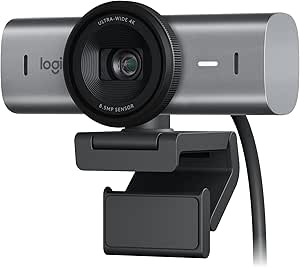 | Best Overall | Max resolution: 4K at 30fps | Alternative mode: 1080p at 60fps | Connection: USB-C | VIEW LATEST PRICE | See Our Full Breakdown |
| EMEET C60E Dual-Camera 4K Webcam |  | Best for Demos and Teaching | Sensor: 1/2.8-inch CMOS 4K | Camera views: Dual: wide-angle and telephoto | Zoom: 1× to 11× hybrid (unavailable in 4K, 60 FPS, or YUY2 modes) | VIEW LATEST PRICE | See Our Full Breakdown |
| 4K USB Webcam with Autofocus, Fill Light, and Adjustable Gooseneck Stand |  | Best for Desk Flexibility | Resolution: UHD 4K | Focus: Autofocus | Viewing angle: 80 degrees | VIEW LATEST PRICE | See Our Full Breakdown |
| XOCLON Full HD 1080P Webcam with Microphone |  | Best Bare-Bones Budget Option | Resolution: 1080p Full HD | Frame rate: 30 fps | Microphone: Built-in noise-canceling | VIEW LATEST PRICE | See Our Full Breakdown |
| EMEET C960 1080p Webcam with Dual Microphones and Privacy Cover |  | Best Value for Everyday Calls | Resolution: 1920 × 1080 Full HD | Field of view: 90° | Focus: Fixed focus | VIEW LATEST PRICE | See Our Full Breakdown |
| Acer A610 1080p Webcam with Dual Microphones |  | Best Positioning Flexibility | Resolution: 1080p Full HD | Field of view: 83° | Rotation: 360° | VIEW LATEST PRICE | See Our Full Breakdown |
| Logitech Brio 101 Full HD 1080p Webcam |  | Best for Polished Everyday Presence | Resolution: Full HD 1080p | Connection: USB-A | Microphone: Built-in | VIEW LATEST PRICE | See Our Full Breakdown |
| webcams for remote developer | Compatibility | Resolution | Connectivity | Microphones |
|---|---|---|---|---|
| 4K Webcam with Ring Light and | Windows 7, 10, 11; Mac OS 10.6 and higher; Linux | — | USB | Dual noise-canceling |
| NexiGo N950P | — | 4K; 8.29 MP effective video resolution | USB-A and USB-C | Dual omnidirectional stereo with noise cancellation |
| Logitech C920S Pro HD Webcam | — | 1080p Full HD | USB | — |
| Philips 4K Webcam with Microph | Windows and macOS | 4K | — | — |
| Elelink 4K USB Webcam with Aut | Windows, Mac OS, Android | 4K UHD | — | Dual noise-canceling |
| Insta360 Link 2 4K PTZ Webcam | Mac and Windows; Zoom, Teams, Twitch and other major platforms | 4K | — | — |
| NexiGo N960E Plus 4K Webcam wi | Windows 7-11, macOS 10.6+, Chrome OS, Switch 2 | 4K at 30fps / 1080p at 60fps | — | Dual noise-canceling |
| OBSBOT Tiny 2 Lite 4K PTZ Webc | Windows 10 or later; macOS 11 or later | — | USB-C (no Wi-Fi) | — |
| Logitech MX Brio Ultra HD 4K W | Windows, macOS, Chrome OS, Linux | — | — | Dual beamforming noise-reducing |
| EMEET C60E Dual-Camera 4K Webc | Windows 10/11 (64-bit), macOS 10.14+, OBS, Twitch, YouTube, Facebook | — | USB 2.0 Type-A, plug and play | 2 omnidirectional, 9.8 ft pickup radius |
| 4K USB Webcam with Autofocus | — | UHD 4K | USB 2.0/3.0, plug and play | — |
| XOCLON Full HD 1080P Webcam wi | Zoom, Teams, Skype, Google Meet | 1080p Full HD | USB, plug and play | — |
| EMEET C960 1080p Webcam with D | Windows 10/11, macOS 10.14+, Android TV 7.0+ | 1920 × 1080 Full HD | USB Type-A with A-to-C adapter | 2 omnidirectional |
| Acer A610 1080p Webcam with Du | Windows 7/8/10/11, Mac OS, major video platforms | 1080p Full HD | Plug and play; Type-A to Type-C adapter included | Dual noise-reduction |
| Logitech Brio 101 Full HD 1080 | Microsoft Teams, Zoom, Google Meet, Nintendo Switch 2 GameChat | Full HD 1080p | — | — |
More Details on Our Top Picks
4K Webcam with Ring Light and Built-In Microphones
The built-in ring light gives this webcam a practical advantage for developers whose desk lighting changes between early calls and late coding sessions. Its adjustable brightness and three color temperatures let you tune your face lighting without adding a separate lamp, while TOF autofocus helps keep the image sharp when you shift position. It also offers 4K at 30 fps or 1080p at 60 fps, giving you a smoother option for calls where motion matters. Compared with the Logitech C920S Pro HD Webcam, it adds 4K capture and its own light, but the C920S has a simpler 1080p setup from an established model. The 78-degree view is fairly contained for a shared desk. Choose this one for lighting flexibility; skip it if you already have good lighting or need a wider view.
Pros:- Built-in light has adjustable brightness and three color temperatures
- Offers 4K at 30 fps and 1080p at 60 fps
- TOF autofocus and dual noise-canceling microphones
- Sliding lens cover and compatibility with Windows, Mac, and Linux
Cons:- 78-degree viewing angle may feel tight for showing a wider desk or multiple people
- Built-in light adds little value for developers who already use separate lighting
Best for: Remote developers working in a dim or variable-light home office who want a webcam light and higher-resolution capture in one USB device.
Not ideal for: Developers with a dedicated lighting setup or those who need a broad view of a shared workspace; its 78-degree viewing angle is relatively narrow.
- Resolution and frame rate:4K at 30 fps; 1080p at 60 fps
- Focus:TOF autofocus
- Microphones:Dual noise-canceling
- Lighting:Built-in ring light; three color temperatures and adjustable brightness
- Privacy:Built-in sliding lens cover
- Viewing angle:78 degrees
- Connectivity:USB
- Compatibility:Windows 7, 10, 11; Mac OS 10.6 and higher; Linux
Our verdict“Pick this webcam if your home office lighting is inconsistent and you want a built-in light alongside 4K video.”
NexiGo N950P (Gen 2) 4K Webcam with RF Remote and 5× Digital Zoom
The RF remote makes the NexiGo N950P a useful choice for developers who need to adjust framing without reaching across a desk or interrupting a call. It controls zoom and other camera functions, and the webcam supports flexible placement with an adjustable clip and tripod thread. Its 4K video, low-light correction, and dual noise-canceling microphones cover the basics for frequent meetings. The zoom claim needs context: the 5× digital zoom is available at 1080p, so it is a framing aid rather than a way to preserve full 4K detail when cropping in. Compared with the Philips 4K Webcam, it provides more control and mounting options, while Philips keeps the feature set simpler. Pick this model if you will use the remote; if you set your framing once and leave it, a simpler webcam may suit you better.
Pros:- RF remote controls zoom and camera functions from the desk
- 4K video with low-light correction
- Dual omnidirectional stereo microphones with noise cancellation
- USB-A and USB-C connectivity, adjustable clip, and tripod thread
Cons:- 5× digital zoom operates at 1080p rather than 4K
- Remote and camera controls may be unnecessary for a fixed desk setup
Best for: Remote developers who regularly change their framing or camera settings during calls and want to mount the webcam on a monitor, laptop, or tripod.
Not ideal for: Developers who want to zoom in while retaining 4K detail or who do not need remote controls; its 5× digital zoom is supported at 1080p.
- Resolution:4K; 8.29 MP effective video resolution
- Maximum frame rate:30 fps
- Zoom:5× digital at 1080p
- Focus:Autofocus
- Microphones:Dual omnidirectional stereo with noise cancellation
- Connectivity:USB-A and USB-C
- Mounting:Adjustable clip and threaded tripod base
- Included accessories:RF remote, USB-C to USB-C cable, privacy cover
Our verdict“Choose the N950P if you will use remote framing controls and flexible mounting more than maximum-resolution zoom.”
Logitech C920S Pro HD Webcam, 1080p
The Logitech C920S Pro HD is the straightforward pick for developers who mainly need a dependable Full HD image for standups, pairing, and one-to-one calls. Autofocus and automatic light correction can help when you move around or your room lighting shifts, and the privacy shutter provides a direct way to cover the lens between meetings. Its 1080p at 30 fps is a more modest ceiling than the 4K options here, including the 4K Webcam with Ring Light, which also supplies its own illumination. In return, the C920S avoids extra controls and lighting features that some desks do not need. Its dual stereo microphones provide onboard audio, though developers using a headset or dedicated mic may not rely on them. Choose it for routine calls; skip it if 4K capture or a built-in light is part of your setup.
Pros:- 1080p Full HD capture at 30 fps suits routine work calls
- Autofocus and automatic light correction adapt to changing conditions
- Privacy shutter physically covers the lens
- Glass lens and dual stereo microphones
Cons:- No 4K or 60 fps video option
- No built-in lighting for dim workspaces
Best for: Remote developers who want a simple Full HD webcam for daily standups and pair programming, especially if they already use a headset microphone.
Not ideal for: Developers who record detailed 4K demos, need 60 fps video, or want a built-in light for a dim desk.
- Resolution:1080p Full HD
- Frame rate:30 fps
- Lens:Glass
- Focus:Autofocus
- Viewing angle:78 degrees
- Audio:Dual stereo microphones
- Connectivity:USB
- Privacy:Privacy shutter
Our verdict“Choose the C920S for uncomplicated Full HD calls if you do not need the higher-resolution or lighting features of the 4K picks.”
Philips 4K Webcam with Microphone and Privacy Shutter
The Philips 4K Webcam keeps its pitch simple: 4K video, a built-in microphone, USB plug-and-play setup, and a physical shutter. That pared-back feature set can suit a developer who wants sharper video for demos or calls without managing a remote, lighting controls, or other extras. Compared with the NexiGo N950P, it gives up remote operation, specified noise-canceling microphones, and flexible tripod mounting; in exchange, there are fewer controls to configure. The available product details do not state its frame rate, field of view, or microphone performance, which makes it harder to judge how well it will fit a particular desk and call setup. It is a reasonable match for a simple 4K workstation, but developers who depend on reliable audio or precise framing should favor an option with those details specified.
Pros:- 4K video for sharper calls and screen-side demonstrations
- Built-in microphone supports an all-in-one setup
- Physical privacy shutter
- USB plug-and-play setup with Windows and macOS compatibility
Cons:- Frame rate and field of view are not specified in the provided product data
- Microphone specifications are not provided, limiting audio comparisons
- No stated autofocus, lighting correction, or mounting controls
Best for: Remote developers who want a basic USB 4K webcam with a physical shutter and already have a separate microphone or headset.
Not ideal for: Developers choosing a webcam as their main audio source or needing known frame-rate and field-of-view details before setting up a fixed workspace.
- Resolution:4K
- Microphone:Built-in
- Privacy:Physical privacy shutter
- Setup:USB plug and play
- Compatibility:Windows and macOS
- Frame rate:Not specified
Our verdict“Pick the Philips if you want a minimal 4K USB webcam and will rely on a separate, known audio setup.”
Elelink 4K USB Webcam with Autofocus and Dual Noise-Canceling Microphones
The Elelink combines 4K at 30 fps with autofocus, automatic HDR light correction, and dual noise-canceling microphones, so developers can connect one device for video calls without adding a separate mic right away. The included 6.6-foot cable also gives more placement freedom than a short desk connection. Compared with the 4K Webcam with Ring Light, Elelink uses automatic light correction instead of a built-in lamp; it can adjust the image, but it does not add light to a dark room. Its wide-angle lens may help developers who want more of a workspace in frame, though the viewing angle is not specified. This is a practical all-in-one 4K option for supported systems, but USB dependence and unclear view width may matter for unusual setups.
Pros:- 4K UHD video at 30 fps with autofocus
- Dual noise-canceling microphones for calls without a separate mic
- Automatic HDR light correction adapts the image
- 6.6-foot USB cable and detachable flip-open privacy cover
Cons:- Automatic light correction does not provide the extra illumination of the ring light on the 4K Webcam with Ring Light
- Viewing angle is described as wide-angle but no degree measurement is provided
- Requires a USB connection
Best for: Remote developers seeking plug-and-play 4K video and onboard noise-canceling microphones, with enough cable length to position the camera above or beside a monitor.
Not ideal for: Developers who need built-in lighting for a dark office, a specified viewing angle, or a setup that cannot use a USB-connected webcam.
- Resolution:4K UHD
- Frame rate:30 FPS
- Focus:Autofocus
- Microphones:Dual noise-canceling
- Lighting:Automatic HDR light correction
- Privacy:Detachable flip-open cover
- Cable length:6.6 ft
- Compatibility:Windows, Mac OS, Android
Our verdict“Choose Elelink if you want a cable-flexible 4K webcam with onboard microphones and can provide your own light in a dim office.”
Insta360 Link 2 4K PTZ Webcam
The Insta360 Link 2 is the most feature-dense option in this lineup, pairing a 1/2-inch sensor with HDR, phase-detection autofocus, and a gimbal-style pan-and-tilt head. For a developer who stands at a whiteboard during architecture reviews or paces while thinking out loud, the AI tracking physically follows you rather than digitally cropping the frame the way the OBSBOT Tiny 2 Lite and NexiGo N960E Plus do. DeskView and Whiteboard modes are genuine workflow tools, not gimmicks, when your meetings involve sketching out system diagrams. The tradeoffs are real: it will not work on ARM-based Windows machines — a problem if you run a Snapdragon laptop — and there’s no Windows Hello support, something the Logitech MX Brio camp rarely has to worry about. Buy it for the tracking and sensor, not for biometric logins.
Pros:- 4K capture with HDR and strong low-light performance from a 1/2-inch sensor
- Physical pan-and-tilt AI tracking that follows movement without cropping
- DeskView and Whiteboard modes built for technical presentations
- AI noise-canceling microphone plus gesture and smartphone control
Cons:- Incompatible with ARM-based Windows systems
- No Windows Hello face recognition support
- Premium feature set costs more than most fixed-webcam alternatives
Best for: Developers who present whiteboards, demo desk work, or move around during calls and want the camera to follow them
Not ideal for: Anyone on an ARM-based Windows laptop or who wants Windows Hello face login — this camera supports neither
- Resolution:4K
- Sensor:1/2-inch
- Autofocus:Phase Detection Auto Focus (PDAF)
- Tracking:AI pan-and-tilt tracking with gesture control
- Audio:AI noise-canceling microphone
- Modes:HDR, DeskView, Whiteboard, natural bokeh
- Compatibility:Mac and Windows; Zoom, Teams, Twitch and other major platforms
- Limitations:No ARM-based Windows support; no Windows Hello
- Privacy mode:Auto-tilts down after 10 seconds of inactivity
Our verdict“Choose the Link 2 if you demo, sketch, or move during meetings and want a camera that physically keeps up — skip it if you’re on ARM Windows or rely on face login.”
NexiGo N960E Plus 4K Webcam with Ring Light & RF Remote
Plenty of developers work in a basement office or a corner with one sad desk lamp, and that’s exactly the gap the NexiGo N960E Plus fills. Its built-in ring light with three color modes and stepless brightness means you stop looking like a silhouette in standup, something neither the Logitech MX Brio nor the Insta360 Link 2 addresses with hardware lighting. Time-of-Flight autofocus locks on fast and holds focus even when you lean in to type, and the included RF remote beats reaching for your mouse mid-call. The compromises: the 4X digital zoom softens the image at full zoom compared with the EMEET C60E’s optical-style hybrid zoom, and the OSD menu depends on that remote — lose it behind the desk and you lose quick settings access. Still, for the price of lighting alone, this model makes a lot of sense.
Pros:- Integrated adjustable ring light with three color modes and stepless brightness
- Fast, accurate Time-of-Flight autofocus
- 4K at 30fps plus smoother 1080p at 60fps
- Dual noise-canceling microphones and included RF remote
Cons:- 4X digital zoom visibly reduces image quality at maximum zoom
- Full OSD menu control depends on the RF remote, which can be misplaced
Best for: Remote developers in poorly lit rooms who want integrated lighting and remote-controlled settings without buying separate gear
Not ideal for: Users who frequently zoom in — 4X digital zoom degrades sharpness, and the OSD menu is awkward without the RF remote
- Resolution:4K at 30fps / 1080p at 60fps
- Sensor:1/2.5-inch CMOS
- Autofocus:Time-of-Flight (ToF)
- Zoom:4X digital
- Ring light:3 color modes, stepless brightness
- Microphones:Dual noise-canceling
- Controls:RF remote with OSD menu
- Mounting:360° rotation, 45° tilt, 1/4-inch tripod thread
- Compatibility:Windows 7-11, macOS 10.6+, Chrome OS, Switch 2
Our verdict“If your office lighting is the weak link in your video calls, this is the pick that fixes it in hardware rather than in post.”
OBSBOT Tiny 2 Lite 4K PTZ Webcam with AI Tracking
AI tracking usually carries a premium price, and the OBSBOT Tiny 2 Lite brings it down to a more approachable level. Compared with the Insta360 Link 2, you keep the 1/2-inch sensor, 4K capture, gesture controls, and customizable tracking zones with preset positions — but you give up DeskView and Whiteboard modes, voice control, and a larger feature suite. For a developer who mostly sits still but occasionally leans over to a second monitor or grabs a notebook, the customizable tracking areas mean the camera follows what matters instead of your whole room. The multiple shooting orientations, including portrait mode, are handy if you also record vertical content or documentation videos. The tradeoffs are straightforward: no Wi-Fi, so everything runs over USB-C, and the feature list is leaner than Insta360’s flagship. This pick makes the most sense for buyers who want tracking without paying for modes they’ll never open.
Pros:- 4K capture with the same 1/2-inch sensor class as pricier rivals
- Customizable AI tracking areas and preset positions
- Gesture controls for tracking and zoom
- Landscape, portrait, and upside-down shooting modes
Cons:- No Wi-Fi connectivity — USB-C only
- Whiteboard mode and voice control are not included
Best for: Developers who want AI tracking and gesture control on a tighter budget and don’t need whiteboard or voice features
Not ideal for: Presenters who rely on Whiteboard mode or voice control — those are reserved for pricier models like the Insta360 Link 2
- Video resolution:4K at 30fps / 1080p at 60fps
- Sensor:1/2-inch CMOS
- Tracking:AI tracking with customizable areas and presets
- Zoom:4X digital
- Shooting modes:Landscape, portrait, upside-down
- Connectivity:USB-C (no Wi-Fi)
- Compatibility:Windows 10 or later; macOS 11 or later
- Minimum RAM:8 GB
Our verdict“It delivers the core Insta360-style tracking experience for less, provided you can live without its presentation-oriented extras.”
Logitech MX Brio Ultra HD 4K Webcam
The Logitech MX Brio earns the top slot because it gets the fundamentals right with the fewest caveats. Where the Insta360 Link 2 stumbles on ARM Windows and Windows Hello, the MX Brio runs across Windows, macOS, Chrome OS, and Linux — that Linux support alone rules for backend developers living in Ubuntu. The AI image enhancements handle uneven lighting gracefully, and adjustable image controls let you dial in exposure and white balance once instead of fighting your room every morning. Show Mode tilts the narrative toward demoing physical work, though it’s less flexible than the Link 2’s motorized DeskView. The dual beamforming microphones hold up well against typical keyboard clatter. The main tradeoff: 4K is capped at 30fps, and unlocking the fine-grained image tuning requires installing Logitech’s software — a minor annoyance for anyone who prefers zero vendor utilities on a clean dev machine.
Pros:- Broad compatibility including Linux, Chrome OS, Windows, and macOS
- AI image enhancements plus adjustable exposure and white balance for difficult lighting
- Dual beamforming noise-reducing microphones
- Privacy cover and Show Mode for desk demos
Cons:- 4K recording limited to 30fps
- Fine image controls require Logitech software installation
Best for: Developers on any OS — especially Linux users — who want polished 4K video, reliable autofocus, and broad compatibility with no surprises
Not ideal for: Buyers who want 60fps at 4K or who refuse to install Logitech software to access fine image controls
- Max resolution:4K at 30fps
- Alternative mode:1080p at 60fps
- Connection:USB-C
- Microphones:Dual beamforming noise-reducing
- Image features:Autofocus, auto exposure, auto white balance, AI enhancement
- Extras:Privacy cover, Show Mode
- Compatibility:Windows, macOS, Chrome OS, Linux
Our verdict“The safest all-around choice in this roundup — dependable image quality and universal OS support with only minor software friction.”
EMEET C60E Dual-Camera 4K Webcam
The EMEET C60E takes a different approach from everything else here: two cameras sharing a 4K sensor, letting you jump between a wide-angle view of your workspace and a telephoto close-up of your screen, keyboard, or hardware project. For a developer who records tutorials, reviews code on a second display, or shows off a Raspberry Pi build, that instant wide-to-close switch is more useful than the Insta360 Link 2’s single-lens DeskView or the fixed framing of the Logitech MX Brio. The 11× hybrid zoom and 9.8-foot microphone pickup radius make it equally viable for teaching or pair-programming sessions where two people share a desk. The catch is a real one: zoom is disabled in 4K, 60fps, and YUY2 modes, so you must drop resolution or frame rate to use the feature that justifies the camera. Plan your OBS settings accordingly.
Pros:- Dual wide-angle and telephoto cameras for instant framing switches
- Up to 11× hybrid zoom with PDAF autofocus
- Remote control plus EMEET STUDIO software for framing and image tuning
- Two omnidirectional microphones with a 9.8-foot pickup radius
Cons:- Zoom unavailable in 4K, 60 FPS, and YUY2 modes
- USB 2.0 connection limits bandwidth for high-resolution, high-frame-rate combinations
Best for: Developers who record tutorials, demo hardware, or teach — anyone switching between workspace overview and close-up detail mid-call
Not ideal for: Buyers who want maximum resolution and zoom simultaneously — the 11× zoom is disabled in 4K, 60fps, and YUY2 modes
- Sensor:1/2.8-inch CMOS 4K
- Camera views:Dual: wide-angle and telephoto
- Zoom:1× to 11× hybrid (unavailable in 4K, 60 FPS, or YUY2 modes)
- Autofocus:PDAF
- Controls:Remote control and EMEET STUDIO software
- Microphones:2 omnidirectional, 9.8 ft pickup radius
- Connectivity:USB 2.0 Type-A, plug and play
- Compatibility:Windows 10/11 (64-bit), macOS 10.14+, OBS, Twitch, YouTube, Facebook
- Mounting:1/4-inch tripod mount; recommended telephoto distance 13.8 in
Our verdict“If your calls involve showing things up close — screens, boards, hardware — this dual-lens design beats every single-camera rival here, as long as you accept the zoom-versus-resolution tradeoff.”
4K USB Webcam with Autofocus, Fill Light, and Adjustable Gooseneck Stand
Most webcams in this roundup lock you into whatever angle your monitor clip allows. This model takes a different approach with a 40 cm adjustable gooseneck stand, which is genuinely useful for developers who share whiteboards, code printouts, or physical hardware during calls. The autofocus pairs well with that flexibility — unlike the fixed-focus EMEET C960, it keeps close-up documents readable instead of smearing them into softness. The six-mode fill light is another differentiator: the NexiGo N960E Plus offers a ring light too, but here you can shift between warm and white tones to match your room rather than looking washed out. The 80-degree lens is narrower than most, which actually flatters a single seated speaker but feels cramped for pair-programming shots. The 110 cm cable is the real weakness — on a dual-monitor battlestation it may not reach your tower.
Pros:- Autofocus keeps documents and close-up objects sharp during screen-sharing demos
- Gooseneck stand allows overhead and angled shots that clip-mounted rivals can’t achieve
- Six fill-light modes with warm and white options adapt to different room lighting
- Driver-free plug-and-play over USB 2.0 or 3.0
Cons:- 110 cm cable limits placement on larger desks
- 80-degree field of view is tight for showing more than one person
- Gooseneck base takes up desk space a monitor clip wouldn’t
Best for: Developers who demo physical objects, documents, or hardware and need a camera that can be repositioned on the fly
Not ideal for: Anyone with a large desk setup where the short 110 cm USB cable can’t reach the host machine
- Resolution:UHD 4K
- Focus:Autofocus
- Viewing angle:80 degrees
- Fill light:6 modes (3 warm, 3 white)
- Stand:Adjustable 40 cm gooseneck
- Connectivity:USB 2.0/3.0, plug and play
- Microphone:Noise-canceling
- USB cable length:110 cm
Our verdict“Buy this if your calls involve showing real-world things, not just your face — the gooseneck and autofocus combination is unmatched elsewhere in this lineup.”
XOCLON Full HD 1080P Webcam with Microphone
This is the most minimal entry in the roundup, and that’s the entire point. It delivers a competent 1080p at 30 fps with a noise-canceling mic and nothing that inflates the price — no stand gimmicks, no fill lights, no remote like the NexiGo models. For a developer who just needs to be visible on daily standups and nothing more, that simplicity has real value. Compared with the Logitech Brio 101, it trades away the integrated privacy cover and RightLight processing but matches the core output for standard video calls. The automatic brightness adjustment helps in dim home offices, though the manufacturer offers no specific detail on how it performs, so buyers in genuinely dark rooms should temper expectations. The absence of a privacy cover or adjustable field of view means you’ll want to unplug it or angle it away when idle.
Pros:- Plug-and-play setup with no drivers or software to install
- Noise-canceling microphone handles typical quiet-room calls acceptably
- Works across Zoom, Teams, Skype, and Google Meet without configuration
- Automatic brightness adjustment gives it a step up over basic 720p throwaways
Cons:- No privacy cover, so the lens is always exposed when connected
- Low-light performance claims lack supporting detail and can’t be verified from specs
- Fixed field of view with no zoom or adjustment options
Best for: Developers who need a cheap, no-frills camera for occasional standups and want zero setup friction
Not ideal for: Privacy-conscious users or anyone frequently presenting in low light, since there’s no cover and the brightness claims are vague
- Resolution:1080p Full HD
- Frame rate:30 fps
- Microphone:Built-in noise-canceling
- Lighting:Automatic brightness adjustment
- Connectivity:USB, plug and play
- Compatibility:Zoom, Teams, Skype, Google Meet
Our verdict“The right pick when you want the cheapest path to a decent standup camera and genuinely don’t care about extras.”
EMEET C960 1080p Webcam with Dual Microphones and Privacy Cover
The C960 hits a sweet spot the budget options miss: it pairs Full HD video with two omnidirectional microphones, which audibly beats the single-mic XOCLON and Acer A610 when you’re talking from a normal desk distance. The removable privacy cover is a thoughtful touch — unlike the Brio 101’s integrated slider, you can strip it off entirely if it obstructs your mounting angle. The 90-degree wide-angle lens is generous: solo developers get plenty of headroom, and there’s room to squeeze a second person into frame for pair-programming sessions. The catch is the fixed-focus lens. Sit at a consistent distance and it’s fine; lean in to show something to the camera and it won’t chase focus the way the 4K gooseneck model does. Also worth knowing before buying: no Windows Hello support, so it can’t double as a biometric login device.
Pros:- Dual omnidirectional microphones capture clearer audio than single-mic rivals at this level
- Removable privacy cover offers flexible protection
- 90-degree field of view comfortably fits one person with room to spare
- Includes an A-to-C adapter for newer laptops with only USB-C ports
Cons:- Fixed-focus lens can’t adjust to changing distances or close-up objects
- No Windows Hello support
- No built-in speakers
Best for: Remote developers who want dependable daily-driver video and better-than-average audio without paying 4K prices
Not ideal for: Anyone wanting Windows Hello facial login or autofocus for showing close-up objects on camera
- Resolution:1920 × 1080 Full HD
- Field of view:90°
- Focus:Fixed focus
- Microphones:2 omnidirectional
- Connectivity:USB Type-A with A-to-C adapter
- Features:Automatic light adjustment, removable privacy cover, clip base
- Compatibility:Windows 10/11, macOS 10.14+, Android TV 7.0+
Our verdict“The strongest value pick for standard standups and pair-programming calls — buy it for the mics and wide lens, skip it if you need autofocus or biometric login.”
Acer A610 1080p Webcam with Dual Microphones
The A610’s headline feature is 360-degree rotation, which sounds gimmicky until you’ve spent a week fighting a rigid monitor clip to frame yourself beside a second monitor. Compared with the EMEET C960’s fixed clip base, the A610 lets you swivel quickly between your face and a colleague or whiteboard beside you — handy for hybrid pairing sessions. Its 83-degree field of view sits between the XOCLON’s unnamed fixed angle and the C960’s wider 90 degrees, striking a sensible middle ground that keeps one person prominent without excessive background exposure. The automatic low-light correction is specified more concretely than the XOCLON’s vague claims, which matters for developers working evening hours. One usability quirk: the dual noise-reduction mics must be manually selected in your OS and app settings, so expect a brief setup step the first time rather than true instant audio.
Pros:- 360-degree rotation enables quick reframing without unclipping the camera
- Automatic low-light correction handles evening work hours
- Dual noise-reduction microphones reduce keyboard and fan noise
- Includes a Type-A to Type-C adapter for modern laptops
Cons:- Microphone must be manually selected in device and app settings for best results
- No built-in speakers
- 83-degree view may crop out a second person compared with wider rivals
Best for: Developers with multi-monitor or shared workspaces who need to reframe the camera frequently during calls
Not ideal for: Buyers expecting zero-configuration audio, since the microphone requires manual selection in device and app settings
- Resolution:1080p Full HD
- Field of view:83°
- Rotation:360°
- Microphones:Dual noise-reduction
- Low-light correction:Automatic
- Privacy feature:Built-in privacy cover
- Connectivity:Plug and play; Type-A to Type-C adapter included
- Compatibility:Windows 7/8/10/11, Mac OS, major video platforms
Our verdict“Choose this over fixed-clip models if you constantly adjust your framing; skip it if you want audio that works the instant you plug in.”
Logitech Brio 101 Full HD 1080p Webcam
Where other budget picks race to add features, Logitech bets on image processing quality. The RightLight system boosts brightness by up to 50% and reduces shadows, which translates to a more professional appearance in the dim corner offices most remote developers actually inhabit — the XOCLON’s unspecified ‘brightness adjustment’ doesn’t come close to this level of documented tuning. The integrated sliding privacy cover never gets lost or misplaced, a real advantage over the EMEET C960’s removable one. Compared with the Logitech C920S Pro elsewhere in this roundup, the Brio 101 is the simpler, lighter-duty sibling — same brand polish, fewer pro features. The single built-in mic is serviceable but a step behind the dual-mic EMEET and Acer for voice clarity. The USB-A connection is also showing its age on laptop-only setups with USB-C ports, with no adapter included.
Pros:- RightLight processing delivers noticeably better lighting in dim rooms than unprocessed rivals
- Integrated sliding privacy cover can’t be lost or misaligned
- Certified compatibility with Teams, Zoom, and Google Meet reduces setup headaches
- Housing incorporates at least 34% post-consumer recycled plastic
Cons:- USB-A only, with no USB-C adapter in the box
- Single built-in microphone falls short of dual-mic competitors for voice clarity
- Recycled-plastic claims are inconsistent across product materials
Best for: Developers who prioritize looking their best in client-facing calls and want a polished, brand-supported camera with no fuss
Not ideal for: USB-C-only laptop users, since there’s no adapter included, or anyone needing top-tier microphone pickup
- Resolution:Full HD 1080p
- Connection:USB-A
- Microphone:Built-in
- Privacy cover:Integrated sliding
- Lighting:RightLight boosts brightness up to 50%
- Compatibility:Microsoft Teams, Zoom, Google Meet, Nintendo Switch 2 GameChat
- Materials:At least 34% post-consumer recycled plastic
Our verdict“The safest mainstream pick for developers who care more about a professional on-camera appearance than extra hardware features.”
How We Picked
I evaluated each webcam through the lens of a developer’s actual day: back-to-back calls, screen sharing, mixed lighting in a home office, and long idle periods between meetings. The criteria that separated the top picks were image consistency under artificial lighting, autofocus behavior during movement (nothing is more distracting than a lens hunting while you gesture at a diagram), microphone quality for rooms without headphones, and mount flexibility for monitor arms and laptop stands. I also weighed software requirements — AI-tracking cameras demand companion apps and processing power, which is a real cost on a dev machine already running Docker containers and an IDE.
Ranking favored cameras that deliver dependable daily-driver performance first, then rewarded genuinely useful extras like PTZ tracking, integrated lighting, and dual views. Budget models earned their positions by doing the basics cleanly rather than piling on specs that video conferencing platforms compress away. Cameras with gimmicky features but weak fundamentals landed lower regardless of their resolution claims, because a sharp marketing spec sheet doesn’t help when your face looks grainy at 6 p.m. in a dim room.
Factors to Consider When Choosing Webcams For Remote Developers
Before picking a webcam for a remote development workflow, it helps to understand how these cameras actually behave in real video calls — and where marketing specs diverge from what you’ll see on screen. These are the factors that ended up mattering most across this lineup.Resolution vs. What Platforms Actually Deliver
The biggest misconception in this category is that 4K automatically means better calls. Zoom, Teams, and Meet typically cap outgoing video at 1080p — and often less when bandwidth is tight — so a 4K webcam’s resolution mostly benefits recording, streaming, or cropping. What a 4K sensor does deliver is better light gathering and finer detail at 1080p output, which is why good 4K cameras still look superior even on compressed calls. The mistake to avoid is buying a no-name 4K camera expecting it to beat a quality 1080p model from an established brand; sensor size and image processing matter more than the number on the box. If you record tutorials, course content, or YouTube devlogs, 4K earns its premium. If you only join meetings, spend the difference on lighting instead.
Lighting: The Cheapest Upgrade Nobody Buys
Across every camera I compared, lighting quality affected perceived image quality more than any spec difference. A 1080p camera in a well-lit room beats a 4K camera in a dim corner every single time. Webcams with integrated ring lights or fill lights eliminate the most common failure mode in home offices — a window behind you or an overhead bulb that leaves your face half-shadowed. If your camera lacks a light, a small desk LED panel aimed at your face from behind the monitor is the single best-per-dollar upgrade available. The common mistake is upgrading cameras repeatedly to fix a problem that a $20 light would solve. Evaluate your room honestly before deciding how much camera you need.
Autofocus and Frame Rate Behavior
Autofocus behavior is where cheap webcams quietly fail. Budget models often hunt continuously, refocusing every time you lean forward or hold up a phone to show something — a daily occurrence for developers demonstrating bugs on a device. Look for cameras with time-of-flight (ToF) or AI-assisted autofocus, which lock onto subjects instead of cycling. Frame rate matters too: 1080p at 60fps looks noticeably smoother than 30fps when you move your hands or turn your head, and several cameras in this lineup only hit 60fps at reduced resolutions. Check the actual frame rate at the resolution you’ll use, not the headline spec. A camera advertised as 4K that drops to 30fps at every setting will feel laggy on fast motion.
Software Requirements and Machine Overhead
AI tracking, PTZ movement, and background effects all depend on companion software, and that software runs on the same machine as your IDE, containers, and build tools. Developers running heavy local environments should factor in this overhead — a tracking camera doing real-time subject detection consumes CPU that could be compiling code. Some cameras also require their app to launch at startup for full functionality, which conflicts with minimal, developer-tuned system setups. If you value a clean machine, a driver-free plug-and-play model avoids all of this. The tradeoff is giving up tracking and gesture controls, which most seated developers rarely use anyway. Decide whether smart features justify resident software before committing to a premium PTZ model.
Mounting, Field of View, and Privacy
Practical fit issues sink otherwise good cameras. Monitor-top clips vary widely in grip strength — ultrawide and curved monitors especially need adjustable or clamp-style mounts, and a gooseneck stand can be the difference between a well-framed shot and a nostril cam. Field of view is another trap: wide angles above 90 degrees show more of your room (and your second monitor’s contents) than most developers intend, so look for adjustable FOV if you can’t control your background. Finally, privacy shutters matter in a work context — HR departments care, and a physical cover beats tape. Roughly half the cameras here include one; if yours doesn’t, budget for a sliding cover accessory.
Microphones: Useful Backup, Not a Replacement
Nearly every webcam in this range advertises dual noise-canceling microphones, and the honest answer is that quality varies enormously. Good webcam mics — like those on Logitech’s mid-range and premium models — are fine for impromptu calls and travel days. But if you run daily standups in a room with echo, keyboard clatter, or a mechanical keyboard you actually love, a dedicated mic or a decent headset will always outperform anything built into a camera bezel. Treat webcam mics as a redundancy feature rather than a buying priority, unless you specifically need to ditch headphones. The one exception worth noting: noise cancellation tuned for typing sounds, which some models in this lineup handle noticeably better than others.
Frequently Asked Questions
Is 4K worth it for a developer who only joins Zoom and Teams calls?
Usually not, and here’s why: Zoom caps group calls at 1080p and Teams often delivers less, so your 4K stream gets downscaled before anyone sees it. What you do get from a 4K-class camera is a better sensor that produces cleaner 1080p output, especially in poor lighting. If you also record coding tutorials, demo videos, or stream, 4K becomes genuinely useful for post-production cropping and upload quality. But if your camera time is 100% meetings, a strong 1080p model like the Logitech C920S Pro paired with a small fill light will look better than a mediocre 4K camera, at a lower price.
Do I need AI tracking and PTZ if I present at a whiteboard or move around?
If you regularly stand up to sketch architecture diagrams or walk through a physical setup, PTZ tracking like the Insta360 Link 2 or OBSBOT Tiny 2 Lite transforms the experience — the camera follows you instead of leaving you a pixelated figure at the edge of frame. The tradeoff is cost and resident software: these cameras need companion apps running, which adds overhead to a dev machine. Seated developers get almost nothing from tracking, so don’t pay for it reflexively. A middle path is a camera with remote-controlled digital zoom and pan, like the NexiGo models, which lets you reframe manually without gimbal hardware or AI processing.
Will an AI-tracking webcam slow down my development machine?
It can, and it’s worth checking before buying. Real-time subject detection and background processing consume CPU, and on a machine already running containers, a language server, and a browser with 40 tabs, that overhead is real. Some cameras offload processing to dedicated chips inside the unit, which minimizes the impact — check whether the model you’re eyeing does onboard processing. You can also usually disable tracking and use the camera as a static device, running the software only when needed. If you keep your system lean by principle, a driver-free plug-and-play camera avoids the issue entirely, and several 4K options in this lineup work fine without any installed software.
What’s the minimum I should spend for professional-looking daily standups?
You can get genuinely professional results from cameras under the mid-range tier, and the EMEET C960 and Acer A610 prove it — clean 1080p, acceptable mics, and privacy covers at entry-level prices. What cheap cameras sacrifice is low-light performance and autofocus stability, which shows up in dim evening calls and when you hold up a phone to demo something. The smarter move is pairing a modest camera with better lighting: a basic LED fill light improves any camera more than spending double on the camera itself. Where I’d draw the floor is at cameras with fixed focus and no privacy cover — those cut corners you’ll notice weekly. Above that, diminishing returns kick in fast for meeting-only use.
How wide should the field of view be for a home office setup?
Narrower than most people assume. A 90-degree-plus FOV sounds generous, but it also captures your messy desk, your second monitor with a ticket queue visible, and everything behind you — a genuine concern when screen contents are confidential. Around 70–78 degrees frames your head and shoulders cleanly and hides the rest. Look for cameras with adjustable FOV through software if your space changes, or plan your background deliberately if your camera is fixed wide. Ultrawide angles really only earn their keep for group calls from a conference-style room or showing your physical workspace during hardware demos — which is exactly why the EMEET C60E’s dual wide-plus-telephoto design exists as a niche option.
Conclusion
The right webcam for a remote developer depends less on specs and more on how you actually work. For the best overall pick, the Logitech MX Brio delivers the most dependable image across lighting conditions with minimal fuss — the safe daily-driver choice. The Logitech C920S Pro takes best value with clean 1080p that handles meetings flawlessly, while the EMEET C960 is the smartest budget/beginner option if you’re setting up a first home office. On the premium end, the Insta360 Link 2 justifies its price for presenters and anyone who moves during calls, with the OBSBOT Tiny 2 Lite as a compact AI-tracking alternative. For specific needs: the NexiGo N960E Plus solves dim rooms with its built-in ring light, the EMEET C60E covers desk-and-face demos with its dual cameras, and the gooseneck-stand 4K model fits awkward monitor setups. Whatever you pick, remember that a small fill light and a tidy background improve your on-camera presence more than any resolution bump — match the camera to your real routine, not the spec sheet.
Evergreen bestsellers Picks
bestsellers
As an affiliate, we earn on qualifying purchases.