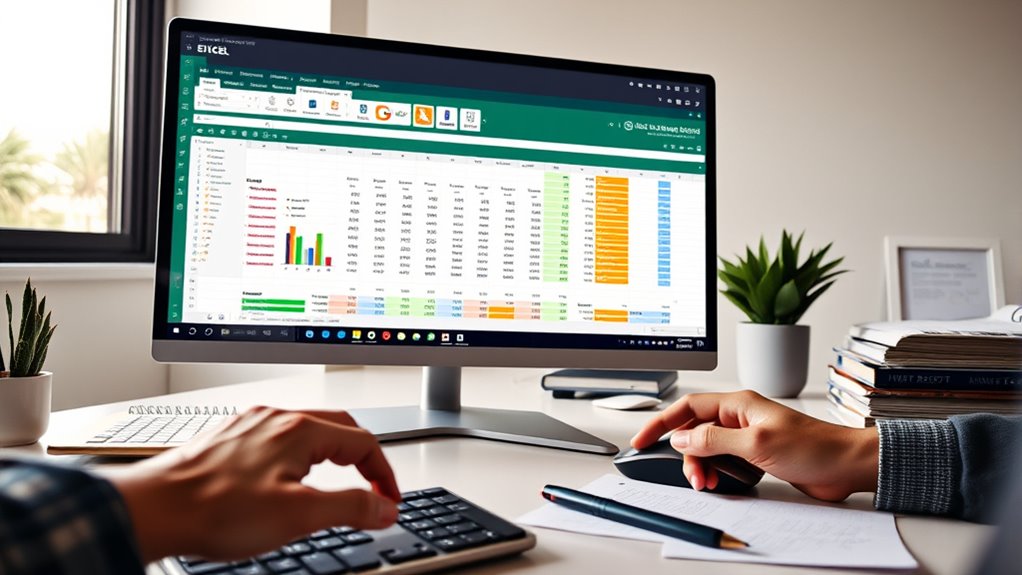

To improve your use of Excel for statistics, focus on creating effective visualizations like charts and pivot tables. Choose the right chart type to highlight trends, patterns, or correlations in your data, and customize labels and colors for clarity. Utilize pivot tables to summarize large datasets efficiently and spot hidden insights. Mastering these visualization techniques can make your analysis clearer and more impactful—keep exploring these tips to uncover even more powerful Excel tricks.
Key Takeaways
- Use pivot tables to quickly summarize and analyze large statistical datasets in Excel.
- Create scatter plots to examine correlations and relationships between variables.
- Apply trendlines and regression analysis for advanced statistical insights within charts.
- Utilize data validation and filters to clean and prepare data for accurate statistical analysis.
- Leverage Excel functions like AVERAGE, MEDIAN, STDEV, and CORREL for essential statistical calculations.

Have you ever wondered how to simplify complex statistical analysis? If so, mastering data visualization and pivot table analysis in Excel can make a huge difference. These tools help you interpret data more clearly and present your findings effectively. When you work with large datasets, raw numbers can be overwhelming, but transforming them into visual formats allows you to see patterns, trends, and outliers at a glance. Excel’s charting options—like bar graphs, histograms, scatter plots, and line charts—are powerful for creating compelling data visualizations. You can quickly identify correlations or anomalies that might be hidden in a sea of numbers. To get started, select your data and choose the appropriate chart type, customizing labels and colors to enhance clarity. This makes your analysis more accessible to others and saves you time explaining complex results. Incorporating visual data interpretation techniques can further improve your insights and presentation quality.
Frequently Asked Questions
How Can I Automate Statistical Analyses in Excel?
You can automate statistical analyses in Excel by using pivot tables to quickly summarize data and identify patterns. Additionally, set up data validation to guarantee your input data is accurate, reducing errors in your analysis. Combine these tools with macros or formulas to streamline repetitive tasks, saving time and increasing precision. This approach allows you to efficiently perform complex statistical analyses with minimal manual effort.
What Are the Best Add-Ins for Advanced Statistics?
Think of add-ins as your trusty toolbox for advanced stats. The Analysis ToolPak is essential for complex analyses, while XLSTAT and @RISK add powerful features. These tools integrate seamlessly with Excel, enabling you to perform data validation and create dynamic pivot tables for deeper insights. By leveraging these add-ins, you turn Excel into a robust statistical workstation, making your data work smarter, not harder.
How Do I Handle Missing Data in Excel?
When handling missing data in Excel, start with data cleaning by identifying gaps using filters or conditional formatting. For data imputation, you can fill missing values with mean, median, or mode, depending on your data type. Use formulas like AVERAGE or MEDIAN to estimate missing entries. Alternatively, employ functions like IFERROR or LOOKUP to manage gaps smartly, ensuring your dataset remains accurate and reliable for analysis.
Can Excel Perform Regression Analysis Without Third-Party Tools?
Yes, Excel can perform regression analysis without third-party tools using its built-in functions. You can utilize the Regression capabilities in the Data Analysis Toolpak, which provides a straightforward way to run regression models. Simply enable the add-in, select “Data Analysis,” then choose “Regression.” This feature allows you to analyze relationships between variables, interpret coefficients, and assess statistical significance directly within Excel.
How Do I Visualize Complex Statistical Data Effectively?
You can visualize complex statistical data effectively by using Excel’s data visualization tools, like scatter plots, line charts, and histograms. Customize your charts with colors, labels, and trendlines to highlight key insights. Use chart customization options to improve clarity and presentation. Adding data labels and adjusting axes helps communicate your data’s story clearly, making complex information more accessible and impactful for your audience.
Conclusion
Don’t let Excel’s simplicity fool you—you can perform complex statistical analyses with ease. Some might think you need specialized software, but Excel’s powerful functions and tips make it a versatile choice for most data tasks. With a little practice, you’ll see it’s more than just spreadsheets; it’s a valuable tool for insightful statistics. So, immerse yourself and access Excel’s potential—you might just find it’s all you need for your data analysis work.