
This checklist is for software developers, QA professionals, and others who spend long stretches working at a computer and want to think through their desk setup. The picks cover seating, desk height, lighting, input devices, and foot support, so you can consider how each part of your workspace fits together. Comfort at your desk depends on the fit between the person, equipment, and work habits.

Get business pricing on monitors, keyboards and dev gear
- Business-only prices and quantity discounts
- Tax-exempt purchasing
- Multiple users, one account, clear invoices
The sections follow the main parts of a workstation, from chair and desk to accessories and input devices. Each one explains why the slot matters, what to check before buying, and who the listed pick may suit. Start with your setup: note your desk dimensions, monitor arrangement, dominant hand, and any space constraints before comparing options.
Use the look-for points as a practical checklist, then check the product’s current specifications and compatibility details before you decide. A feature name alone does not establish that an item will fit your body, desk, or existing equipment. Check fit and compatibility against your own workspace, and prioritize the changes that address your most immediate comfort or usability needs.
Ergonomic Office Chair
A chair is the foundation of a workstation because it supports the posture you return to throughout the day. The listed pick, the ELABEST X100 Ergonomic Mesh Office Chair with Footrest, Big and Tall, names mesh, a footrest, and a big-and-tall design. Treat those as starting points for a fit check, not a guarantee that the chair will suit your body or desk. Personal fit comes first: compare the chair’s dimensions and adjustment range with your own measurements and available space.
A common mistake is choosing by feature list or appearance without checking seat height, seat depth, back support, arm clearance, and whether the chair can move freely under the desk. Confirm the current product details for each adjustment and how the footrest is intended to be used. Check that your feet can rest comfortably and that your arms can reach the keyboard without raising your shoulders. Also account for the chair’s footprint, including room to recline or reposition. Verify dimensions and adjustments before buying, and consider how the chair’s height will work with your desk. A chair that fits the user and workstation is more useful than one whose named features do not match the way they work.
What to look for:
- Seat height range that suits your desk and leg length
- Seat width and depth that match your body
- Armrest position and clearance under the desk
- Back support and recline adjustments listed by the manufacturer
- Overall footprint and room to reposition
ELABEST X100 Ergonomic Mesh Office Chair with Footrest, Big and Tall, 5D Flip-Up

The ELABEST X100 is a premium ergonomic mesh chair featuring a dynamic 3D lumbar support system, flip‑up 5D armrests, and an extendable footrest for all‑day comfort in both office and gaming settings. Its Dual‑Stripe AirMesh back promotes airflow while the BIFMA‑certified frame supports up to 300 lb with a 15‑minute tool‑free assembly.
Pros:
- Dynamic 3D lumbar and spine alignment system reduces fatigue
- Flip‑up 5D armrests save desk space and offer extensive adjustability
- Ventilated Dual‑Stripe AirMesh improves airflow and comfort
- Heavy‑duty construction supports up to 300 lb
Cons:
- Large footprint may not fit compact workspaces
- Assembly, while tool‑free, still requires about 15 minutes
Best for: People considering a mesh chair with a footrest and big-and-tall positioning
Not ideal for: Anyone who cannot confirm the dimensions and adjustment range fit their body
Bottom line: Compare the chair’s measurements and adjustments with your body and desk before choosing it.
Adjustable Standing Desk
Changing working height can help a workstation accommodate different tasks and positions. The VERSADESK PowerPro 40-Inch Electric Standing Desk Converter is identified as a 40-inch electric converter, so the key question is whether its surface and movement suit your existing desk and equipment. Measure the whole setup before ordering: include the desk surface, monitor base or mounts, keyboard, pointing device, and the space needed to move the converter.
A common buying mistake is assuming that a converter will fit because its width sounds adequate. Confirm the exact platform dimensions, supported load, height range, and how the mechanism moves; these specifics are not established by the product name. Check whether your monitor arrangement can rise with the work surface and whether cables have enough slack at both ends of travel. Make sure there is room for the converter on the desk and that the keyboard and mouse can sit where your arms remain relaxed. Check range and clearance against your seated and standing working positions. A converter that fits the desk but leaves the screen too low, the controls cramped, or cables taut may not work well in practice. Use manufacturer specifications to confirm each point before making the change.
What to look for:
- Platform width and depth for your monitor and input devices
- Height range that suits both seated and standing use
- Supported load for your equipment
- Clearance and stability on your existing desk
- Cable slack and monitor positioning throughout movement
VERSADESK PowerPro 40-Inch Electric Standing Desk Converter
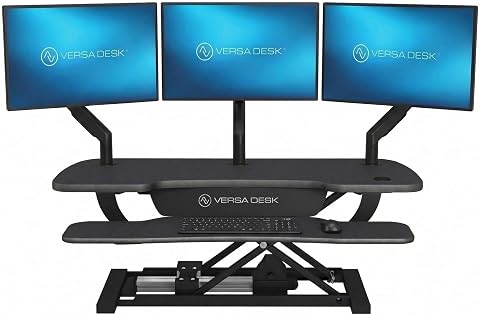
This motorized standing desk converter has a split-level design for monitors, a laptop, and a keyboard, with push-button height adjustment and a built-in USB charging port. Its carbon steel frame supports up to 80 lbs, and it includes cable-routing grommets, a child safety lock, and a lifetime warranty.
Pros:
- Electric lift enables convenient sit-to-stand adjustments
- Supports up to three monitors plus a laptop
- Built-in USB port and cable-routing grommets
- Ships fully assembled and includes a lifetime warranty
Cons:
- Monitor and monitor arm are not included
- Monitor arm is sold separately
Best for: People who want an electric converter for an existing desk
Not ideal for: Setups that exceed the confirmed platform dimensions or load
Bottom line: Confirm platform size, movement range, load, and cable clearance with your full setup.
Monitor Light Bar
Lighting is part of a comfortable workstation, especially when screen use and room lighting vary during the day. The BenQ ScreenBar Halo 2 LED Monitor Light Bar with Wireless Controller names a monitor light bar and wireless controller. Those details make monitor fit and control placement central to the selection. Check your monitor first: verify the light’s mounting requirements against the screen’s thickness, shape, and any attached camera or accessories.
A common mistake is assuming that any bar will sit securely on any monitor or that its light will suit every room. Confirm the manufacturer’s supported monitor types, dimensions, light adjustment options, power requirements, and controller operation. Consider where the wireless controller will sit and whether it will be easy to reach without crowding your desk. Check whether the bar interferes with a webcam, screen controls, or a monitor hood. Think about your room’s existing lighting and the direction of light you need; product names do not establish brightness behavior or glare control. Verify mounting and light controls using the product specifications. Match the bar to your actual screen and workspace so the added lighting does not create a new obstruction or conflict with other equipment.
What to look for:
- Monitor thickness and shape supported by the mount
- Clearance for webcams and other screen accessories
- Light adjustment and control details
- Power connection and cable routing
- Wireless controller placement and operation
BenQ ScreenBar Halo 2 LED Monitor Light Bar with Wireless Controller and Motion

The BenQ ScreenBar Halo 2 is an adjustable LED monitor light designed to reduce eye strain with glare-free illumination and customizable color temperature. It features wireless control, automatic on/off, and fits curved monitors, making it ideal for work, study, and gaming environments.
Pros:
- Reduces eye fatigue with glare-free, balanced illumination
- Wireless controller allows easy adjustment of brightness and color temperature
- Fits a wide range of monitor sizes and curved screens without damage
- High color accuracy (CRI > 95) suitable for professional work
Cons:
- Requires USB power source, limiting placement options
- May be more expensive compared to basic monitor lights
- Some users might find the setup complex
Best for: People whose monitor and accessories are confirmed compatible
Not ideal for: Screens or add-ons that conflict with the mounting area
Bottom line: Check monitor fit, accessory clearance, power, and controls before adding the light bar.
Ergonomic Keyboard
Keyboard layout has a direct effect on how your hands and arms reach the keys during computer work. The Kinesis Advantage360 Professional Split Ergonomic Keyboard is identified as a split ergonomic keyboard. Before choosing it, review its layout and dimensions and consider how they compare with your current typing habits, desk space, and connected devices. Layout compatibility matters: a change in key arrangement can affect muscle memory and the way you use shortcuts.
A common mistake is focusing on the ergonomic label while overlooking the learning curve, connection method, or fit with daily tasks. Confirm the exact layout, operating-system support, connection options, and any configuration steps in the current product documentation. Check the keyboard’s footprint and how its two halves can be positioned alongside your mouse and other desk items. If you switch among computers or rely on specialized shortcuts, verify those workflows before purchase. Consider whether you have room to position both halves so your shoulders and wrists can settle comfortably. Review layout and connectivity before changing your main input device. A careful transition plan and a suitable workspace can make a new arrangement easier to evaluate for your own typing needs.
What to look for:
- Key layout and split arrangement
- Dimensions and room for positioning both halves
- Connection options and device compatibility
- Support for your operating system and usual shortcuts
- Configuration details and transition needs
Kinesis Advantage360 Professional Split Ergonomic Keyboard

This split Bluetooth keyboard has contoured key wells, thumb keys, integrated palm supports, and three adjustable tenting heights. It uses quiet Kailh Box Pink linear switches and supports programmable layouts, optional backlighting, and Windows, macOS, Linux, and ChromeOS.
Pros:
- Contoured split design with adjustable tenting and integrated palm supports
- Quiet linear mechanical switches rated for 50 million presses
- Programmable layout and Bluetooth connectivity
- Compatible with major operating systems
Cons:
- Premium palm pads are sold separately
- Backlighting is optional
Best for: People prepared to check a split layout against their typing habits
Not ideal for: Anyone who needs a familiar layout without a transition period
Bottom line: Confirm layout, connectivity, and desk space against your everyday typing workflow.
Vertical Mouse
A mouse is used repeatedly throughout computer work, so shape, hand fit, and device compatibility deserve attention. The Evoluent Vertical Mouse VMDMW Wireless Ergonomic Right-Hand USB Mouse is identified as wireless, right-handed, and USB. Handedness is decisive: check that the shape and size suit your right hand and that the device can connect to the computer you plan to use.
A common mistake is buying a vertical mouse based on its shape alone without checking hand dimensions, grip, button reach, or connection details. Confirm the exact USB and wireless requirements, supported operating systems, and whether any receiver or software is required. Check the mouse’s size against your hand and make sure your fingers can reach the controls without stretching. Also consider desk space and the position of the keyboard, since the mouse’s shape may change how you place your hand. If you move among devices, verify that the connection method works for each one. Check hand fit and connection using current product information. The product name gives useful clues, but it does not establish dimensions, system support, or comfort for a particular user.
What to look for:
- Right-hand fit and size against your hand
- Button placement and reach
- Wireless and USB connection requirements
- Operating-system and device compatibility
- Desk space and position beside your keyboard
Evoluent Vertical Mouse VMDMW Wireless Ergonomic Right-Hand USB Mouse

The Evoluent Vertical Mouse supports a neutral handshake position to reduce wrist strain and forearm twisting. It features adjustable pointer speeds, customizable buttons, and wireless connectivity, offering comfort and precision for long-term use.
Pros:
- Reduces wrist and forearm strain with ergonomic design
- Customizable buttons and adjustable pointer speeds
- Wireless connectivity for convenience
- High precision sensor for accurate tracking
Cons:
- Requires one AA battery, which is not rechargeable
- Limited to Windows compatibility
- Design may take time to adapt for new users
Best for: Right-handed users checking fit and USB compatibility
Not ideal for: Left-handed users or anyone whose device lacks the required connection
Bottom line: Confirm hand fit, connection needs, and system compatibility before switching mice.
Foot Rest
A foot rest can be useful when chair and desk heights make it difficult to find a comfortable place for your feet. The listed Step-to-Adjust Height-Adjustable Foot Rest with Foam Cushion names adjustable height and a foam cushion. Match it to your seated posture: check whether it can position your feet comfortably while your knees and hips remain at ease.
A common mistake is treating a foot rest as a substitute for adjusting the chair or assuming the named height adjustment covers every user. Verify the actual height settings, platform dimensions, adjustment method, and surface details in the product information. Confirm that it fits beneath your desk without blocking chair movement and that it stays positioned where you need it. Consider whether the foam cushion and platform suit your footwear and how you work; the product name does not establish firmness, grip, or long-term behavior. Check the adjustment range against your chair, desk, and leg length. If you already use a chair footrest, see how the two options would fit in the same space. Choose a support that helps your feet rest naturally without forcing an awkward reach or restricting movement.
What to look for:
- Height settings that suit your chair and leg length
- Platform dimensions and room beneath the desk
- Adjustment method and ease of repositioning
- Surface and cushion details in product specifications
- Clearance for chair movement and existing foot support
Step-to-Adjust Height-Adjustable Foot Rest with Foam Cushion
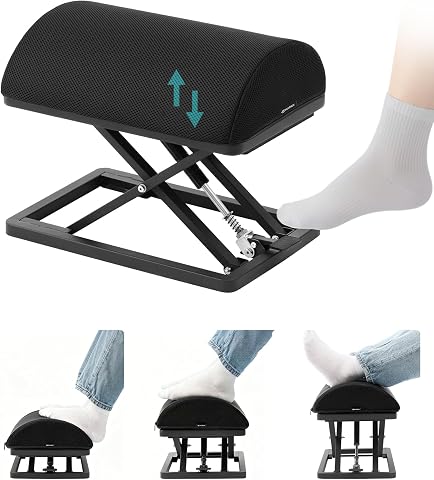
This foot rest adjusts from 2.7 to 13.1 inches with a foot tap, so you can change its height without bending down. It has a carbon steel frame, non-slip pads, and a contoured high-density foam cushion with a removable, washable cover.
Pros:
- Foot-tap height adjustment without bending
- Wide adjustment range for different postures
- Stable carbon steel construction with non-slip pads
- Removable, washable cushion cover
Cons:
- Finger-entrapment risk during operation
- Relatively heavy at 9.5 lb
Best for: People whose feet need support at their seated desk height
Not ideal for: Workspaces without enough clearance for a foot platform
Bottom line: Match the foot rest’s height range and footprint to your chair and desk.
You do not need to change every part of your setup at once. Use this checklist to identify the biggest mismatch in your workspace, make one considered adjustment, and reassess how it fits your work. Small, well-matched changes can make your workstation feel more intentional. Keep the checklist handy as your equipment, tasks, or workspace change.