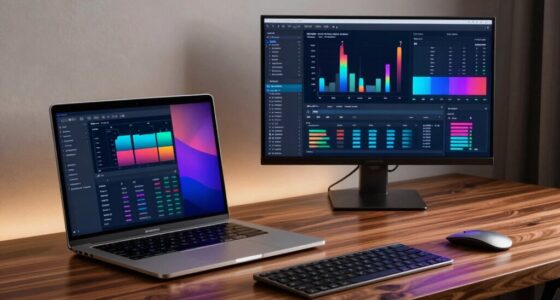


Developer laptop docking stations can turn a single laptop connection into a desk setup for external displays, peripherals, and charging. My best overall pick is the Plugable 13-in-1 USB-C Triple Monitor Docking Station for its broad port selection and up to 100W laptop charging; the Plugable Thunderbolt 4 Dock is a stronger fit for compatible laptops and demanding desk setups, while the Dell Pro WD25 offers a more focused 100W USB-C option. The main tradeoffs are display compatibility, the number and type of ports, charging capacity, and whether your laptop needs DisplayLink or Thunderbolt support. More displays and ports do not automatically mean a smoother setup if your computer cannot drive them as expected. Read on for the full breakdown and help matching a dock to your laptop and workflow.

Get business pricing on monitors, keyboards and dev gear
- Business-only prices and quantity discounts
- Tax-exempt purchasing
- Multiple users, one account, clear invoices
Key Takeaways
- The Plugable 13-in-1 USB-C Triple Monitor Dock leads the roundup by pairing three-display support with 100W charging and a wide selection of ports.
- Thunderbolt 4 is a compatibility-dependent upgrade: the Plugable Thunderbolt 4 dock is the premium choice for a laptop with the right port, not a universal improvement for every USB-C computer.
- Triple-monitor docks are not interchangeable: DisplayLink-based options such as the WAVLINK can suit specific multi-display needs, but software and operating-system compatibility should be checked before purchase.
- Dual-display models can be the more practical developer choice: options from Acer, Anker, Plugable, and Dell may better fit focused two-monitor desks without paying attention only to the largest port count.
- Older or limited-port laptops need a compatibility check first: the USB 3.0 Plugable dock and VGA-equipped HoDo serve different connection needs than modern USB-C and Thunderbolt docks.
| Plugable 13-in-1 USB-C Triple Monitor Docking Station with 100W Laptop Charging |  | Best for Windows Triple-Display Workstations | Host interface: USB-C; requires full-featured USB-C, USB4, or Thunderbolt | Total ports: 13 | Display outputs: 3 HDMI; up to three extended displays | VIEW LATEST PRICE | See Our Full Breakdown |
| Acer 13-in-1 USB-C Docking Station with Triple Display Support |  | Best for Mixed-Connector Windows Setups | Video ports: 2 HDMI and 1 DisplayPort 1.4 | Maximum display support: Up to three independent displays on compatible Windows systems | Triple-display resolution: Up to 4K at 30Hz with compatible Windows hardware and DSC | VIEW LATEST PRICE | See Our Full Breakdown |
| Plugable USB 3.0 Universal Laptop Docking Station with Dual HDMI |  | Best for Older Laptops and Basic Dual-Screen Coding | Host connection: USB 3.0 or USB-C | Video outputs: 2 HDMI | Dual-display resolution: Up to 1920 x 1200 at 60Hz | VIEW LATEST PRICE | See Our Full Breakdown |
| Acer 9-in-1 USB-C Docking Station with Dual HDMI |  | Best for a Compact 4K Desk Setup | Total ports: 9 | Video outputs: 2 HDMI, up to 4K at 60Hz | USB connectivity: 3 USB-A and 1 USB-C; data transfer up to 5Gbps | VIEW LATEST PRICE | See Our Full Breakdown |
| Plugable Dual 1080p HDMI Universal Docking Station |  | Best for Plug-and-Play Office Desks | Model: UD-3900Z | Host connectivity: USB-C or USB-A | Display outputs: 2 HDMI, up to 1920 x 1200 | VIEW LATEST PRICE | See Our Full Breakdown |
| Anker 13-in-1 USB-C Laptop Docking Station with Triple Display |  | Best for Compact Triple-Display Setups | Ports: 13 | Video outputs: 2 HDMI, 1 DisplayPort | Display support: Up to 3 monitors at 1080p 60Hz; single display up to 4K 60Hz | VIEW LATEST PRICE | See Our Full Breakdown |
| Plugable USB-C Triple Display Docking Station with 100W Power Delivery |  | Best for Windows Triple-HDMI Workstations | Connection: USB Type-C | Display outputs: 3 HDMI | Maximum display setup: 1 × 4K at 30Hz and 2 × 1080p at 60Hz | VIEW LATEST PRICE | See Our Full Breakdown |
| Dell Pro WD25 USB-C Docking Station, 100W, DisplayPort and HDMI |  | Best for Enterprise and Linux Compatibility | Connection: USB-C | Total ports: 10, including 6 USB ports | Video interfaces: DisplayPort and HDMI; 1 HDMI port | VIEW LATEST PRICE | See Our Full Breakdown |
| Plugable Thunderbolt 4 Docking Station with 100W Charging and Dual HDMI |  | Best for Thunderbolt 4 and High-Resolution Displays | Hardware interface: Thunderbolt 4 | Total ports: 13, including 6 USB ports | Thunderbolt bandwidth: 40Gbps | VIEW LATEST PRICE | See Our Full Breakdown |
| HoDo 8-in-1 USB-C Docking Station with Dual HDMI, DisplayPort, VGA, and 100W Power Delivery |  | Best for Legacy Monitor Connections | Connection: USB Type-C with DisplayPort Alt Mode required | Total ports: 8 | Video outputs: 2 HDMI, 1 DisplayPort, 1 VGA | VIEW LATEST PRICE | See Our Full Breakdown |
| WAVLINK DisplayLink Docking Station for Three Monitors |  | Best for Three-Display Windows Workstations | Display support: Up to three monitors: 4K at 60Hz plus two 2K displays at 60Hz | Video outputs: 3 HDMI and 2 DisplayPort | USB ports: 6 total: 2 USB-C and 4 USB-A | VIEW LATEST PRICE | See Our Full Breakdown |
| HP USB-C 100W G6 Dock with Extra USB-C Cable |  | Best for a High-Refresh Single Display | Model: HP USB-C 100W G6 Dock | Video output: 1 HDMI 2.1 port | Video support: Up to 4K at 120Hz | VIEW LATEST PRICE | See Our Full Breakdown |
| Anker Nano Laptop Docking Station, 13-in-1 USB-C Dock with Detachable 6-in-1 Hub |  | Best for Desk-to-Travel Flexibility | Port count: 13-in-1, with a detachable 6-in-1 hub | Display outputs: 2 HDMI and 1 DisplayPort | Display modes: Single up to 4K at 60Hz; dual up to 2K at 60Hz; triple at 1080p at 60Hz | VIEW LATEST PRICE | See Our Full Breakdown |
| Anker 8-in-1 USB-C Docking Station with Dual HDMI |  | Best Compact Hub for a Single Monitor | Ports: 8 total: 2 HDMI, 2 USB-A data, USB-C PD-IN, Ethernet, SD and microSD readers | Single-display support: Up to 4K at 60Hz | Dual-display support: Up to 4K at 30Hz | VIEW LATEST PRICE | See Our Full Breakdown |
| MOKiN 14-in-1 USB-C Laptop Docking Station with Dual HDMI and Dual DisplayPort |  | Best for Mixed HDMI and DisplayPort Setups | Port count: 14 | Video outputs: 2 HDMI and 2 DisplayPort | USB ports: 2 USB-C 3.0, 1 USB-A 3.0, and 2 USB-A 2.0 | VIEW LATEST PRICE | See Our Full Breakdown |
| developer laptop docking station | Dimensions and weight |
|---|---|
| Plugable 13-in-1 USB-C Triple | 12 x 6.7 x 17.5 in; 400 g |
| Acer 13-in-1 USB-C Docking Sta | — |
| Plugable USB 3.0 Universal Lap | 4.9 x 2.8 x 7.7 in; 13 oz |
| Acer 9-in-1 USB-C Docking Stat | — |
| Plugable Dual 1080p HDMI Unive | 5.31 x 2.76 x 7.48 in; 333 g |
| Anker 13-in-1 USB-C Laptop Doc | 4.9 × 3.5 × 1.6 in; 13.1 oz |
| Plugable USB-C Triple Display | 3.3 × 7.9 × 1.2 in; 332 g |
| Dell Pro WD25 USB-C Docking St | 8.07 × 3.54 × 1.39 in; 1.2 lb |
| Plugable Thunderbolt 4 Docking | 8.9 × 3.3 × 0.9 in; 2.4 lb |
| HoDo 8-in-1 USB-C Docking Stat | — |
| WAVLINK DisplayLink Docking St | 3.6 × 8.7 × 1 in; 370 g |
| HP USB-C 100W G6 Dock with Ext | — |
| Anker Nano Laptop Docking Stat | — |
| Anker 8-in-1 USB-C Docking Sta | 4.65 × 2.01 × 0.69 in; 3.2 oz |
| MOKiN 14-in-1 USB-C Laptop Doc | — |
More Details on Our Top Picks
Plugable 13-in-1 USB-C Triple Monitor Docking Station with 100W Laptop Charging
For developers who want one dock to connect three external screens, wired networking, card storage, and peripherals, this Plugable offers the broadest workstation setup in this group. Its three HDMI outputs can extend a Windows desktop, while up to 100W laptop charging and a separate 20W front USB-C charge port help reduce desk clutter. Compared with the Acer 13-in-1 USB-C Docking Station, it uses HDMI for all three screens rather than mixing HDMI and DisplayPort, but its second and third outputs top out at 1920 x 1200 at 60Hz; only the first reaches 4K at 30Hz. macOS multi-display use requires DisplayLink software, and this dock cannot play HDCP-protected content. I would choose it for coding and reference screens, not protected video playback or consistently high-resolution output across all displays.
Pros:- Supports up to three extended HDMI displays.
- Provides up to 100W laptop charging and a separate 20W USB-C charging port.
- Combines Gigabit Ethernet, an SD card reader, audio jacks, and five USB ports.
- Works with supported Windows, macOS, and ChromeOS hosts.
Cons:- macOS requires DisplayLink software for multi-monitor support.
- Only the first HDMI output supports up to 4K, and that is limited to 30Hz.
- Does not support HDCP-protected content playback.
Best for: Windows developers who need three extended HDMI displays, Gigabit Ethernet, SD access, and laptop charging from one desk dock.
Not ideal for: Mac users who need extended desktops without installing DisplayLink, or developers who need HDCP-protected playback or matching high resolutions on all three screens.
- Host interface:USB-C; requires full-featured USB-C, USB4, or Thunderbolt
- Total ports:13
- Display outputs:3 HDMI; up to three extended displays
- Display resolutions:HDMI 1: up to 4K at 30Hz; HDMI 2 and 3: up to 1920 x 1200 at 60Hz
- Laptop charging:Up to 100W
- Other connectivity:4 USB-A 5Gbps, SD card reader, Gigabit Ethernet, audio input/output
- Operating systems:Windows 10+, macOS 11+, ChromeOS; macOS requires DisplayLink for multi-monitor support
- Dimensions and weight:12 x 6.7 x 17.5 in; 400 g
Our verdict“Choose this Plugable when a compatible Windows laptop needs three HDMI work screens and substantial charging, but skip it if you need three high-resolution outputs or protected video playback.”
Acer 13-in-1 USB-C Docking Station with Triple Display Support
The Acer is the better fit when a developer’s desk already mixes HDMI and DisplayPort monitors. Its two HDMI ports plus DisplayPort 1.4 can drive three independent displays on compatible Windows laptops, and the included 110W adapter supplies up to 100W to the host. On supported systems with DSC, triple 4K at 30Hz gives a wide coding workspace, though that capability depends on the laptop and graphics hardware—not just the dock. Compared with the Plugable 13-in-1 Triple Monitor Dock, Acer offers a DisplayPort connection and both SD and microSD readers, but it is less flexible for Mac developers: macOS mirrors displays rather than extending the desktop. The rear USB-C port is data-only, and laptop power does not run monitors or high-power accessories. I’d pick it for a compatible Windows workstation, not a mixed-platform team seeking the same multi-display behavior across operating systems.
Pros:- Combines two HDMI outputs with DisplayPort 1.4 for varied monitor connections.
- Supports up to three independent displays on compatible Windows laptops.
- Includes an adapter that provides up to 100W laptop charging.
- Offers Gigabit Ethernet, SD and microSD readers, and an aluminum enclosure with a security slot.
Cons:- macOS supports display mirroring only, not extended desktop mode.
- Triple 4K at 30Hz requires a compatible Windows laptop and GPU with DSC support.
- The rear USB-C port is data-only, and laptop charging does not power external monitors or high-power peripherals.
Best for: Windows developers with compatible DSC-equipped laptops and a three-monitor desk that includes both HDMI and DisplayPort screens.
Not ideal for: Mac developers who need multiple independent external desktops, or anyone expecting the dock’s laptop power to supply monitors and power-hungry peripherals.
- Video ports:2 HDMI and 1 DisplayPort 1.4
- Maximum display support:Up to three independent displays on compatible Windows systems
- Triple-display resolution:Up to 4K at 30Hz with compatible Windows hardware and DSC
- Laptop charging:Up to 100W via USB-C PD; 110W adapter included
- USB ports:1 high-speed USB-C data port, 1 additional USB-C data port, and 3 USB-A
- Other connectivity:Gigabit Ethernet, 3.5 mm AUX, SD and microSD readers
- Enclosure and security:Aluminum body with integrated security slot
- macOS display mode:Mirroring only; extended desktop mode is not supported
Our verdict“Choose the Acer for a compatible Windows laptop and a mixed HDMI/DisplayPort triple-screen desk; skip it if Mac extended displays are part of the plan.”
Plugable USB 3.0 Universal Laptop Docking Station with Dual HDMI
This Plugable is a practical way to add two monitors and desk peripherals to a laptop that lacks a modern USB-C dock connection. The included USB 3.0/USB-C hybrid cable gives it broader host connectivity than the Acer 9-in-1 USB-C Docking Station, but the trade is clear: dual HDMI is capped at 1920 x 1200 at 60Hz, and the dock does not charge the laptop. Six USB ports, Gigabit Ethernet, and separate headphone and microphone jacks cover a straightforward coding desk without leaning on newer display or power standards. Windows and macOS require DisplayLink drivers, while ChromeOS is also supported; Linux and Unix are not. I’d reserve this for office coding, terminals, and documentation rather than gaming, 4K work, or protected streaming. It makes sense when host flexibility matters more than resolution and a one-cable power setup.
Pros:- Connects through USB 3.0 or USB-C using the included hybrid cable.
- Provides two HDMI outputs, six USB ports, and Gigabit Ethernet.
- Adds separate headphone and microphone jacks.
- Supports Windows, macOS, and ChromeOS.
Cons:- Does not charge the connected laptop.
- Dual displays are limited to 1920 x 1200 at 60Hz and the dock does not support 4K.
- Requires DisplayLink drivers on Windows and macOS; Linux and Unix are unsupported.
Best for: Developers keeping a USB-A or USB-C Windows, Mac, or Chromebook laptop who need two basic external monitors and wired Ethernet.
Not ideal for: Developers seeking 4K displays, laptop charging, Linux compatibility, gaming support, or HDCP-protected streaming.
- Host connection:USB 3.0 or USB-C
- Video outputs:2 HDMI
- Dual-display resolution:Up to 1920 x 1200 at 60Hz
- USB ports:2 USB 3.0 and 4 USB 2.0
- Other connectivity:Gigabit Ethernet, 3.5 mm headphone jack, 3.5 mm microphone jack
- Laptop charging:Not supported
- Compatible systems:Windows 10+, macOS 14+, ChromeOS 100+; DisplayLink drivers required on Windows and macOS
- Dimensions and weight:4.9 x 2.8 x 7.7 in; 13 oz
Our verdict“Choose this dock for an older USB-A or USB-C laptop and modest dual-screen coding, but pick the Acer 9-in-1 if 4K output and laptop charging matter more.”
Acer 9-in-1 USB-C Docking Station with Dual HDMI
For a developer who needs two sharp external displays but not a large array of legacy ports, this Acer keeps the setup focused: dual HDMI up to 4K at 60Hz, USB-A and USB-C data, and SD and microSD slots. It can deliver up to 90W to the laptop from a 100W PD input, but that power adapter is not included. Compared with the Plugable USB 3.0 Universal Dock, it raises the display ceiling substantially and adds laptop charging; compared with the Acer 13-in-1, it gives up triple-display flexibility and Gigabit Ethernet. The short 0.65-foot built-in cable suits a close, tidy connection but limits placement. Mac output mirrors the same content across external monitors, and the host must support USB-C DisplayPort Alt Mode. I’d choose it for a compact two-screen desk, not for a Mac user needing separate external desktops.
Pros:- Supports two HDMI displays at up to 4K at 60Hz.
- Delivers up to 90W laptop charging with a suitable 100W PD input.
- Includes USB-A, USB-C, SD, and microSD connections.
- Uses an aluminum-alloy body with a built-in cable and lock button.
Cons:- Requires a USB-C host port with DisplayPort Alt Mode.
- The 100W power adapter is not included.
- macOS mirrors content across the external monitors rather than providing separate extended desktops.
Best for: Developers with a DisplayPort Alt Mode USB-C laptop who want two 4K monitors, card readers, and up to 90W charging in a compact desk setup.
Not ideal for: Mac developers who need independent external desktops, users without their own compatible PD adapter, or anyone needing Ethernet or three displays.
- Total ports:9
- Video outputs:2 HDMI, up to 4K at 60Hz
- USB connectivity:3 USB-A and 1 USB-C; data transfer up to 5Gbps
- Card readers:SD and microSD; up to 104Mbps
- Power delivery input:Up to 100W; adapter not included
- Laptop charging output:Up to 90W
- Host requirement:USB-C with DisplayPort Alt Mode
- Cable and enclosure:Built-in 0.65 ft cable; aluminum alloy
Our verdict“Choose this Acer for a compact dual-4K setup with laptop charging, but select the Acer 13-in-1 if you need three Windows displays or Ethernet.”
Plugable Dual 1080p HDMI Universal Docking Station
This Plugable suits developers who want a simple dual-screen desk without replacing an older laptop: it connects over USB-C or USB-A and includes cables for both. Windows and ChromeOS offer automatic or plug-and-play setup, while macOS needs DisplayLink software. Its two HDMI outputs support up to 1920 x 1200, backed by USB ports, Gigabit Ethernet, and audio. Compared with the Plugable USB 3.0 Universal Dock, the UD-3900Z has a compact vertical design and a stated dual-display ceiling of 1920 x 1200; neither model charges the laptop or targets 4K work. That makes this a reasonable fit for terminals, editors, and browser documentation, but not gaming or protected video playback. I’d favor it over a USB-C-only dock when host flexibility matters; I’d skip it if fewer cables and laptop charging are priorities.
Pros:- Supports USB-C and USB-A hosts, with cables for both connection types.
- Drives two HDMI displays at up to 1920 x 1200.
- Includes USB ports, Gigabit Ethernet, and a 3.5 mm audio jack.
- Compact vertical design helps keep a desk setup contained.
Cons:- Does not charge the laptop.
- macOS requires DisplayLink software for external displays.
- Not intended for HDCP-protected playback, gaming, or full-screen video use.
Best for: Developers with USB-A or USB-C laptops who need two office monitors, wired networking, and a straightforward Windows or ChromeOS setup.
Not ideal for: Developers who need laptop charging, 4K displays, gaming, HDCP-protected video playback, or a Mac setup without DisplayLink.
- Model:UD-3900Z
- Host connectivity:USB-C or USB-A
- Display outputs:2 HDMI, up to 1920 x 1200
- USB ports:2 USB 5Gbps and 4 USB 2.0
- Other connectivity:Gigabit Ethernet and 3.5 mm audio
- Laptop charging:Not supported
- Operating systems:Windows 10+, macOS 11+ with DisplayLink, ChromeOS 100+
- Dimensions and weight:5.31 x 2.76 x 7.48 in; 333 g
Our verdict“Choose the UD-3900Z for a compact dual-monitor office setup that must work with either USB-A or USB-C, but look elsewhere for charging or 4K output.”
Anker 13-in-1 USB-C Laptop Docking Station with Triple Display
For a developer who wants a crowded desk’s essentials in a small footprint, the Anker 13-in-1 combines three video outputs, network access, card readers, audio, and several USB ports. Its up to 85W laptop charging can power many work laptops while the included adapter also supports phone charging, reducing the number of devices competing for outlets. Compared with the Plugable USB-C Triple Display Dock, Anker is a compact fit and includes DisplayPort plus memory-card slots, but Plugable offers 100W host charging and is a better match for laptops that need more power. The Anker’s main catch is display compatibility: triple-screen extension works on compatible Windows and ChromeOS computers, while macOS mirrors external screens. Check that your USB-C port supports DisplayPort Alt Mode and Power Delivery before choosing it.
Pros:- Three video outputs support up to three 1080p displays on compatible systems.
- 13 ports include USB-C, USB-A, Ethernet, SD and microSD readers, and audio.
- Up to 85W laptop charging and 18W phone charging, with a 135W adapter included.
- Compact vertical design takes up little desk space.
Cons:- macOS external displays mirror rather than extend.
- Triple-display extension depends on a compatible Windows or ChromeOS system.
- Requires USB-C with DisplayPort Alt Mode and Power Delivery.
Best for: Developers with compatible Windows or ChromeOS laptops who want three 1080p screens, card readers, and a space-saving dock.
Not ideal for: Mac developers who need separate extended displays, or users whose laptop requires more than 85W of charging.
- Ports:13
- Video outputs:2 HDMI, 1 DisplayPort
- Display support:Up to 3 monitors at 1080p 60Hz; single display up to 4K 60Hz
- USB ports:3 USB-C and 3 USB-A
- USB data speeds:USB-C up to 10 Gbps; USB-A up to 5 Gbps
- Charging:Up to 85W laptop and 18W phone charging; 135W adapter included
- Other connections:Gigabit Ethernet, SD and microSD, 3.5mm audio
- Compatibility:Full-Function USB-C, USB4, Thunderbolt 3/4/5; Windows 10/11 and ChromeOS; macOS mirrors external displays
- Dimensions and weight:4.9 × 3.5 × 1.6 in; 13.1 oz
Our verdict“Choose this compact Anker dock for a compatible Windows or ChromeOS laptop and three 1080p screens, but not for extended multi-monitor work on macOS.”
Plugable USB-C Triple Display Docking Station with 100W Power Delivery
The Plugable USB-C Triple Display Dock suits developers who want a three-screen desk built around HDMI monitors and need up to 100W Power Delivery. Its mix of DisplayLink and USB-C Alt Mode supports one 4K display at 30Hz alongside two 1080p displays at 60Hz, while six USB 3.0 ports leave room for peripherals such as a keyboard, webcam, and external storage. Compared with the Anker 13-in-1, this dock provides more host charging and three HDMI connections, but Anker is smaller and adds SD and microSD readers. Plugable’s broad OS support is useful for macOS users willing to install the DisplayLink driver; it is a poor fit for Linux developers, since Linux is unsupported. HDCP is also unavailable, which can affect protected video playback.
Pros:- Supports three extended HDMI displays, including one 4K 30Hz and two 1080p 60Hz screens.
- Up to 100W Power Delivery can charge a compatible laptop.
- Six USB 3.0 ports support a large set of desk peripherals.
- Includes Gigabit Ethernet and audio connectivity.
Cons:- Not compatible with Linux.
- macOS use requires installing the DisplayLink driver.
- HDCP is not supported.
Best for: Windows developers with several HDMI monitors, many USB peripherals, and a laptop that benefits from 100W charging.
Not ideal for: Linux users, or developers who need HDCP-protected content playback from the dock.
- Connection:USB Type-C
- Display outputs:3 HDMI
- Maximum display setup:1 × 4K at 30Hz and 2 × 1080p at 60Hz
- Display technology:DisplayLink and USB-C Alt Mode
- Power Delivery:Up to 100W
- USB ports:6 USB 3.0
- Other connectivity:Gigabit Ethernet and audio
- Operating systems:Windows 10/11, macOS 11 or later, ChromeOS 100 or later; Linux unsupported
- Dimensions and weight:3.3 × 7.9 × 1.2 in; 332 g
Our verdict“Pick this Plugable dock for a Windows HDMI-heavy workstation with multiple peripherals, and skip it if Linux compatibility is required.”
Dell Pro WD25 USB-C Docking Station, 100W, DisplayPort and HDMI
The Dell Pro WD25 is the lineup’s more workplace-oriented choice: it offers up to 100W charging, Ethernet, six USB ports, and support for up to four high-resolution displays. Its listed compatibility includes Windows, ChromeOS, Ubuntu 24.04, and Red Hat Enterprise Linux 9.6 or later, giving Linux developers a clearer fit than the Plugable USB-C Triple Display Dock, which does not support Linux. Dell also supplies a configurable USB-C cable and backs the dock with a three-year limited hardware warranty with Advanced Exchange. The tradeoff is a less explicit video setup: it has only one HDMI port, and the product information does not specify the resolutions and refresh rates for each multi-display configuration. I’d shortlist it for a supported corporate environment, but verify the exact monitor layout before buying.
Pros:- Up to 100W Power Delivery supports compatible work laptops.
- Supports up to four high-resolution displays.
- Listed support includes Ubuntu 24.04 and Red Hat Enterprise Linux 9.6 or later.
- Three-year limited hardware warranty with Advanced Exchange; at least 65% postconsumer recycled materials.
Cons:- Only one HDMI port, so multi-monitor connections rely on the available DisplayPort and other supported interfaces.
- The supplied specifications do not state per-display resolution and refresh-rate combinations.
- Operating system support is tied to the listed systems and versions.
Best for: Developers in Dell-managed or mixed-brand workplaces who need 100W charging, Ethernet, and listed Ubuntu or Red Hat compatibility.
Not ideal for: Buyers who want several direct HDMI connections or need detailed, confirmed resolution and refresh-rate limits before selecting a multi-monitor layout.
- Connection:USB-C
- Total ports:10, including 6 USB ports
- Video interfaces:DisplayPort and HDMI; 1 HDMI port
- Display support:Up to 4 high-resolution displays
- Power Delivery:Up to 100W
- Other connectivity:Ethernet
- Operating systems:Windows 10/11, Ubuntu 24.04, Red Hat Enterprise Linux 9.6 or later, ChromeOS 137
- Materials:At least 65% postconsumer recycled materials; packaging is 100% recycled or renewable
- Dimensions and weight:8.07 × 3.54 × 1.39 in; 1.2 lb
Our verdict“Choose the WD25 for a supported business or Linux workstation that values charging, Ethernet, and warranty coverage over multiple HDMI ports.”
Plugable Thunderbolt 4 Docking Station with 100W Charging and Dual HDMI
For a developer whose laptop supports Thunderbolt 4, this Plugable dock offers a faster, more display-focused connection than the USB-C models here. Its 40Gbps Thunderbolt bandwidth and support for dual 4K displays at 60Hz—or a single 8K screen on compatible systems—make it a stronger match for high-resolution monitors than the Anker 13-in-1, which tops out at 4K 60Hz for a single display and targets up to three 1080p screens. The dock also brings 100W host charging, a downstream Thunderbolt 4 port, card readers, Ethernet, and audio. Those capabilities depend heavily on the computer: some USB-C and Thunderbolt 3 systems, along with certain base Mac models, support only one external display. Check the laptop’s display limits first; this dock’s premium bandwidth cannot override them.
Pros:- 40Gbps Thunderbolt 4 bandwidth supports fast connections to compatible peripherals.
- Supports dual 4K 60Hz displays or one 8K display on compatible systems.
- Up to 100W host charging and 15W downstream Thunderbolt 4 charging.
- 13 ports include USB, HDMI, SD and microSD readers, Gigabit Ethernet, and audio.
Cons:- Some USB-C, Thunderbolt 3, and base Mac systems support only one external display.
- Dual displays on base M3 Macs require clamshell mode.
- Requires a compatible computer to use its full Thunderbolt and display capabilities.
Best for: Developers with Thunderbolt 4 laptops and two high-resolution monitors who want fast data connections and up to 100W charging.
Not ideal for: Users with USB-C-only laptops or Mac models limited to one external display who expect dual-monitor output from the dock.
- Hardware interface:Thunderbolt 4
- Total ports:13, including 6 USB ports
- Thunderbolt bandwidth:40Gbps
- Video outputs:2 HDMI
- Display support:Dual 4K at 60Hz or single 8K on compatible systems
- Power:Up to 100W host charging; 96W certified; 15W downstream Thunderbolt 4 charging
- Other connectivity:Gigabit Ethernet, SD and microSD readers, audio
- Operating systems:Windows 10 and up; macOS 11 and up on compatible systems
- Dimensions and weight:8.9 × 3.3 × 0.9 in; 2.4 lb
Our verdict“Choose this Plugable dock when your laptop supports Thunderbolt 4 and you need dual 4K displays; verify your computer’s display limits before committing.”
HoDo 8-in-1 USB-C Docking Station with Dual HDMI, DisplayPort, VGA, and 100W Power Delivery
The HoDo 8-in-1 earns a place for developers who need one dock to connect a mix of HDMI, DisplayPort, and older VGA monitors. It can handle several display types in one setup, and its listed quad-display mode reaches 1080p at 60Hz—useful for arranging legacy screens around a laptop. Compared with the Dell Pro WD25, HoDo provides VGA and two HDMI ports, but Dell is a more business-focused choice with Ethernet, a three-year warranty, and listed enterprise Linux support. HoDo’s three USB data ports are only USB 2.0, so I wouldn’t use it as the main hub for fast external storage. VGA caps all connected displays at 1080p, macOS mirrors external screens, and the compatible power adapter is not included. Confirm the laptop supports DisplayPort Alt Mode as well.
Pros:- Four video output types: two HDMI, DisplayPort, and VGA.
- Supports quad-display mode up to 1080p at 60Hz, depending on laptop and setup.
- Up to 100W power input and up to 87W laptop charging output.
- Compact listed weight of 0.13 kg.
Cons:- USB data ports are USB 2.0, limited to up to 480 Mbps.
- Using VGA limits all displays to up to 1080p.
- macOS mirrors external displays, and a compatible power adapter is not included.
Best for: Developers connecting a mix of HDMI, DisplayPort, and VGA monitors, especially when legacy screens are part of the workstation.
Not ideal for: Mac users needing extended displays, developers transferring large files through dock USB ports, or anyone expecting a power adapter in the box.
- Connection:USB Type-C with DisplayPort Alt Mode required
- Total ports:8
- Video outputs:2 HDMI, 1 DisplayPort, 1 VGA
- Display support:Dual HDMI up to 4K at 60Hz and 30Hz; DisplayPort up to 4K at 60Hz; quad-display mode up to 1080p at 60Hz
- VGA limitation:All connected displays limited to up to 1080p when VGA is used
- USB data ports:3 USB 2.0, up to 480 Mbps
- USB-C Power Delivery:Up to 100W input; up to 87W output to laptop
- Operating systems:Windows 10/11, macOS, Ubuntu 22.04, ChromeOS; macOS mirrors external displays
- Weight:0.13 kg
Our verdict“Pick the HoDo when legacy VGA and mixed video connections matter more than fast USB data, Mac display extension, or an included power adapter.”
WAVLINK DisplayLink Docking Station for Three Monitors
For developers who need a broad desktop setup, the WAVLINK DisplayLink Docking Station pairs support for three monitors with six 10Gbps USB ports, Gigabit Ethernet, and up to 100W laptop charging. Its mix of HDMI and DisplayPort outputs offers more connection flexibility than the HP USB-C 100W G6 Dock, which lists one HDMI output but supports a higher refresh rate on a single screen. WAVLINK’s 4K-at-60Hz plus two-2K-at-60Hz configuration suits code, documentation, and communication windows spread across displays; it is not a high-refresh single-screen pick.
The tradeoff is driver and media compatibility: MacBooks require DisplayLink software, and the dock is not recommended for HDCP-protected 4K streaming. It also needs a compatible USB-C, USB4, or Thunderbolt connection, so it cannot serve USB-A laptops. I’d rank it for multi-monitor productivity rather than uncomplicated Mac setup or entertainment use.
Pros:- Supports up to three displays, including one 4K screen at 60Hz alongside two 2K screens at 60Hz.
- Supplies up to 100W laptop charging and includes a 130W power adapter.
- Six USB ports support transfer speeds up to 10Gbps per port.
- Combines Gigabit Ethernet with HDMI and DisplayPort outputs.
Cons:- MacBooks require DisplayLink driver installation.
- Not compatible with USB-A laptops or gaming consoles.
- Not recommended for HDCP-protected 4K streaming.
Best for: Windows developers with a compatible USB-C or Thunderbolt laptop who want three external screens, wired networking, and several fast peripheral connections at one desk.
Not ideal for: Mac users seeking a driver-free setup, USB-A laptop owners, and developers who need HDCP-protected 4K playback or high-refresh gaming output.
- Display support:Up to three monitors: 4K at 60Hz plus two 2K displays at 60Hz
- Video outputs:3 HDMI and 2 DisplayPort
- USB ports:6 total: 2 USB-C and 4 USB-A
- USB transfer speed:Up to 10Gbps per port
- Power delivery:Up to 100W; 130W power adapter included
- Ethernet:Gigabit
- Compatible interfaces:USB-C, USB4, Thunderbolt 3 and Thunderbolt 4
- Mac compatibility:M1–M5 and Neo Macs; DisplayLink driver required
- Dimensions and weight:3.6 × 8.7 × 1 in; 370 g
Our verdict“Choose WAVLINK for a compatible developer laptop when three-screen capacity and plentiful fast USB ports matter more than driver-free Mac setup.”
HP USB-C 100W G6 Dock with Extra USB-C Cable
The HP USB-C 100W G6 Dock is the clearest fit here for a developer who wants one sharp, fluid external display rather than a multi-monitor array. Its HDMI 2.1 output supports 4K at up to 120Hz, while 100W charging, 2.5Gbps Ethernet, and a second USB-C cable support a tidy daily workstation. Compared with the WAVLINK dock, HP gives up the stated three-display setup and six specified 10Gbps USB ports, but offers a higher listed refresh rate and faster wired networking.
There’s a notable information gap: the product details list five USB ports without specifying their individual functions or speeds, making it harder to plan around fast storage or specialty peripherals. The stated operating-system requirement is Windows 11, which also narrows its appeal for developers using other systems. I’d choose it for a supported Windows laptop and one high-refresh monitor, not as a known quantity for elaborate peripheral layouts.
Pros:- HDMI 2.1 supports 4K video at up to 120Hz.
- Provides up to 100W power delivery through one laptop connection.
- Includes 2.5Gbps Ethernet, faster than the Gigabit connections listed on several alternatives.
- Compact design includes LED status notifications and an extra USB-C cable.
Cons:- The listed operating-system requirement is Windows 11.
- USB port functions and transfer speeds are not specified in the product details.
- Its listed video connection is one HDMI port, so it is less suited to multi-display desks than WAVLINK.
Best for: Windows 11 developers using one 4K high-refresh monitor who want up to 100W charging and faster-than-Gigabit wired networking.
Not ideal for: Developers who need three independent displays, a Linux or macOS-supported setup based on the listed requirements, or confirmed USB port speeds before buying.
- Model:HP USB-C 100W G6 Dock
- Video output:1 HDMI 2.1 port
- Video support:Up to 4K at 120Hz
- USB-C power delivery:Up to 100W
- Ethernet:RJ-45, 2.5Gbps
- Ports:10 total ports, including 5 USB ports
- Compatibility:Most USB-C or Thunderbolt laptops
- Operating system requirement:Windows 11
- Weight and included item:1.5 lb; one extra USB-C cable
Our verdict“Pick the HP dock for a Windows 11 desk centered on a single 4K, 120Hz display, but choose a better-documented multi-monitor dock for a larger setup.”
Anker Nano Laptop Docking Station, 13-in-1 USB-C Dock with Detachable 6-in-1 Hub
The Anker Nano 13-in-1 earns its place by splitting the difference between a desktop dock and a travel hub: its detachable 6-in-1 module can leave the main unit behind when a developer needs only a few connections on the go. At a desk, it supports up to three displays and supplies up to 100W charging from an included 140W adapter. That makes it more adaptable than the WAVLINK DisplayLink Docking Station for mixed desk-and-travel routines, though WAVLINK’s listed three-display mode reaches 4K plus two 2K screens, while Anker’s triple-display mode is limited to 1080p per display.
Mac users should pay attention to the display limitation: multiple external screens are mirrored, not independent. The stated triple-display arrangement is also less suited to detailed code work than a two-screen high-resolution setup. I’d favor this dock when portability and a removable hub are the deciding features, not when independent Mac displays or maximum multi-screen resolution come first.
Pros:- Detachable 6-in-1 hub provides a portable subset of the desktop dock’s connections.
- Supports up to three displays, with single-display output up to 4K at 60Hz.
- Offers up to 100W laptop charging and includes a 140W power adapter.
- Provides USB data speeds up to 10Gbps and an 18-month warranty.
Cons:- macOS multiple-display output is limited to mirrored mode.
- Triple-display output is limited to 1080p at 60Hz per monitor.
- Ports and indicator lights require a connected laptop to activate.
Best for: Developers who alternate between a fixed workstation and travel, and want a detachable hub for carrying only essential connections.
Not ideal for: Mac developers who need multiple independent external desktops or anyone who expects three monitors to run above 1080p each.
- Port count:13-in-1, with a detachable 6-in-1 hub
- Display outputs:2 HDMI and 1 DisplayPort
- Display modes:Single up to 4K at 60Hz; dual up to 2K at 60Hz; triple at 1080p at 60Hz
- Power delivery:Up to 100W
- Included power adapter:140W
- USB data transfer:Up to 10Gbps
- Other connections:USB-C upstream, 2 USB-C data, 3 USB-A, Gigabit Ethernet, 3.5mm audio, SD and TF slots
- Compatibility:Windows 10+, macOS 13 Ventura+, USB-C and Thunderbolt 3/4/5 devices
- Warranty:18 months
Our verdict“Choose the Anker Nano if one dock must serve both a desk and a travel bag, but skip it if your Mac workflow depends on independent external screens.”
Anker 8-in-1 USB-C Docking Station with Dual HDMI
The Anker 8-in-1 USB-C Dock makes more sense as a compact connection hub than as a full developer workstation dock. It brings HDMI, USB-A, Ethernet, and SD and microSD readers into one small unit, with 4K at 60Hz for a single display. Compared with the larger Anker Nano 13-in-1, it gives up a detachable travel hub and triple-display support, but its smaller connection set may suit a developer who mainly needs one monitor, wired networking, and occasional card access.
Its limits matter for multi-screen coding: two HDMI displays are capped at 4K at 30Hz, and macOS mirrors the same image across both. Charging reaches 85W, but the required 100W wall charger and USB-C cable are not included. Linux is listed as unsupported, so I wouldn’t choose it for a Linux laptop. It’s a focused, lightweight option when a single external display is the real requirement.
Pros:- Small, 3.2-ounce hub combines HDMI, USB-A, Ethernet, and SD and microSD readers.
- Supports a single external display at up to 4K at 60Hz.
- Provides up to 85W pass-through charging.
- Works with USB-C, USB4, and Thunderbolt systems that support the required display and charging features.
Cons:- Dual-display output is limited to 4K at 30Hz.
- macOS mirrors the same content across connected external displays.
- The required 100W charger and USB-C cable are not included, and Linux is unsupported.
Best for: Developers with a compatible Windows or ChromeOS USB-C laptop who want a lightweight single-monitor hub with Ethernet and card readers.
Not ideal for: Linux users, Mac users needing independent external displays, and developers who want dual monitors at 60Hz or included charging equipment.
- Ports:8 total: 2 HDMI, 2 USB-A data, USB-C PD-IN, Ethernet, SD and microSD readers
- Single-display support:Up to 4K at 60Hz
- Dual-display support:Up to 4K at 30Hz
- Pass-through charging:Up to 85W
- Ethernet:1Gbps
- Compatibility:USB-C, USB4, and Thunderbolt laptops with DP Alt Mode and Power Delivery
- Operating systems:Windows 10 and 11, and ChromeOS; Linux is not compatible
- Dimensions and weight:4.65 × 2.01 × 0.69 in; 3.2 oz
- Included items:Docking hub and welcome guide; charger and USB-C cable not included
Our verdict“Choose this Anker hub for a compact one-monitor setup with useful card readers, not for Linux, independent Mac displays, or a dual-screen development desk.”
MOKiN 14-in-1 USB-C Laptop Docking Station with Dual HDMI and Dual DisplayPort
The MOKiN 14-in-1 suits developer desks built around a mix of HDMI and DisplayPort monitors: its two HDMI and two DisplayPort outputs sit alongside Ethernet, card readers, and five USB ports. Compared with the Anker 8-in-1 USB-C Dock, MOKiN offers more video connectors and a wider selection of desk peripherals, while Anker is the more compact choice for a one-screen setup. MOKiN also lists up to 100W charging, though the power adapter must be supplied separately.
Port count alone does not make it the best pick for every multi-monitor workflow. The provided details do not state supported monitor resolutions or refresh rates, and macOS mirrors external displays rather than showing separate desktops. Its USB data speed is listed at 5Gbps, below the 10Gbps ports on WAVLINK and the Anker Nano. I’d select it when monitor-connector variety matters more than detailed display specifications or fast peripheral transfer.
Pros:- Two HDMI and two DisplayPort outputs provide flexibility for mixed monitor connections.
- Combines 14 listed ports, including Ethernet, SD and microSD readers, and USB connections.
- Supports up to 100W USB-C Power Delivery.
- Includes a screen-off button for quickly blanking connected displays.
Cons:- Mac external displays show the same mirrored image rather than independent desktops.
- A power adapter is not included.
- Listed USB data speed is 5Gbps, and display resolution and refresh-rate limits are not specified.
Best for: Developers with a compatible laptop and a desk containing a mix of HDMI and DisplayPort monitors, plus wired networking and card-reader needs.
Not ideal for: Mac developers who need independent external screens, buyers who require published monitor resolution and refresh-rate limits, or anyone expecting a power adapter in the box.
- Port count:14
- Video outputs:2 HDMI and 2 DisplayPort
- USB ports:2 USB-C 3.0, 1 USB-A 3.0, and 2 USB-A 2.0
- Additional ports:RJ45 Ethernet, SD, microSD, and USB-C Power Delivery
- Maximum charging power:Up to 100W
- USB data transfer:Up to 5Gbps
- Ethernet:1000Mbps
- Compatibility:Laptops with Thunderbolt 3/4 or a full-featured USB-C port
- Included items and power adapter:Docking station, user manual, and two cables; power adapter not included
Our verdict“Choose MOKiN when HDMI and DisplayPort variety is the priority, but avoid it if you need confirmed display limits, independent Mac screens, or an included power adapter.”

How We Picked
I ranked these 15 docks around developer workflows: driving one or more external displays, connecting keyboards, storage, networking, and other desk peripherals, and supplying laptop power where the model supports it. I compared connection standards, stated display support, charging capacity, port variety, and the practical fit for different laptop generations. A dock’s advertised monitor count only helps when the laptop, operating system, and connection method can support that configuration.
The order favors useful balance and clear fit over raw port counts. The Plugable 13-in-1 earns the lead for combining triple-display support, 100W charging, and broad connectivity; Thunderbolt and business-focused docks rank well for buyers whose laptops match their standards and needs. Simpler dual-display and USB 3.0 models rank lower for general use, but can be better fits for narrower budgets, legacy systems, or less demanding desks. I also weighed the setup tradeoffs: docks that rely on DisplayLink, offer older connections, or need a specific host capability are less flexible for buyers who have not checked compatibility.
Factors to Consider When Choosing Developer Laptop Docking Stations
Choosing a dock starts with the laptop, not the dock’s port count. I would check the computer’s supported display outputs, charging input, and USB-C or Thunderbolt capabilities before comparing layouts. These factors help avoid buying a dock that fits the desk but cannot deliver the display setup or power the laptop needs.
Check What Your Laptop’s USB-C Port Actually Supports
A USB-C connector describes its shape, not everything it can do. Some laptop ports carry video and power, while others handle data without supporting the display arrangement a dock advertises. Check your laptop’s technical specifications for DisplayPort Alt Mode, Thunderbolt support, and the number of external displays it can drive. This matters most when you are planning a multi-monitor coding setup: a capable dock cannot add host features the laptop lacks. If the specifications are unclear, favor a dock with a return policy and confirm its requirements with the manufacturer before setting up your desk.
Match the Display Setup to Your Actual Workflow
Decide whether you need one large external screen, two independent monitors, or three displays before comparing dock labels. Two screens can be easier to support across different laptops and may be enough for an editor, documentation, and a running application. A third display can help when you regularly keep logs, terminals, or communication tools visible, but adds cabling and compatibility checks. Verify supported resolution and refresh rate for the exact number of screens you plan to use; a dock’s maximum resolution may apply only to one display. Avoid choosing by the highest monitor count alone if your laptop’s video output cannot match it.
Choose Between Native Video, DisplayLink, and Thunderbolt
Native USB-C video and Thunderbolt docks use the laptop’s display capabilities, while DisplayLink docks use a software-based approach to add display outputs. DisplayLink can help with certain laptop configurations, but it may require driver installation and can behave differently across operating systems, security policies, or graphics-heavy tasks. Thunderbolt offers a high-bandwidth connection when both dock and laptop support the standard, but it is not a safe assumption for every USB-C port. For a managed work computer, check whether you can install the software a DisplayLink dock needs. The right connection type is the one your laptop supports reliably, not the one with the most ambitious label.
Size Up Charging Needs Separately From Port Count
A dock’s maximum power delivery should be compared with the laptop’s own power requirement. A 100W-capable dock can reduce desk clutter for many compatible laptops, but the delivered power may vary by model, cable, and host requirements. If the laptop draws more power than the dock supplies, it may charge slowly or lose charge during sustained workloads. Check whether the dock includes its own power adapter and whether your laptop can charge over its USB-C or Thunderbolt port. This is especially useful for developers running builds or virtual machines for long periods, when relying on a low-power connection can be inconvenient.
Plan Ports Around Peripherals You Keep Connected
List the devices that will stay on the desk: monitor cables, keyboard, mouse, external storage, Ethernet, audio equipment, and any security keys. Then compare the dock’s port types and locations, not just the total number. A high port count can still leave you short if most ports are USB-A and your peripherals use USB-C, or if the dock lacks the network connection you need. Leave room for future devices, but avoid paying attention to ports you are unlikely to use. Also check whether the dock has front-facing connections for frequently removed devices and rear connections for permanent cables.
Account for Desk Space, Cables, and Laptop Sharing
A dock is part of the daily desk routine, so its footprint, cable reach, and connection placement affect how easy it is to use. A compact hub may suit a small workspace or a laptop that moves between home and office, while a larger dock can keep more peripherals connected at one desk. If you switch between work and personal laptops, confirm that both computers support the same dock features; a shared USB-C connection does not guarantee identical display results. Check whether the host cable is detachable or long enough to reach the laptop’s chosen position. The smoothest setup is often the one that minimizes repeated cable changes, not the one with the most ports.
Frequently Asked Questions
Will a USB-C docking station run two or three monitors from any developer laptop?
No. The laptop must support the dock’s connection method and the number of external displays you want to use. Check the computer’s specifications for USB-C video support, Thunderbolt capability, and its external-display limit. Some DisplayLink docks can add displays through software, but they bring driver and operating-system requirements. Confirm the exact laptop-and-dock combination before buying, especially for a three-monitor setup.
Should I choose a DisplayLink dock or a Thunderbolt dock for coding?
Choose based on laptop compatibility and the work you do, rather than assuming one connection type is always better. A Thunderbolt dock suits a laptop with Thunderbolt support and can be a strong choice for a high-bandwidth desk setup. DisplayLink may be useful when a laptop’s native display support does not meet your monitor needs, but it relies on software and can be restricted by managed-device policies. Check your operating system, graphics workload, and permission to install drivers before deciding.
How much laptop charging power should I look for in a developer dock?
Compare the dock’s stated power delivery with the power adapter recommended for your laptop. A dock offering up to 100W can replace a separate charger for many compatible computers, but it may not meet the needs of every high-performance laptop. Heavy workloads can also make a power shortfall more noticeable during long sessions. Confirm whether the advertised figure reaches the laptop through the included cable and whether the dock’s power adapter is part of the package.
Is a triple-monitor dock worth choosing over a dual-monitor dock?
A third monitor is useful if you regularly keep separate workspaces visible, such as an editor, terminal, documentation, and monitoring tools. It also adds another display to buy, connect, and troubleshoot, and your laptop must support the configuration. For many coding desks, two well-sized monitors provide enough room with fewer compatibility constraints. I would choose a triple-display dock only after confirming that your laptop can drive all three screens at the resolutions and refresh rates you want.
Can I use one docking station with both a work laptop and a personal laptop?
Often, but the experience depends on the ports and display capabilities of both laptops. A dock may connect to each computer over USB-C while supporting different monitor counts or charging levels on each one. DisplayLink software may also require approval on a work-managed machine. Before relying on a shared setup, check both laptops’ specifications and confirm that the dock’s host cable and power delivery suit each computer.
Conclusion
For most developers, I recommend the Plugable 13-in-1 USB-C Triple Monitor Dock as the best overall balance of displays, charging, and desk connectivity. The best value depends on your needs: a simpler dual-display option such as the Acer 9-in-1 makes more sense when you do not need triple-screen support, while the Plugable Thunderbolt 4 is my premium pick for a compatible Thunderbolt laptop. Beginners should start by checking their laptop’s display and charging capabilities, then favor a straightforward USB-C dock that matches those requirements rather than buying by port count. For specific needs, choose the WAVLINK DisplayLink when its software-based three-monitor approach fits your setup, the Plugable USB 3.0 Universal Dock for older connection needs, or the HoDo 8-in-1 if VGA is a required legacy output. Verify your laptop’s compatibility before settling on any model.