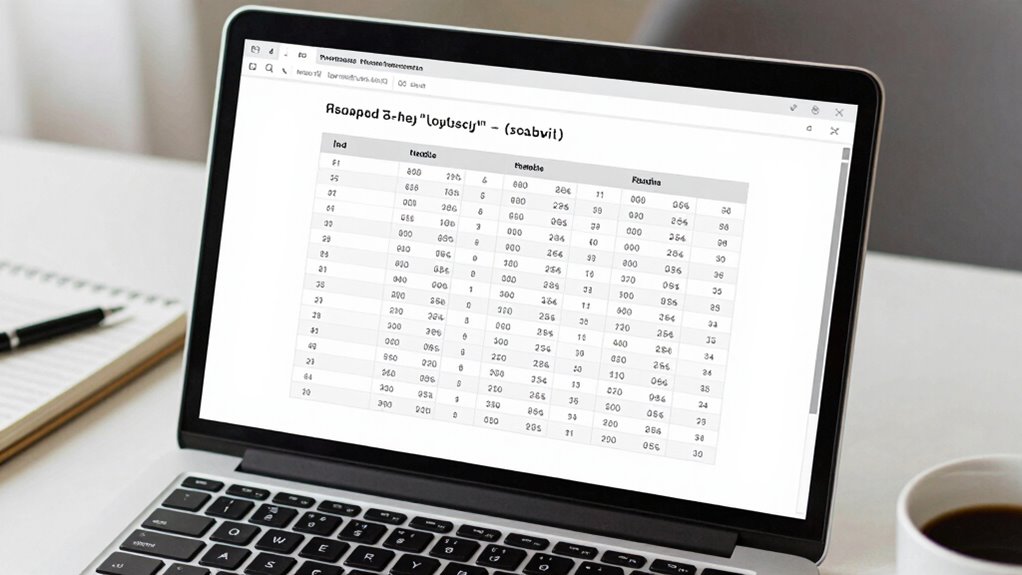

To create effective LaTeX tables for research papers, focus on clear, professional layouts that improve readability. Use packages like `booktabs` for elegant lines and `tabularx` to control column widths. Customize alignment, spacing, and borders to match your style and highlight key data. Be mindful of common errors like misplaced `&` or unmatched braces, and consult resources or forums when needed. Staying patient and systematic here helps you master the techniques that make your tables stand out—keep going to learn more.

Get business pricing on monitors, keyboards and dev gear
- Business-only prices and quantity discounts
- Tax-exempt purchasing
- Multiple users, one account, clear invoices
Key Takeaways
- Use `booktabs` for cleaner, professional table lines that improve readability in research papers.
- Customize column widths with `tabularx` to ensure data fits well and maintains visual clarity.
- Incorporate proper alignment, spacing, and captions to enhance table presentation and consistency.
- Follow best practices to structure tables for accessibility, clarity, and effective data interpretation.
- Troubleshoot common LaTeX errors by checking syntax, environment closures, and package usage for smooth compilation.
When preparing a research paper, presenting data clearly and professionally is essential, and well-designed tables play an important role in achieving that. LaTeX offers powerful tools to create high-quality tables that can be tailored to your specific needs. One of the key advantages is table customization, which allows you to control every aspect of your table’s appearance—from alignment and spacing to borders and captions. By mastering customization, you can guarantee your tables fit seamlessly into your document’s style and improve readability. For example, you can use packages like `booktabs` to produce cleaner, more elegant lines, or modify column widths with the `tabularx` package for better data fit. Customization also involves choosing appropriate font styles, colors, and spacing to make your data stand out without cluttering the layout. Additionally, understanding the importance of content formats can help you select the most effective way to display your data in LaTeX. Incorporating visual hierarchy into your tables can further enhance clarity, making it easier for readers to interpret complex data sets. Recognizing how to utilize data visualization principles within your tables can also significantly strengthen your presentation. Moreover, being aware of best practices in table design can help you avoid common pitfalls and ensure your data remains accessible. For example, selecting the appropriate table structure can make a significant difference in how easily your audience interprets the data. While creating tables in LaTeX is straightforward, error troubleshooting can sometimes pose challenges, especially for beginners. Common issues include misaligned columns, broken borders, or compilation errors that prevent your document from rendering correctly. To troubleshoot, start by carefully reviewing your code; often, errors stem from missing or misplaced `&` symbols, unmatched braces, or incorrect commands. Using the `hline` command improperly or forgetting to close environments can also cause formatting issues. LaTeX editors typically provide error logs that point you toward the problematic line, so pay close attention to those messages. When encountering errors, simplifying your table code can help isolate the problem—remove sections and reintroduce them gradually. If you’re using complex features like multi-row or multi-column cells, double-check the syntax and ensure you’re using the correct packages like `multirow` or `multicolumn`. Error troubleshooting is essential because it helps you learn how LaTeX interprets your code, enabling you to fix issues efficiently. Many errors are caused by minor syntax mistakes, so becoming familiar with common LaTeX commands and their quirks is valuable. Additionally, online forums and documentation are excellent resources when you’re stuck. They often contain solutions for typical table errors and tips on best practices. Remember, patience and systematic debugging are your best tools when addressing table-related errors.
LaTeX table packages for research papers
As an affiliate, we earn on qualifying purchases.
As an affiliate, we earn on qualifying purchases.
Frequently Asked Questions
How Do I Customize Table Captions in Latex?
To customize table captions in LaTeX, you can adjust the caption formatting and style easily. Use the `caption` package and its options, like `captionsetup`, to change font size, style, or alignment. For caption customization, modify the `labelfont`, `textfont`, or `justification` parameters within `captionsetup`. This allows you to tailor the appearance of your table captions to match your paper’s style requirements seamlessly.
Can I Import External Data Into Latex Tables?
Yes, you can import external data into LaTeX tables, turning your document into a vessel that carries data seamlessly. Use tools like the `csvsimple` or `pgfplotstable` packages to weave external data into your tables, offering a smooth flow from raw data to formatted presentation. These packages handle data formatting gracefully, translating spreadsheets or CSV files into polished LaTeX tables without breaking a sweat.
How to Handle Long Tables Across Multiple Pages?
To handle long tables across multiple pages, you should use the `longtable` package, which supports multi-page formatting. It automatically wraps tables across pages and provides headers for continued sections. For better readability, you can also implement table wrapping, ensuring your data fits neatly within page margins. This approach keeps your research paper organized and professional, making complex data accessible without manual adjustments.
What Are Best Practices for Table Caption Placement?
You should place your table caption above the table for clear caption positioning, guaranteeing it’s easily associated with the data. Use consistent caption formatting—bold or italics—to maintain a professional appearance. Keep your captions concise yet descriptive, and align text properly for readability. Proper table caption positioning improves clarity, while consistent caption formatting enhances the overall presentation. Follow journal or style guidelines to ensure your captions meet specific requirements.
How Do I Add Footnotes or References Within Tables?
You add footnotes in LaTeX tables by using the footnote command within table cells, but note that standard footnote placement can be tricky. To guarantee proper referencing styles, consider using packages like threeparttable or tablefootnote, which handle footnotes within tables seamlessly. These tools allow you to place footnotes precisely, maintaining consistency with your citation style, and keep your table clean while providing necessary clarifications or references.
professional LaTeX table templates
As an affiliate, we earn on qualifying purchases.
As an affiliate, we earn on qualifying purchases.
Conclusion
Mastering LaTeX tables is like wielding a paintbrush—you can craft precisely structured visuals that bring your research to life. With each command, you paint clearer, more professional tables that draw readers in and make your data pop. So, jump in and experiment—soon, your tables will be the vibrant strokes that turn your research paper into a masterpiece, leaving a lasting impression on all who view it.
As an affiliate, we earn on qualifying purchases.
As an affiliate, we earn on qualifying purchases.
Fall Picks
fall essentials
As an affiliate, we earn on qualifying purchases.