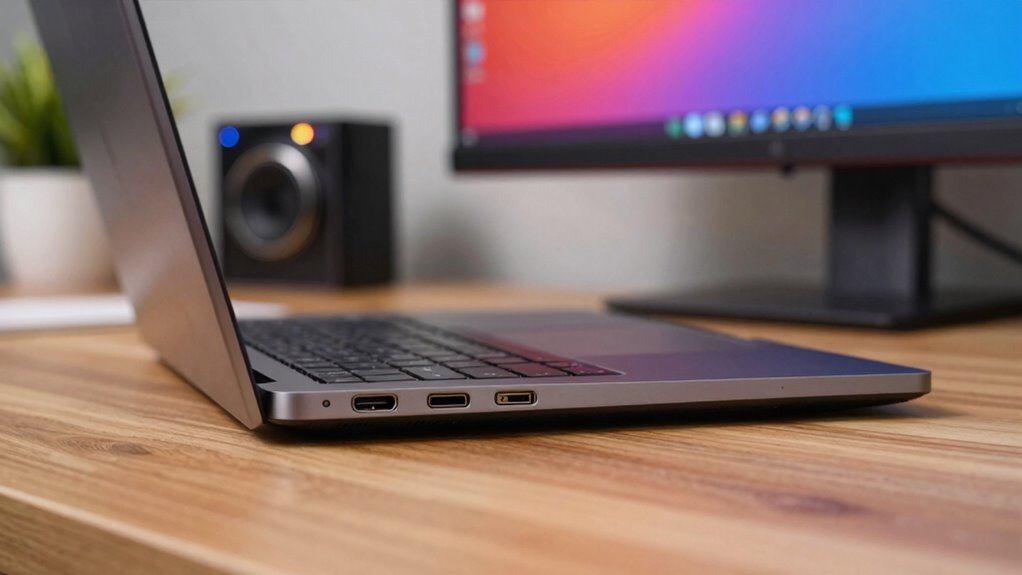
When you connect external screens to your laptop, understanding the ports is key. USB-A and USB-C are common, with USB-C offering charging and versatile connections. HDMI supports high-definition video and audio for TVs and monitors. DisplayPort is ideal for multiple displays, while VGA is outdated and often limits resolution. Thunderbolt provides speedy data transfers and can connect various devices. Knowing these details can enhance your setup—there’s more to discover about optimizing your connections!
Key Takeaways
- USB-C Versatility: Supports charging, data transfer, and video output, making it ideal for connecting external screens and peripherals.
- HDMI for Easy Setup: Commonly used for monitors and TVs, HDMI provides high-definition video and audio for seamless connections.
- DisplayPort for Multitasking: Best for high-resolution displays, it allows daisy-chaining multiple monitors, enhancing productivity for graphic tasks.
- Know Your Adapters: VGA ports are outdated; ensure you have the right adapters for modern displays to avoid compatibility issues.
- Thunderbolt Efficiency: Offers high-speed data transfer and can connect multiple devices, maintaining an organized workspace for students.
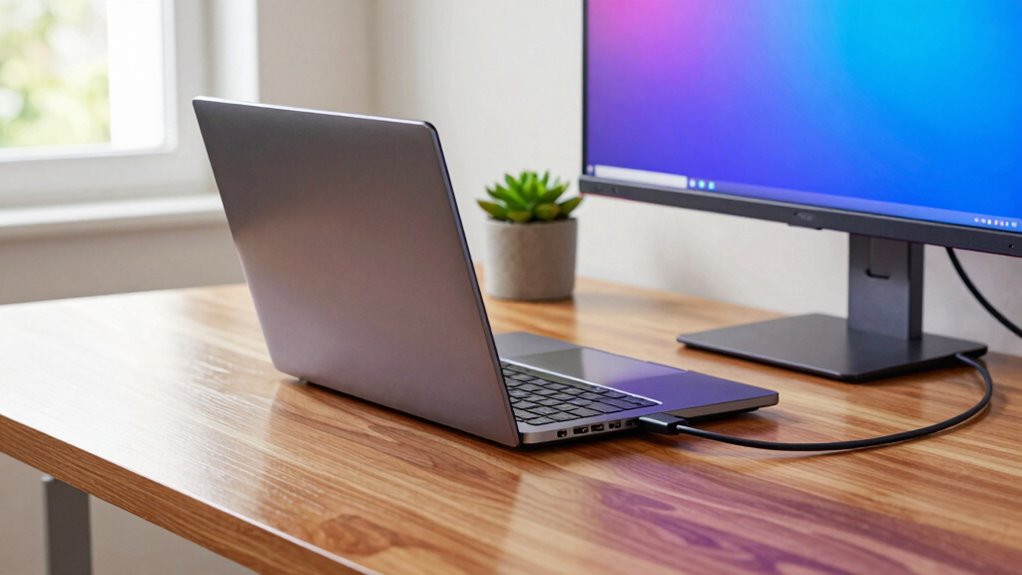
When you connect devices to your laptop, understanding the various ports can make your experience smoother. Your laptop likely features a variety of ports that serve different purposes, and knowing their functions helps you maximize your productivity, especially when using external screens.
Let’s start with USB types. You might encounter USB-A, USB-C, and even USB 3.0 or 3.1 versions. USB-C is particularly versatile, supporting charging, data transfer, and video output. If you have peripherals like external drives or keyboards, knowing which USB type to use guarantees they connect seamlessly. It’s worth noting that not all USB ports are created equal, so check the specifications to understand what each one can do.
Next up are HDMI differences. HDMI is a common choice for connecting to external monitors and TVs. It supports high-definition video and audio, making it ideal for presentations or streaming. However, keep in mind that HDMI cables can vary in versions, with newer versions supporting higher resolutions and refresh rates. If you’re into gaming or graphic design, you’ll want to verify your cable and port can handle the demands of your external display. The presence of port standards can influence your setup’s capabilities and compatibility.
DisplayPort uses are another crucial aspect to evaluate. This port is often preferred for high-resolution displays and multiple monitor setups. It can daisy-chain multiple screens, which can be a game-changer for multitasking. If you’re working with intensive graphic tasks or require better refresh rates, DisplayPort might be your best bet. Additionally, compatibility with different monitors can ensure a more flexible and efficient workspace. Understanding video output standards can help you select the best connections for your needs. Many modern laptops support multi-monitor setups, allowing for more expansive and efficient workspaces.
VGA limitations can be a concern. While VGA ports still exist, they’re largely outdated and only support lower resolutions. If you find this port on your laptop or monitor, you might need an adapter to connect to modern displays, which can be a hassle.
Thunderbolt benefits can’t be overlooked either. If your laptop has Thunderbolt ports, you’re in luck. These ports offer high-speed data transfer and can connect multiple devices, including external displays. It’s a great option if you want to keep your workspace tidy and efficient. Understanding port standards can help you choose the best connections for your setup.
Lastly, don’t forget about audio jacks. While many laptops come with built-in speakers, connecting external speakers or headphones can enhance your audio experience. Check the specifications to know if you need an adapter for your audio devices, especially if you’re using USB-C connections.
USB-C to HDMI adapter for laptops
As an affiliate, we earn on qualifying purchases.
As an affiliate, we earn on qualifying purchases.
Frequently Asked Questions
What Type of Cables Do I Need for Dual Monitors?
For dual monitors, you’ll need either HDMI cables or DisplayPort cables, depending on your monitors’ ports. If your laptop has USB-C connections, you can use USB-C to HDMI or DisplayPort adapters too. If you’re dealing with older monitors, VGA adapters might be necessary. Just verify your laptop supports multiple displays, and you’re good to go. With the right cables, you’ll easily set up your dual monitor setup!
Can I Connect Multiple External Screens at Once?
Yes, you can connect multiple external screens at once, like adding more canvases to your art studio. Just verify your laptop supports it. Adjust your display settings to manage screen resolutions effectively; you might need to tweak them for ideal visuals. Check your ports and cables to make sure everything fits snugly. With the right setup, you’ll create a seamless workspace that enhances your productivity and creativity.
Are Adapters Necessary for Older Laptops?
Yes, adapters are often necessary for older laptops. These devices help bridge compatibility issues between your laptop’s ports and the newer screens. You’ll encounter various adapter types, such as HDMI to VGA or USB-C to HDMI, depending on your needs. Before purchasing, check your laptop’s specifications to verify the adapter you choose works well with your setup. It’ll save you time and frustration when connecting multiple external displays.
How Do I Switch Between Screens on My Laptop?
To switch between screens on your laptop, you can use screen mirroring or extend your display. First, right-click on your desktop and select “Display settings.” From there, choose how you want to use the screens—either duplicate or extend. If you’re using an external monitor, make sure it’s connected properly. After adjusting your settings, just press the appropriate function key (like F4 or F8) to toggle between screens easily.
What Are the Best External Monitors for Students?
For students, the best external monitors combine affordability with great performance. Look for models around 24 inches that offer at least 1080p screen resolution for clear visuals. Brands like ASUS and Dell provide reliable, budget-friendly options. If you need something larger, consider a 27-inch monitor with similar resolution. These choices help enhance your study experience, letting you multitask efficiently without breaking the bank.
multi-monitor DisplayPort splitter
As an affiliate, we earn on qualifying purchases.
As an affiliate, we earn on qualifying purchases.
Conclusion
To sum up, understanding laptop ports is essential for maximizing your external screen experience. Did you know that 73% of students report improved productivity when using multiple screens? By knowing which ports your laptop has—like HDMI, USB-C, or DisplayPort—you can easily connect to external displays and elevate your study sessions. Don’t underestimate the power of visual space; it could be the key to better focus and efficiency in your academic pursuits!
Thunderbolt 3 external hard drive
As an affiliate, we earn on qualifying purchases.
As an affiliate, we earn on qualifying purchases.
laptop VGA to HDMI converter
As an affiliate, we earn on qualifying purchases.
As an affiliate, we earn on qualifying purchases.