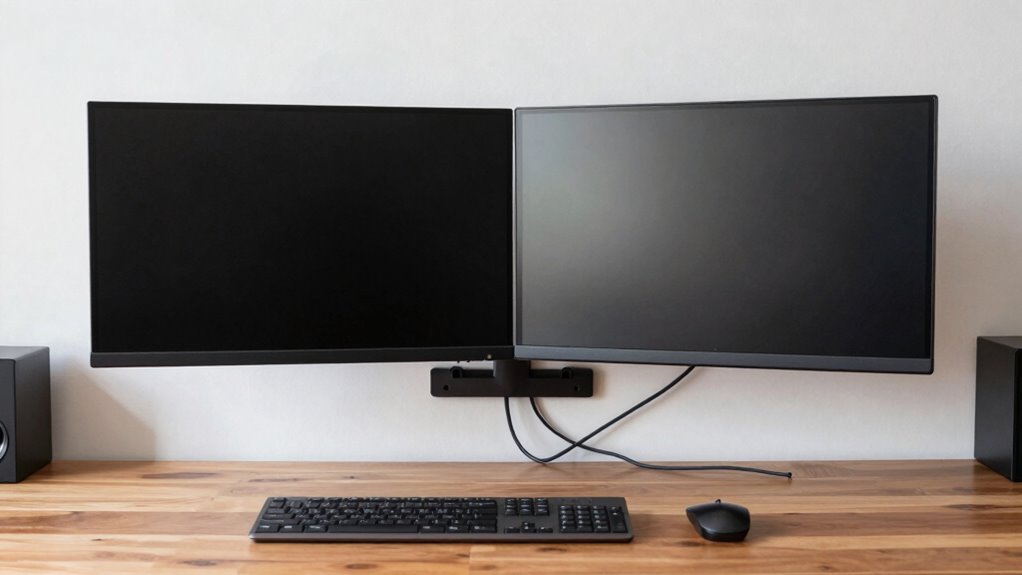

To build a dual-monitor setup without wasting desk space, consider using wall mounts or adjustable desk arms. These not only save space but also allow you to customize height and angle for better ergonomics. Keep cables organized by measuring lengths and using ties or clips to minimize clutter. Labeling cables can make future adjustments easier. A well-organized, space-efficient setup boosts productivity and comfort—stick around to discover more tips for optimizing your workspace!

Get business pricing on monitors, keyboards and dev gear
- Business-only prices and quantity discounts
- Tax-exempt purchasing
- Multiple users, one account, clear invoices
Key Takeaways
- Utilize wall mounts or desk-mounted arms to save desk space and enhance aesthetics in your dual-monitor setup.
- Implement effective cable management techniques to minimize clutter and maintain a tidy workspace.
- Position monitors at eye level using adjustable mounts to improve ergonomics and reduce neck strain.
- Conduct a workspace evaluation to ensure openness and efficiency, optimizing dual-monitor functionality.
- Regularly organize cables and monitor placements to adapt your setup for better performance and productivity.

Setting up a dual-monitor system can transform your workspace and boost productivity. You’ll be amazed at how much more efficient you can be when you have extra screen real estate. To get started, you’ll want to reflect on your monitor mounting options. Choosing the right mount isn’t just about aesthetics; it’s also essential for maximizing your desk space. Wall mounts or desk-mounted arms can help lift your monitors off the surface, giving you more room for other essentials like your keyboard, mouse, or even a notebook.
When selecting a monitor mount, verify it’s compatible with your monitors’ size and weight. Adjustable arms allow you to position your screens at the perfect height and angle, reducing neck strain and improving ergonomics. You’ll find that this flexibility makes it easier to focus on your tasks. Once you’ve decided on the mounting solution, it’s time to tackle cable management. Cables can quickly become a tangled mess, taking away from the clean, organized look you want for your dual-monitor setup.
Ensure your monitor mount is compatible and adjustable for optimal ergonomics, then tackle cable management for a clean, organized dual-monitor setup.
Start by measuring the distance between your monitors and your computer. This way, you can buy cables that are just the right length. Avoid excess cable length, as it often leads to clutter. Use cable ties or clips to bundle and secure the cables along your mount or desk. If you’re going for a wall-mounted setup, think about running the cables through the wall for a truly seamless look. This step not only keeps your space tidy but also protects the cables from damage. Incorporating cable management techniques can further enhance the organization and safety of your workspace. Additionally, considering ergonomic principles can help you design a setup that minimizes fatigue and discomfort during long working hours. Proper monitor placement can also significantly improve your posture and reduce eye strain, making your workspace more comfortable overall. Implementing filtration/suction basics in your workspace can ensure that your environment remains clean and healthy, especially if your setup involves any electronic equipment that generates dust or heat.
Furthermore, choosing adjustable mounts that allow for monitor height adjustments can help accommodate different users and tasks, promoting better ergonomics. Another great tip is to label your cables. When you eventually need to unplug or replace something, you’ll appreciate knowing exactly which cable goes where. This small investment of time in organization will pay off later when you need to troubleshoot or upgrade your system.
With monitors mounted and cables neatly managed, take a step back and evaluate your workspace. You’ll likely notice a significant difference in how open and inviting it feels. Your dual-monitor setup isn’t just about having two screens; it’s about creating an environment that fosters productivity. You’ll find it easier to multitask, whether you’re juggling emails, documents, or even video calls. Before you know it, you’ll be maximizing your efficiency, all while enjoying the benefits of a neatly organized workspace.
As an affiliate, we earn on qualifying purchases.
Frequently Asked Questions
Can I Use Different Brands of Monitors Together?
Yes, you can use different brands of monitors together, but pay attention to monitor compatibility. Make certain they support similar resolutions and refresh rates for the best experience. Brand considerations matter too; some brands have better color accuracy or features than others. Mixing brands might lead to slight differences in display quality, but if you match specs closely, you’ll still enjoy a functional dual-monitor setup without major issues.
How Do I Adjust the Resolution for Each Monitor?
Adjusting the resolution for each monitor is like tuning a musical instrument—each needs its own perfect pitch. Start by right-clicking on your desktop and selecting “Display settings.” Here, you’ll find the resolution settings for each monitor. Choose the desired resolution for both, ensuring they complement each other. Don’t forget about display scaling; it helps keep things visually consistent, making your dual setup a harmonious workspace. Enjoy the clarity!
What Cables Do I Need for Dual Monitors?
You’ll need HDMI, DisplayPort, or VGA cables, depending on your monitors’ compatibility. Check each monitor’s ports to avoid compatibility issues. It’s also a good idea to get a couple of cable organizers to keep things tidy. Use Velcro ties or clips for better cable management, ensuring your setup stays neat and functional. This way, you can focus on your tasks without the distraction of tangled cables around your workspace.
Are There Software Solutions for Managing Dual Monitors?
Did you know that using dual monitors can boost productivity by up to 40%? To manage your dual monitors effectively, consider monitor management tools like DisplayFusion or Ultramon. These applications let you customize your workspace, making it easier to switch between tasks. You might also explore virtual desktop applications, which help organize your windows across screens, enhancing your workflow. With the right software, you’ll maximize your dual-monitor setup seamlessly!
Does a Dual-Monitor Setup Affect Computer Performance?
Yes, a dual-monitor setup can affect your computer’s performance, but the impact often depends on your system’s specs. If you’ve got a powerful GPU, you’ll enjoy productivity benefits and an enhanced gaming experience without issues. However, older systems might struggle with the extra load, causing slowdowns. Balancing your hardware with your needs guarantees you maximize the advantages of dual monitors while maintaining smooth performance for both work and play.
As an affiliate, we earn on qualifying purchases.
Conclusion
Building a dual-monitor setup doesn’t have to clutter your workspace. With the right tools and some clever organization, you can create an efficient, streamlined environment that feels like a well-conducted symphony, each monitor playing its part in perfect harmony. So, embrace the dual-monitor experience and watch your productivity soar, transforming your desk into a powerhouse of creativity and focus. You’re not just setting up screens; you’re crafting a space where ideas can truly flourish.
cable management clips for monitors
As an affiliate, we earn on qualifying purchases.
As an affiliate, we earn on qualifying purchases.
As an affiliate, we earn on qualifying purchases.
Halloween Picks
halloween
As an affiliate, we earn on qualifying purchases.