


This checklist is for software developers, QA professionals, and technical teams building a desk setup for focused work, testing, and everyday collaboration. It covers core display, input, connectivity, laptop-positioning, and listening choices.

Get monitors, keyboards and dev gear delivered free — and shop member deals
- Fast, free delivery on millions of items
- Access to Prime Big Deal Days deals on October 6–7
- Prime Video, Amazon Music and more included
The sections follow the path from what you look at and type on to how your laptop connects and where it sits. Each one explains the slot’s role, common selection mistakes, and the fit or compatibility details worth checking for the listed pick.
Use the checklist to compare each product with your actual workflow, devices, and available desk space. Before buying, verify model details and compatibility—especially ports, operating-system support, dimensions, and whether the configuration suits your intended setup.
Ultrawide Monitor
A monitor shapes how comfortably you can keep code, documentation, test results, and communication tools in view. The Samsung 57-Inch Odyssey Neo G9 Dual UHD Curved Gaming Monitor (G95NC) is the pick for this slot. Before choosing a display this large, measure the desk’s usable width and depth, check the monitor’s overall dimensions, and confirm the stand will fit without crowding your keyboard or other equipment. A curved screen can also feel different from a flat display, so consider how you prefer to scan and arrange windows.
A common mistake is treating screen size or resolution as a guarantee that the monitor will fit a particular computer. Check your laptop or desktop’s supported display output, available ports, and ability to drive the intended resolution and refresh rate; verify cable requirements and operating-system behavior as well. If your workflow depends on sharing screens or connecting multiple devices, confirm those details before purchase rather than assuming every computer will support the same configuration. Review the monitor’s physical footprint, stand adjustment, and your preferred viewing distance together. The best fit is the one your device can support and your desk can accommodate, with enough room left for comfortable daily work.
What to look for:
- Measure desk width and depth against the monitor and stand dimensions.
- Confirm your computer supports the display’s intended resolution and refresh rate.
- Check available video ports and the required cable or adapter configuration.
- Consider viewing distance and whether a curved screen suits your window layout.
- Leave practical space for the keyboard, mouse, and other desk equipment.
Samsung 57-Inch Odyssey Neo G9 Dual UHD Curved Gaming Monitor (G95NC)
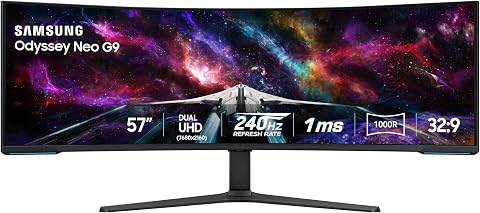
This 57-inch Dual UHD curved gaming monitor features a 1000R curve, Quantum Mini LED backlighting, and DisplayHDR 1000 for detailed visuals and high contrast. It supports a 240Hz refresh rate, 1ms response time, AMD FreeSync Premium Pro, and DisplayPort 2.1, with HDMI 2.1 and USB connectivity.
Pros:
- Large Dual UHD screen with an immersive 1000R curve
- 240Hz refresh rate and 1ms response time
- Quantum Mini LED technology and DisplayHDR 1000
- Adjustable stand and picture-by-picture support
Cons:
- Full DUHD at 240Hz requires a compatible graphics card and connection
- Actual response time may vary with content and monitor settings
Best for: Developers who want a broad display workspace and have a desk that can accommodate it.
Not ideal for: People with limited desk space or computers that cannot support the intended display configuration.
Bottom line: Choose the Samsung only after checking both your desk dimensions and your computer’s display capabilities.
Mechanical Keyboard
A keyboard is one of the most frequently used parts of a development desk, so its layout and key feel matter through long sessions of coding, writing, and testing. The Logitech MX Mechanical Wireless Illuminated Keyboard Tactile – Graphit is the pick here. Check that the exact layout matches your typing habits and the shortcuts you rely on, including any differences in key arrangement that may affect your workflow. The tactile designation is also worth considering against your preference for feedback while typing.
Do not assume that a keyboard’s name or wireless description answers every setup question. Confirm the precise model, layout, connection options, and compatibility with your computers and operating systems. If you alternate between work devices, verify that the connection method and device-switching behavior fit the way you move between them. Consider where the keyboard will sit relative to your monitor and mouse, and whether its footprint leaves enough room for comfortable arm positioning. A common buying mistake is choosing by appearance or feature list without checking layout and connection needs first. Make those checks before settling on this pick, particularly if your team’s software shortcuts or typing habits depend on a specific arrangement.
What to look for:
- Confirm the exact keyboard layout and key arrangement you need.
- Check compatibility with each computer and operating system in your setup.
- Verify wireless connection options and how they fit your device-switching routine.
- Consider whether tactile key feedback suits your typing preference.
- Measure desk space and keyboard placement alongside your mouse.
Logitech MX Mechanical Wireless Illuminated Keyboard Tactile – Graphite
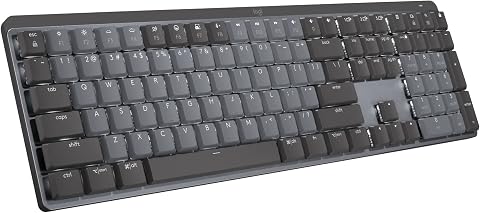
The Logitech MX Mechanical is a wireless keyboard featuring tactile quiet mechanical switches, low-profile keys for comfort, and smart backlit illumination that adjusts automatically. It supports multi-device pairing, customizable keys, and long battery life, making it suitable for efficient, ergonomic typing across multiple operating systems.
Pros:
- Quiet tactile mechanical switches for precise feedback
- Smart backlit keys that automatically adjust to lighting conditions
- Supports multi-device pairing across multiple operating systems
- Long battery life with quick USB-C charging
Cons:
- Premium price may be high for some users
- Requires Bluetooth or Logi Bolt receiver for full functionality
Best for: Developers who prefer a tactile keyboard and have confirmed the layout suits their workflow.
Not ideal for: Anyone who needs a different key arrangement or an unverified connection setup.
Bottom line: Match the keyboard’s exact layout and connectivity to your devices and daily shortcuts.
Ergonomic Mouse
A mouse affects how comfortably you navigate code, review interfaces, and move through test workflows. The Logitech MX Master 4 Ergonomic Wireless Mouse with Haptics – Graphite is the pick for this slot. “Ergonomic” does not mean it will fit every hand or grip, so consider the mouse’s shape in relation to your hand size and the way you hold a mouse. If possible, assess whether the form feels natural before committing to extended use.
Check the exact model’s connection options and confirm compatibility with the computers and operating systems you use. If you switch between devices, make sure the available workflow fits your routine rather than assuming the mouse will connect or switch in a particular way. Also consider desk surface, mouse-pad space, and the reach between the mouse and keyboard; cramped placement can undermine a setup that otherwise looks well planned. A common mistake is focusing on a feature name while overlooking comfort, fit, and device compatibility. Review those practical details together, and make sure the mouse’s footprint works alongside your keyboard and other desk equipment. Choose based on your hand, connection needs, and everyday pointer tasks—not the product category alone.
What to look for:
- Consider whether the mouse’s shape suits your hand size and grip.
- Confirm connection options work with your computers and operating systems.
- Check how the mouse fits your routine if you switch between devices.
- Allow adequate mouse-pad and desk space beside the keyboard.
- Assess comfort for the pointer tasks you perform throughout the workday.
Logitech MX Master 4 Ergonomic Wireless Mouse with Haptics – Graphite

The Logitech MX Master 4 is an ergonomic wireless mouse featuring haptic feedback, customizable shortcuts, and a high-precision MagSpeed scroll wheel. It offers fast connectivity, long battery life, and sustainable materials, making it ideal for productivity and comfort across various devices.
Pros:
- Highly customizable with haptic feedback and shortcut controls
- Fast, precise MagSpeed scroll wheel suitable for various tasks
- Long battery life with quick charging capability
- Ergonomic design reduces hand stress for comfortable use
Cons:
- Requires Logi Options+ app for full customization
- Charging cable not included
- Premium price may be high for some users
Best for: Developers seeking an ergonomic wireless mouse whose shape and connections suit their setup.
Not ideal for: People whose preferred grip or device requirements do not match the mouse.
Bottom line: Prioritize hand fit and verified connectivity over assumptions based on the ergonomic label.
USB-C Docking Station
A docking station can be the connection point for a laptop-centered desk, but only if its ports and display support match the actual computer and accessories. The Plugable 13-in-1 USB-C Docking Station with Triple 4K Display Support is the pick for this slot. Start by checking your laptop’s USB-C port capabilities: connector shape alone does not confirm that it supports every display or docking feature you want. Compare the dock’s listed ports with the monitors, storage, and other devices you plan to attach.
The product name describes triple 4K display support, but that does not by itself establish that every laptop can use three displays through this dock. Verify the host computer’s operating system, graphics and USB-C capabilities, supported display arrangement, and any required software or adapters against the manufacturer’s current compatibility information. A common mistake is counting ports without checking what the laptop can drive at the same time. Also consider cable reach and where the dock will sit so connections remain practical on your desk. If your setup relies on multiple monitors, make compatibility confirmation a purchase prerequisite. The right dock is the one that supports your computer and the specific combination of displays and peripherals you plan to connect.
What to look for:
- Confirm your laptop’s USB-C port supports the functions you need.
- Check the dock’s ports against your monitors and other peripherals.
- Verify host-computer support for your planned display count and arrangement.
- Review operating-system compatibility and any required software or adapters.
- Plan cable reach and dock placement before arranging the desk.
Plugable 13-in-1 USB-C Docking Station with Triple 4K Display Support and 100W C

Connect up to three 4K 60Hz displays, USB accessories, Ethernet, audio, and SD cards through one USB-C connection. The dock provides up to 100W laptop charging and a front USB-C port with up to 20W accessory charging.
Pros:
- Supports up to three 4K 60Hz displays
- Provides up to 100W laptop charging
- Offers broad connectivity through one USB-C connection
- Includes lifetime customer support
Cons:
- macOS requires DisplayLink drivers and Screen Recording permission
- Does not support HDCP-protected streaming content
Best for: Laptop users whose devices and displays are confirmed compatible with the dock.
Not ideal for: People who have not checked host support for their planned monitor configuration.
Bottom line: Match the dock to your laptop’s capabilities and exact peripheral combination before buying.
Laptop Stand
A laptop stand can help organize the screen position on a desk, but height and placement should suit both the laptop and the person using it. The Nulaxy 18″ Height Telescopic 360° Rotating Aluminum Laptop Stand, Gray is the pick for this slot. Check the product’s full dimensions and confirm that its stated maximum height works with your preferred viewing position. Consider your chair, desk height, and external keyboard and mouse together; raising a laptop screen without separate input devices may leave your arms and wrists in an awkward position.
Before choosing, confirm that the stand is appropriate for your laptop’s size and weight using current product specifications, and check whether the base and rotating platform have enough room on your desk. A common mistake is focusing on adjustability without checking stability, footprint, or how the laptop’s ports and cables will be positioned once raised. Think through whether you need to access the laptop keyboard or connect and disconnect cables during the day. Also verify that the stand can be adjusted to the positions you actually intend to use; the model name alone does not tell you whether every angle will suit your workspace. Treat the 18-inch height and 360-degree rotation as details to assess against your real setup, not as a substitute for fit checks.
What to look for:
- Compare the stand’s dimensions and supported laptop specifications with your device.
- Check whether the maximum height suits your chair and desk arrangement.
- Plan to position an external keyboard and mouse comfortably if the laptop is raised.
- Measure desk space for the base and rotating platform.
- Consider cable access and stability at your intended adjustment positions.
Nulaxy 18" Height Telescopic 360° Rotating Aluminum Laptop Stand, Gray
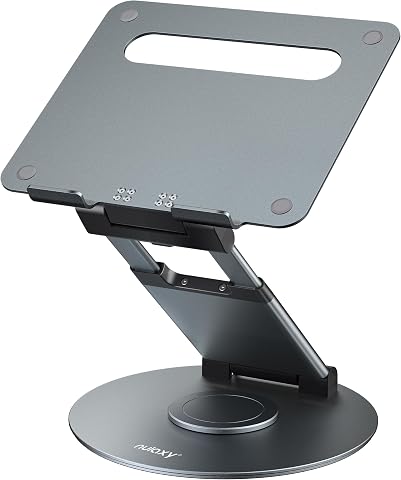
This adjustable laptop stand features 360° rotation, height up to 18 inches, and tilt angle adjustment for ergonomic comfort. It supports laptops up to 17 inches and can hold up to 22 pounds, making it ideal for collaborative work and comfortable viewing.
Pros:
- 360° rotation for easy sharing and collaboration
- Adjustable height and tilt for ergonomic comfort
- Supports laptops up to 17 inches and 22 lbs
Cons:
- Requires external keyboard and mouse for optimal use
- Laptops should be removed before adjusting height or angle
Best for: Laptop users who have confirmed the stand’s dimensions and height suit their workspace.
Not ideal for: People who need a compact fixed setup or have not checked laptop fit.
Bottom line: Check laptop support, desk footprint, and input-device placement before raising the screen.
Noise-Canceling Headphones
Headphones can be useful when you need a personal listening setup for focused work or calls, but comfort and device compatibility are individual and practical concerns. The listed pick is Bose QuietComfort Wireless Noise Cancelling Over-Ear Headphones (Sands. Because the product name appears incomplete after “Sands,” verify the exact model and finish before buying. Also confirm the connection options and compatibility with the computer or other devices you plan to use.
Over-ear headphones should feel comfortable for the duration you expect to wear them, so consider fit, adjustability, and whether the earcups suit your preferences. Do not assume noise cancellation or wireless functionality will work identically across every device or application; check current product details for supported connections and relevant controls. A common mistake is selecting headphones by category alone without considering how they will be used for meetings, listening, or switching between work devices. Confirm that the exact model meets those needs and that any call or audio workflow you rely on is supported. Since the product name is truncated, resolve that listing detail first, then compare fit, controls, and device compatibility with your day-to-day routine.
What to look for:
- Verify the complete product name and exact model before ordering.
- Check supported wireless connections against your work devices.
- Consider over-ear fit and comfort for your expected wear time.
- Confirm the controls and audio features suit your meeting and listening workflow.
- Review compatibility with the applications and devices you use.
Bose QuietComfort Wireless Noise Cancelling Over-Ear Headphones (Sandstone)

The Bose QuietComfort headphones combine active noise cancellation with a comfortable over-ear design, plush cushions, and a padded headband for long listening sessions. They offer Quiet and Aware listening modes, adjustable EQ high-fidelity audio, up to 24 hours of battery life, and a 15-minute USB-C quick charge for 2.5 extra hours of playback.
Pros:
- Excellent active noise cancellation with Quiet and Aware listening modes
- Long 24-hour battery life with fast USB-C quick charging
- Comfortable plush ear cushions and padded headband for extended sessions
- Multipoint Bluetooth and wired option add versatility
Cons:
- Requires Bose app for software updates and full feature access
- Battery is not swappable, though wired mode mitigates this
Best for: People seeking over-ear wireless noise-canceling headphones after verifying the listing and device fit.
Not ideal for: Anyone unable to confirm the truncated model details or required device compatibility.
Bottom line: Resolve the incomplete product name and check comfort and connection needs before choosing.
For a budget-first buying order, start with the items that solve the most immediate work constraints: confirm your computer and monitor compatibility, then prioritize the keyboard, mouse, or dock that addresses a real daily need. Add a laptop stand after checking desk ergonomics and device fit, and choose headphones based on your listening and meeting routine. You can build the setup in stages rather than replacing everything at once.
A dependable desk comes from fit, compatibility, and comfort, not simply from collecting accessories. Measure your space, verify product details against your devices, and choose the pieces that support the way you actually work. Use this checklist as a practical starting point, then refine the setup as your needs become clearer.
Halloween Picks
halloween
As an affiliate, we earn on qualifying purchases.