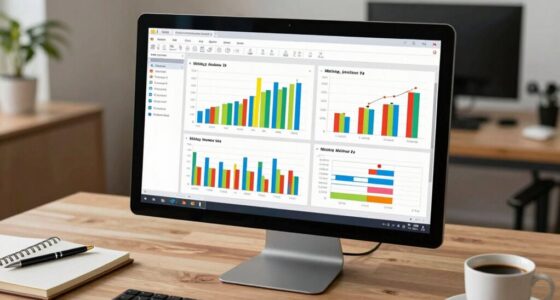

Excel PivotTables help you quickly analyze large data sets by summarizing, organizing, and visualizing information with just a few clicks. You can easily drag fields into rows, columns, filters, and values to create customized views of your data. Filters and visual tools like charts make it simple to spot trends and patterns. Mastering PivotTables saves time and enhances your data insights—if you keep exploring, you’ll uncover even more effective techniques.

Get business pricing on monitors, keyboards and dev gear
- Business-only prices and quantity discounts
- Tax-exempt purchasing
- Multiple users, one account, clear invoices
Key Takeaways
- PivotTables quickly summarize and organize large datasets, revealing key insights through flexible data aggregation.
- Drag and drop fields to customize views, switch between summaries and detailed data effortlessly.
- Apply advanced filters to focus on specific data segments, enhancing analysis precision.
- Use charts and formatting options to visualize trends and patterns clearly within PivotTables.
- Save time and improve reporting efficiency by dynamically reorganizing data without manual calculations.

Have you ever wished you could quickly analyze large amounts of data in Excel? PivotTables are your go-to tool for transforming complex data sets into clear, actionable insights. They allow you to summarize, organize, and explore data effortlessly, making your data analysis faster and more intuitive. One of the key strengths of PivotTables is their ability to facilitate data visualization, helping you spot trends and patterns at a glance. When you create a PivotTable, you can drag and drop fields into different areas—rows, columns, values, and filters—to customize how your data is displayed. This dynamic approach enables you to visualize your data differently and gain new perspectives without complex formulas or manual calculations. Additionally, mastering advanced filtering options can further enhance your ability to focus on specific data subsets within a PivotTable. Instead of sifting through rows manually, you can apply filters to narrow down your data based on specific criteria, such as date ranges, categories, or numerical thresholds. This feature is especially useful when working with large datasets, as it allows you to isolate the information most relevant to your analysis. You can even combine multiple filters to refine your view further, giving you granular control over what data you’re examining. Using advanced filtering in conjunction with PivotTables makes it easier to drill into details or compare different segments quickly, saving you time and effort. Creating a PivotTable is simple, but mastering its filtering and visualization features uncover its full potential. As you set up your PivotTable, think about how best to visualize your data—whether through charts, conditional formatting, or custom layouts—to communicate your findings effectively. The power of PivotTables lies in their flexibility; you can switch between summarized views and detailed data with just a few clicks. This adaptability makes them invaluable for ongoing analysis, report generation, or even presenting data to others. As you become more comfortable with advanced filtering and data visualization techniques, you’ll find that PivotTables become an indispensable part of your Excel toolkit.
As an affiliate, we earn on qualifying purchases.
Frequently Asked Questions
How Do I Update Pivottables With New Data Automatically?
You can set your PivotTables to update automatically with new data by using dynamic data refresh and automation techniques. First, convert your data range into a table (Ctrl + T), which enables auto-expansion. Then, right-click the PivotTable and select “Refresh” or enable “Refresh data when opening the file” in options. For continuous updates, consider creating a macro or using Power Query to automate the refresh process, ensuring your data stays current effortlessly.
Can Pivottables Handle Multiple Data Sources Simultaneously?
Yes, PivotTables can handle multiple data sources simultaneously through data consolidation. When you set up a PivotTable, you can choose to connect to multiple ranges or tables, allowing you to analyze combined data effortlessly. This feature is perfect when you want a unified view of diverse datasets, making your analysis more extensive. Just guarantee your data sources are compatible and properly structured for seamless integration.
What Are Common Errors When Creating Pivottables?
You might encounter common errors when creating PivotTables, like data source errors that cause incomplete or incorrect summaries. Field misalignments happen if you select inconsistent data ranges or forget to refresh your PivotTable after updating the source data. To avoid these issues, double-check your data source, confirm all fields are correctly aligned, and refresh the PivotTable regularly. This helps ensure your analysis remains accurate and reliable.
How Do I Customize Pivottable Styles for Better Readability?
To customize PivotTable styles for better readability, you can explore various Formatting options available in the Design tab. Choose from preset Color schemes to make data stand out, or create custom styles by modifying font, shading, and borders. Adjust these settings to match your preferences, ensuring your PivotTable is visually clear and easy to interpret. This customization helps highlight key insights and improves overall data presentation.
Are There Keyboard Shortcuts for Faster Pivottable Navigation?
Imagine wielding your keyboard like a master key, unlatching swift navigation through your PivotTable. Yes, there are shortcut keys—like pressing Alt + J, T, and then C—to move quickly or expand fields. You can also use arrow keys for navigation, Enter to select, and Tab to jump between areas. Mastering these shortcuts transforms your data analysis into a smooth, efficient journey, saving you time and boosting productivity.
Excel PivotTable data analysis tool
As an affiliate, we earn on qualifying purchases.
As an affiliate, we earn on qualifying purchases.
Conclusion
Don’t let the complexity of PivotTables intimidate you. With a little practice, you’ll quickly see how they simplify data analysis and reveal insights you might miss otherwise. Sure, it takes some time to master, but the time invested pays off when you make smarter, faster decisions. So jump in, experiment, and you’ll soon wonder how you ever managed without them. PivotTables are your secret weapon for making sense of your data—start using them today!
As an affiliate, we earn on qualifying purchases.
advanced Excel filtering software
As an affiliate, we earn on qualifying purchases.
As an affiliate, we earn on qualifying purchases.
Halloween Picks
halloween
As an affiliate, we earn on qualifying purchases.