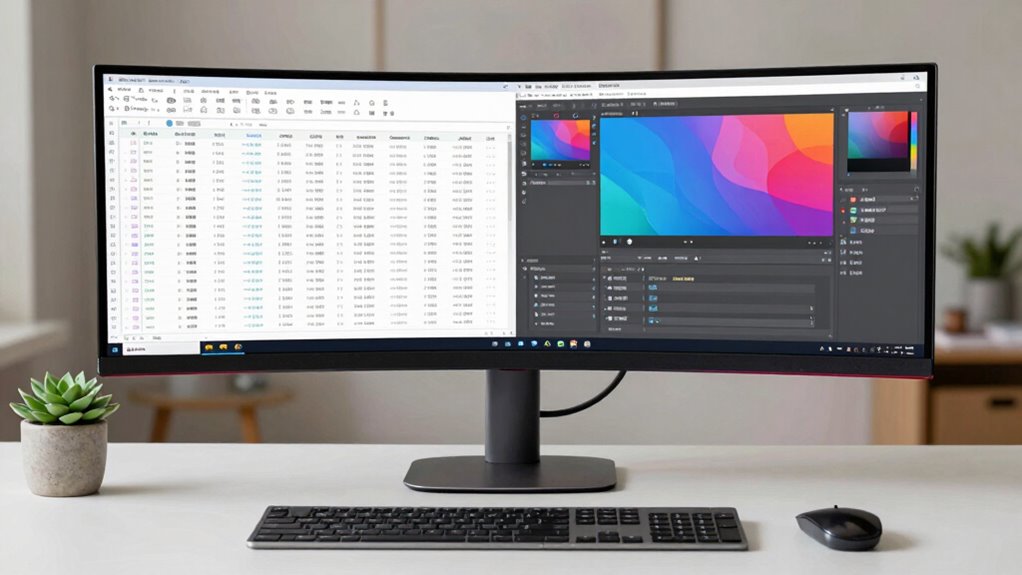
You can make your single monitor feel like two by using virtual desktops and split-screen functionality. Just access Task View or use keyboard shortcuts like Win + Left or Right Arrow to snap windows side by side. Organize your most-used apps on one desktop for focus, and switch quickly to other desktops for less critical tasks. These techniques enhance your multitasking experience and boost productivity. Keep exploring to discover even more effective workspace strategies!
Key Takeaways
- Utilize virtual desktops to separate tasks, creating distinct workspaces for different projects or activities.
- Employ split-screen functionality to view two applications side-by-side, enhancing multitasking efficiency.
- Use keyboard shortcuts like Win + Left/Right Arrow to quickly snap windows to the sides of your screen.
- Organize frequently used applications on one desktop for focused work, reducing distractions from other tasks.
- Continuously practice window management techniques to optimize your single monitor’s functionality, mimicking a dual-monitor setup.
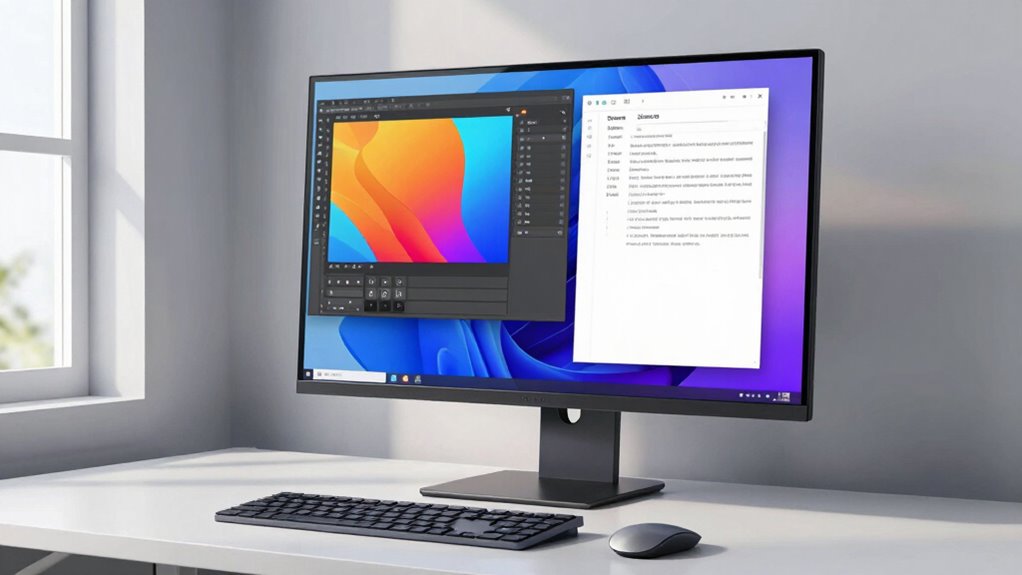
If you’re tired of constantly switching between windows on a single monitor, you can easily create a dual-monitor experience without the extra hardware. Using virtual desktops and split-screen features can greatly enhance your workflow, allowing you to manage multiple applications seamlessly. It’s all about how you utilize the tools available on your operating system.
Start by exploring your computer’s built-in virtual desktop feature. On Windows, you can create multiple desktops by clicking the Task View button or pressing Win + Tab. This allows you to separate different tasks, like work and personal projects, keeping your workspace organized. You can switch between these virtual desktops quickly, which fundamentally gives you the feel of having multiple monitors. Incorporating window management techniques can help you optimize your screen real estate even further. Additionally, understanding OS know‑how can help you unlock more advanced features for managing your workspace more efficiently.
Next, take advantage of the split-screen functionality. Most operating systems allow you to snap windows to either side of the screen, enabling you to view two applications side by side. For instance, you could have your email open on one side and a web browser on the other. This setup makes it easier to reference information without constantly minimizing or maximizing windows. By using this window management technique, you’ll notice how much smoother your multitasking becomes. Exploring multitasking best practices can help you further refine your workflow and maximize your limited screen space. Incorporating productivity tools can also streamline your tasks and reduce clutter.
Don’t overlook keyboard shortcuts as powerful productivity hacks. For instance, on Windows, you can use Win + Left or Right Arrow to snap a window to the left or right side of your screen. On macOS, you can click and hold the green maximize button to access split view. These shortcuts save time and reduce the hassle of manually resizing windows. Once you get into the habit of using them, you’ll find your efficiency skyrocketing.
Consider organizing your applications further. You can keep your most-used apps on one virtual desktop while relegating others to a different one. This way, you can focus on specific tasks without distractions, which is particularly useful during intense work sessions. Plus, if you need to access something from another desktop, it’s just a quick switch away. Additionally, integrating smart home automation techniques can help you manage your workspace environment more effectively, such as adjusting lighting or temperature to suit your multitasking needs.
Using these strategies, you can transform your single monitor into a powerful workspace that mimics the efficiency of dual monitors. With a bit of practice, you’ll master the art of window management, making your daily tasks feel less overwhelming. So give these tips a try, and watch your productivity soar!
monitor split screen software
As an affiliate, we earn on qualifying purchases.
As an affiliate, we earn on qualifying purchases.
Frequently Asked Questions
Can I Use Multiple Virtual Desktops on a Single Monitor?
Yes, you can use multiple virtual desktops on a single monitor! This setup offers numerous virtual desktop benefits, like organizing your workspaces for different tasks. You’ll find productivity enhancements as you switch between desktops without cluttering your screen. By dedicating each virtual desktop to specific projects or applications, you streamline your workflow and stay focused. Embrace this feature to make multitasking easier and boost your efficiency!
What Software Options Are Best for Screen Splitting?
For effective screen splitting, you’ve got several great software options. Tools like DisplayFusion and AquaSnap enhance your multitasking by allowing you to organize windows seamlessly. If you prefer productivity applications, Microsoft PowerToys offers a handy FancyZones feature for customized layouts. Additionally, tools like Divvy and GridMove can help you quickly manage your screen real estate. These options will definitely boost your productivity and make your single monitor feel much more versatile.
How Do I Adjust Screen Resolution for Better Multitasking?
Ever tried juggling too many tasks with only one hand? You can adjust your screen resolution for better multitasking by accessing your resolution settings. Go to your display settings and choose a higher resolution that fits your monitor. Don’t forget to tweak the screen scaling to make everything legible. This way, you’ll maximize your workspace and keep everything organized, making your multitasking experience much smoother and more efficient.
Will This Setup Work With Different Monitor Sizes?
Yes, this setup can work with different monitor sizes, but you’ll need to adjust your display settings for ideal monitor compatibility. Confirm your graphics card supports multiple resolutions, and tweak the scaling options to make everything look uniform. It might take some trial and error, but you’ll find a balance that works for you. Don’t forget to check the aspect ratios to avoid distortion between the monitors!
Can I Use Keyboard Shortcuts to Enhance Productivity?
Sure, you can absolutely use keyboard shortcuts to enhance productivity—because who wouldn’t want to work harder with less effort? By mastering these shortcuts, you’ll find yourself zipping through tasks in no time. Productivity tips like using Alt + Tab for quick app switching or Ctrl + C and Ctrl + V for copying and pasting can save you precious seconds. Embrace these shortcuts, and you’ll transform your workflow without even breaking a sweat!
virtual desktop tools for Windows
As an affiliate, we earn on qualifying purchases.
As an affiliate, we earn on qualifying purchases.
Conclusion
Incorporating these techniques can transform your single monitor into a dual-screen experience. Did you know that studies show productivity can increase by up to 40% with a dual-monitor setup? By mastering window management and utilizing virtual desktops, you can boost your efficiency and keep your workspace organized. So, why settle for one when you can maximize your screen real estate? Try these tips today and watch your workflow soar!
dual monitor software for single screen
As an affiliate, we earn on qualifying purchases.
As an affiliate, we earn on qualifying purchases.
window management tools for productivity
As an affiliate, we earn on qualifying purchases.
As an affiliate, we earn on qualifying purchases.